













JBL Headphones in Canada: A Complete, Candid Guide to Sound, Features, and Smart Buying
If you’ve been eyeing a new pair of JBL headphones and wondering which model fits your life in Canada—your commute on the SkyTrain, a Cubans game-day watch party in Toronto, or Zoom calls in a small condo—this guide will help you choose with confidence. We’ll break down the lineup, explain the features that matter (and what’s just marketing), and share practical tips for Canadian buyers: where to find the best deals, how returns and warranties really work here, and what to expect from battery life in a February cold snap. By the end, you’ll know exactly which JBL wireless earbuds or over-ear cans belong on your head—and how to get the most from them.
Why Consider JBL? The Real-World Case for the Brand
JBL sits at a sweet spot: mainstream pricing with sound that’s lively and fun. The company has pro-audio roots—its parent, Harman, designs everything from studio monitors to car audio systems—so even its budget models tend to land on a tuning that people enjoy out of the box. If you like pop, hip-hop, EDM, or anything with a proper beat, JBL’s “Pure Bass” signature can be addictive without getting cartoonish when you keep the volume sensible. And unlike some brands that lock you into a single ecosystem, JBL headphones play nicely with iPhone, Android, Windows, and Mac.
Across the range, you’ll find practical features Canadians actually use: multipoint Bluetooth for juggling work and personal phones, adjustable noise cancelling for the TTC or STM, and rugged IP ratings for winter slush and summer sweat. You also get a strong app for custom EQ and firmware updates. The value is often excellent, especially when Canadian retailers slash prices around Black Friday, Boxing Day, and back-to-school.
The JBL Headphones Lineup at a Glance
JBL’s catalog changes every year, but most models fall into a few families. The names can get confusing, so think by use-case first, then match a family that fits.
True Wireless Earbuds: Tune, Live, Reflect, and Tour
These are the pocketable buds you see everywhere. JBL splits them into tiers:
- Tune: Budget-friendly, everyday listening. Typically IPX4 splash resistance, simple controls, and a bass-forward sound. Great for podcasts, music, and gym sessions if you’re not doing burpees nonstop.
- Live: Mid-range with more features: better microphones, active noise cancelling (ANC) on many models, and the JBL Headphones app with customizable EQ and sound modes.
- Reflect: Sports-focused, with higher water/sweat resistance and stabilizing fins. Pick these if your playlist lives at GoodLife or on a snowy morning run around the seawall.
- Tour: Premium earbuds with stronger ANC, more refined tuning options, and extras like improved transparency (Ambient Aware) and advanced call features.
Most JBL earbuds ship with three sizes of silicone tips; some include extra stabilizers. Pay attention to the fit: if you have smaller ears, choose compact cases and low-profile housings so your winter toque doesn’t press on them.
On-Ear and Over-Ear Headphones: Tune, Live, and Tour
Over-ear JBL headphones are ideal if you want comfort, bigger drivers, and longer battery life. The families mirror the earbuds: Tune for budget, Live for mid-range with ANC and multipoint, and Tour for premium ANC and better build. Over-ears suit home offices, flights between Vancouver and Toronto, and long study sessions where you don’t want to charge every day.
On-ears rest on the ear (lighter, more compact), while over-ears surround it (better isolation, often more comfortable for hours). If you wear glasses, over-ears with plush pads are kinder to your temples.
Gaming Headsets: JBL Quantum Series
JBL’s Quantum line targets console and PC players. You’ll see versions that connect via 3.5 mm, USB, or low-latency 2.4 GHz dongles. Many include a detachable or flip-up boom mic, spatial sound modes, and RGB accents. Choose USB or 2.4 GHz for PCs and PlayStation; for Xbox, ensure the specific model supports Xbox wireless or has a 3.5 mm connection to the controller. Sound is punchy and cinematic, with tuning aimed at footsteps and positional cues.
Kids’ Headphones: JBL JR
JBL JR models are designed for smaller heads with volume-limiters that cap output around 85 dB. They’re a smart pick for remote learning, tablets, and road trips. The build is often durable and colourful, and some include wired and wireless modes. As always, supervise volume and give young ears breaks; safe listening habits matter more than any sticker on the box.
Sound Quality Deep Dive: What to Expect from JBL
Audio taste is personal, but patterns emerge. JBL headphones lean lively, with elevated bass and a clear upper-mid presence to keep vocals audible. It’s an energetic house sound that suits mainstream genres and video content. If you’re coming from flat reference headphones, JBL will likely feel more fun; if you’re a bass skeptic, plan to use the app EQ.
“Pure Bass” Explained (and How to Tame It)
JBL’s “Pure Bass” branding doesn’t mean “only bass.” It signals a tuning where sub-bass and mid-bass have some lift, giving kick drums and synths real weight. The good news: the JBL Headphones app includes a 10-band or multi-band EQ (varies by model). A quick -2 to -4 dB cut around 80–120 Hz often balances things without killing the groove. If vocals feel a bit forward or sibilant, ease 2–4 kHz slightly. Start small; tiny nudges usually fix what bugs you.
Bluetooth Codecs and Why They Matter
Most JBL Bluetooth headphones support SBC and AAC. On iPhone and iPad, AAC is the go-to and performs reliably. On many Android phones, AAC is fine, but SBC can be more stable in chaotic RF conditions. A handful of premium JBL models add higher-bitrate options; availability varies by release cycle, so check the official spec sheet if you care about “hi-res” badges. In practical daily listening, tuning and driver quality matter more than codec logos. If you want the lowest latency for gaming, a USB dongle or wired mode still wins.
ANC vs. Passive Isolation
Active noise cancelling on JBL headphones has improved, especially on Tour and newer Live models. Expect solid low-frequency reduction (bus rumble, HVAC) and decent midband performance (office chatter). Over-ear ANC generally beats earbud ANC because of passive seal plus counter-noise. If you ride the STM, SkyTrain, or GO Transit, you’ll notice a calmer soundstage, but don’t expect dead silence—few consumer ANC sets can erase squealing tracks or loud conversations. Combine ANC with a good physical seal for best results.
Ambient Aware and TalkThru
Ambient Aware pipes in outside noise so you can hear station announcements or cyclists approaching from behind. TalkThru drops music volume and boosts voice frequencies so you can chat without removing the headphones at the cafe counter. Both are genuinely useful in cities and on campus, and you can set their intensity in the app.
The JBL Headphones App and Personalization
The app (iOS/Android) unlocks the best of JBL: firmware updates, ANC profiles, EQ presets, ear tip fit tests on many earbuds, multipoint toggles, and Smart Audio/Video modes that trade a touch of audio quality for lower latency during streaming. Some premium models offer “Personi-Fi” or hearing tests to shape EQ to your ears. If music sounds too thick or too bright, the app is where you fix it.
Comfort, Fit, and Build: Small Details that Make or Break Daily Use
Great sound is useless if the fit is wrong. Take a minute to match the design to your anatomy and routine.
Earbuds: Shape, Tips, and Stability
JBL uses slightly oval nozzles on many buds. Try all tip sizes, even if you “always wear medium.” A deeper seal usually means better bass and ANC, but not everyone likes pressure in the ear canal. If your workouts involve jumping or sprints, pick Reflect buds with fins or any model offering wing stabilizers. For small ears or hoodies and tuques, low-profile buds reduce pressure points.
A tip you’ll thank yourself for: rotate earbuds slightly forward or back to find the most natural angle; tiny changes can stop hotspots. If you have sensitive ears, slow-rebound foam tips (from third-party brands) can help, though they may affect charging if too thick—check the case closes and the buds still seat on the pogo pins.
Over-Ears and On-Ears: Clamping Force and Heat
Over-ears distribute weight across the headband and pads. If you wear glasses, choose pads with softer memory foam so the arms don’t dig in. Clamping force relaxes over the first week, so don’t judge on day one. On cold winter walks, over-ears keep ears warm but can trap moisture when you come indoors; give pads a chance to air-dry to avoid odour or peeling. Protein leather is comfy but needs gentle cleaning. Fabric pads breathe better yet block less noise.
Battery Life and Charging: What You Can Expect in Canadian Conditions
Battery claims are measured at moderate volumes, room temperature, and with features off. Real life differs, especially north of the 49th.
Earbuds
Most JBL true wireless earbuds run 6–10 hours per charge with ANC off, 4–7 with ANC on. The case adds 2–3 full recharges for 20–30 hours total. Quick charge is common: ~10 minutes for about 1–2 hours of play. Wireless charging appears on mid- to high-end models; handy if you keep a Qi pad on your desk.
Over-Ears
Over-ear JBL headphones often hit 30–50 hours with ANC off and 20–40 with ANC on. A 5–15 minute top-up can deliver hours of listening. USB-C is standard, and most models let you listen while charging via cable; some even have a passive wired mode if the battery dies. For red-eyes from YVR to YYZ and back, you’ll be fine.
Cold Weather Reality
All lithium batteries struggle in deep cold. Expect shorter run time below -10°C and sluggish touch controls with gloves. Keep earbuds and the case in an inner pocket while outside, and let cold gear warm to room temperature before charging. Condensation is real: wipe off moisture before docking buds so the case pins don’t corrode.
Features that Matter in Canada
Use-cases here have quirks: bilingual calls, windy sidewalks, snow, and a lot of remote work.
Multipoint for Hybrid Work
Multipoint lets JBL headphones connect to two devices simultaneously—say a work laptop and your phone. You can watch a training video, then take a Teams call, then jump to a phone ring without digging into Bluetooth menus. If you hear stutters, try disabling “absolute volume” on Windows or turning off codecs beyond AAC/SBC for stability. Some models allow prioritizing “Audio” quality or “Video” (low-latency) in the app—helpful for Netflix or DAZN.
Call Quality in Wind and Noise
Many JBL earbuds include beamforming mics and noise suppression. They handle office chatter well, but wind is the enemy. If your daily route crosses the Burrard Bridge in January, cup the leeward side with your hand or toggle to a less aggressive noise control mode, which can reduce “robot voice” artifacts. For mission-critical calls, over-ears often win with larger mic arrays and better isolation. Gaming headsets with boom mics are best for clarity.
Water and Sweat Resistance
Look for IP ratings: IPX4 is splash-resistant (fine for drizzle and sweat), IP55/56 adds dust and stronger jets (better for grit and heavy workouts), and IP67 means dust-tight and immersion up to 1 m for 30 minutes (great for slushy runs or a rogue snowball). Over-ears rarely boast high IP ratings; keep them dry and clean.
Travel and Transit
Most Canadian airlines allow Bluetooth headphones gate-to-gate as long as devices stay in airplane mode; always follow crew instructions. VIA Rail is chill with Bluetooth, but consider courtesy—use ANC and keep volume low. For movies on seatback screens, pack a cheap Bluetooth transmitter or a 3.5 mm cable if your JBL model supports wired listening.
Setup and Everyday Use
Pairing is simple, but a few small steps make life easier day to day.
Pairing with iPhone and Android
Open the case (for earbuds) or hold the pairing button until the LED blinks. On iPhone, go to Settings → Bluetooth and tap your JBL. On many Android phones, Fast Pair will pop up automatically; accept and you’re done. If you’re pairing buds to a second device, put them back in the case, then hold the case button (or touch and hold both buds) to re-enter pairing mode—details vary by model.
Windows and Mac
On Windows 11, Settings → Bluetooth & devices → Add device → Bluetooth → choose your JBL. If you see “Headset” (HFP/HSP) and “Headphones” (A2DP) profiles, pick “Headphones” for music. Mac: System Settings → Bluetooth → connect. If you use Teams/Zoom on both laptop and phone, enable multipoint and test switching before an important call.
The JBL Headphones App: Quick Wins
- Run the ear tip fit test (where available). It can fix weak bass instantly.
- Try an EQ preset first; only fine-tune if something still bugs you.
- Save battery by turning ANC off at home. Use Ambient Aware while walking.
- Update firmware—quiet bugs get squashed without fanfare.
- Enable “Find My Buds” or similar features if offered; cases get mischievous.
Latency Tips for Streaming and Games
Latency is the lag between audio and video. JBL’s “Video” or “Low Latency” modes help, but for competitive gaming, 2.4 GHz dongles or wired modes are still better. On Android, developer options can reveal Bluetooth audio settings; try AAC or SBC only for stability. On iPhone, keep it simple—AAC is fine. On Windows, disable enhancements in Sound settings if you hear desyncs in browsers.
Buying JBL Headphones in Canada: Prices, Stores, and Timing
You can buy jbl headphones from a lot of places here, but a little strategy saves real money.
Where to Buy
- JBL Canada (ca.jbl.com): Full lineup, official warranty, and occasional promos.
- Best Buy Canada: Broad selection, price matches, and frequent sales. Look for open-box deals.
- Amazon.ca: Convenient, but confirm the seller is JBL or an authorized dealer.
- The Source, Walmart Canada, Canada Computers, Staples: Good for in-store pickup and returns.
- Costco: Limited selection but excellent return policy if you’re a member.
Typical Price Ranges (CAD, street prices fluctuate)
| Category | Example Models | Ideal For | Key Features | Typical Price Range |
|---|---|---|---|---|
| True Wireless Earbuds – Budget | Tune series (various) | Everyday listening, students | IPX4, fun bass, app EQ (on many), basic ANC on some | $60–$120 |
| True Wireless Earbuds – Mid | Live series | Commuters, hybrid work | Better ANC, multipoint, ambient modes | $100–$180 |
| True Wireless Earbuds – Premium | Tour series | Frequent flyers, picky listeners | Stronger ANC, advanced transparency, refined tuning | $180–$280 |
| Over-Ear – Budget | Tune Over-Ear | TV, study, long battery life | 30–50 hr battery, lightweight | $70–$140 |
| Over-Ear – Mid/Premium | Live / Tour Over-Ear | ANC, office, travel | Adaptive ANC, multipoint, app EQ | $150–$380 |
| Gaming Headsets | Quantum series | Console/PC, streaming | 2.4 GHz or USB, boom mic, spatial sound | $70–$250 |
| Kids | JBL JR | Remote learning, tablets | Volume-limited, small fit | $40–$90 |
Note: Pricing shifts with sales. Premium models can drop sharply during Black Friday and Boxing Week—often the best time to buy.
Sales Calendar and Taxes
Watch for Prime Day (July), back-to-school (August/September), Black Friday/Cyber Monday (late November), and Boxing Week (late December). Students can sometimes stack discounts at campus stores. Remember taxes: HST in Ontario and Atlantic provinces, GST/PST combos in BC, Manitoba, Saskatchewan, and Quebec. A $199 set in Ontario becomes about $225 at the till.
Return Policies and Hygiene Rules
Returns for headphones are generally allowed within 14–30 days at major Canadian retailers, but unopened packaging may be required for in-ear products for hygiene reasons. Some stores allow opened returns if all tips and accessories are present and clean; always check the policy before buying. Quebec’s Consumer Protection Act offers strong protections against defective goods; even outside Quebec, provincial Sale of Goods Acts imply that products must be fit for purpose and reasonably durable. “Final sale” doesn’t apply to defective items anywhere in Canada.
Warranty and Authenticity
Most JBL headphones include a 1-year limited warranty in Canada. Keep your receipt or e-receipt—Harman (JBL) service will ask for it. Buy from authorized sellers to avoid counterfeit or grey-market units; Amazon marketplace listings can be tricky, so check the “Sold by” field. Wireless devices sold in Canada must comply with Innovation, Science and Economic Development (ISED) regulations; product labels or documentation often reference this certification. If a deal looks too good to be true, it probably is.
Model Recommendations by Scenario
JBL releases refreshes frequently, so treat these as templates rather than single-SKU endorsements. Match the family to your needs and confirm the latest revision’s features before you buy.
Best Value Under $100 CAD
Look to the Tune series for true wireless and over-ears. You’ll trade some ANC strength and premium materials, but you’ll get a lively sound and long battery life. For students and casual listeners, this is where the price-to-fun ratio peaks—especially on sale.
Commuting and Noise Cancelling
Live and Tour earbuds or over-ears with ANC suit buses and trains. Over-ears isolate better and stay comfortable longer, while earbuds are pocketable and easier with scarves and hats. If your commute includes transfers and announcements, prioritize strong Ambient Aware controls for safety and convenience.
Workouts and Outdoor Runs
Reflect-series earbuds with higher IP ratings and stabilizers are the dependable pick. Sweat is corrosive; treat IPX7 or IP67 as insurance. Keep a microfiber cloth in your gym bag to wipe salt off the charge contacts before docking the buds.
Work-from-Home Calls and Multipoint
Choose Live/Tour over-ears or mid/premium earbuds with multipoint and beamforming mics. If you speak in both English and French, test how the mics handle sibilants and plosives for your accent; slight EQ tweaks in the app can make your voice clearer to clients. A wired fallback via 3.5 mm is handy if your laptop’s Bluetooth is flaky.
Gaming on PC and Console
Go with the Quantum series. For PC, USB or 2.4 GHz models offer lower latency and spatial modes. For console, confirm platform compatibility—PlayStation generally works well with USB dongles, Xbox support is more specific. If you also commute, consider separate gear: a lightweight pair of JBL Bluetooth earbuds for daily life, and a dedicated Quantum headset at the desk.
Kids and Students
JBL JR models with volume limits keep things safe. For high school and university, a Tune or Live over-ear helps focus in libraries and coffee shops. If you take transit daily, ANC with Ambient Aware is worth the extra dollars for both comfort and awareness.
How JBL Stacks Up Against Bose, Sony, and Apple
Fair question: why not jump to Bose or Sony, or stick with AirPods? Here’s the quick, honest rundown.
- Bose: Often best-in-class ANC and very comfortable over-ears. If you live beside a construction site, Bose is a contender. Sound is smooth and easy-going, less bass-forward than many JBL sets. Price is higher.
- Sony: Excellent ANC on top models, customizable sound, and feature-rich apps. Tuning is flexible, with powerful EQ. Prices trend premium; mid-range Sony competes closely with JBL’s higher Live/Tour models.
- Apple/AirPods: Seamless for iPhone/Mac with instant switching and spatial audio. ANC on Pro models is strong. Sound is clean but not as bass-punchy as typical JBL. If you’re all-Apple, performance is hard to beat, but prices are firm and customization is limited compared to JBL’s EQ.
JBL’s edge is value and a fun, energetic signature. JBL noise cancelling won’t always beat the best from Bose or Sony, but many listeners prefer JBL’s bass presence and broader model variety across price points.
Maintenance, Care, and Sustainability
Good headphones should last several Canadian winters. A few simple habits keep them fresh and safe.
Cleaning and Storage
- Wipe ear tips and nozzles weekly. For earbuds, remove tips and rinse in warm soapy water, dry fully before reinstalling.
- For over-ears, a damp microfiber cloth on pads and headband works. Don’t soak. If pads are replaceable, consider swapping after a year of heavy use.
- Keep silica gel packets in the case or drawer to fight humidity—useful in coastal cities like Vancouver and Halifax.
Battery Health
- Avoid leaving gear in hot cars or on radiators. Extreme temps kill lithium cells.
- Top up between 20–80% for longevity. Monthly full cycles recalibrate the battery gauge.
- If storing for a season, leave around 50% charge and power off.
E-Waste and Recycling in Canada
Don’t toss old headphones in the trash. Many provinces participate in EPRA/Recycle My Electronics programs, with hundreds of drop-off locations. Ontario’s resource regulator (RPRA) oversees producer responsibility; Quebec has ARPE-Québec; Alberta, BC, Manitoba, Saskatchewan, Nova Scotia, PEI, and others have similar programs. Check your province’s official recycling site or Recycle My Electronics to find a local depot. Some retailers, including Best Buy, accept small electronics for recycling, and a few offer trade-in credits for recent models.
Hearing Safety
Canada’s guidance broadly aligns with international standards: around 85 dBA for up to 8 hours is considered the upper limit for prolonged exposure, with time halving for each +3 dB increase. Translation: keep volume comfortable, take breaks, and use ANC so you’re not cranking volume to fight noise. Kids should use volume-limited models and supervised listening habits, regardless of what the label promises.
Troubleshooting and Hidden Tricks
Ninety percent of issues have quick fixes. Here’s your short list.
Pairing Problems
- Forget and re-pair: On your phone, “Forget This Device,” then re-enter pairing mode on the JBL.
- Reset the buds: Most JBL earbuds reset by holding both touch panels or a button sequence inside the case for 5–10 seconds. Check your manual for the combo.
- Update firmware: Open the JBL Headphones app and install updates; connection bugs often vanish after.
One Earbud Quiet or Dead
- Clean contacts: Lint in the case can block charging pins. Use a dry brush.
- Balance settings: On iPhone (Accessibility → Audio/Visual) and Android, make sure L/R balance is centered.
- Re-sync earbuds: Many models let you re-link left and right by placing them in the case and holding the button until LEDs flash alternately.
Audio Lag or Stutter
- Switch to “Video/Low Latency” mode in the app if available.
- Turn off multipoint temporarily when gaming or watching sports; it reduces negotiation overhead.
- Keep your phone on the same side as the primary antenna (often the right earbud) to avoid body blocking in crowded trains.
Mic Sounds Muffled
- Disable very strong ANC during calls; some ANC profiles can colour your voice pickup.
- Move out of the wind or shield one side of your face. Physics beats software here.
- On Windows, select the correct “Headset (Hands-Free)” device for calls; for music, switch back to “Headphones (Stereo).”
App Won’t Detect the Headphones
- Allow Bluetooth and Location permissions; Android in particular can block device scans without Location.
- Make sure only one phone has an active app session; close the app on your second device.
- Toggle Bluetooth off/on and reboot the headphones.
Glossary: Plain-English Jargon Buster
- ANC (Active Noise Cancelling): Mics listen to outside noise and generate inverse sound to reduce it.
- Ambient/Transparency: Lets outside sound in so you can hear your surroundings.
- Multipoint: Connects to two devices at once and auto-switches audio.
- IP Rating: Ingress Protection against dust/water. Higher is better for sweat and weather.
- Codec (SBC, AAC): The way Bluetooth compresses audio. AAC is common on Apple; SBC works everywhere.
- 2.4 GHz Dongle: USB receiver for low-latency wireless, typical in gaming headsets.
- EQ: Equalizer. Adjusts bass, mids, and treble to your taste.
Final Buying Checklist (Canada-Focused)
- List your top 3 needs: commuting ANC, gym stability, call clarity, battery life, or price.
- Match a JBL family: Tune (budget), Live (mid), Reflect (sport), Tour (premium), or Quantum (gaming).
- Check IP rating if you sweat or run outside.
- Confirm multipoint and ANC depth if you work hybrid.
- Try fit in-store if possible; comfort beats specs.
- Buy from an authorized Canadian retailer for warranty coverage.
- Time your purchase around big sale periods; prices can drop hard.
- Keep the receipt and all tips/accessories for returns.
FAQ: JBL Headphones in Canada
Are JBL headphones good value compared to Bose or Sony?
Often, yes. JBL offers energetic sound, solid features, and frequent discounts. Bose and Sony typically lead in top-tier ANC and comfort, but JBL’s mid and premium models are competitive and usually cheaper. If you love lively bass and customizable EQ, JBL is a smart bet.
Which JBL earbuds have the best noise cancelling?
Look at the Tour and newer Live series. Over-ears in those families will outperform earbuds on raw isolation, but premium JBL earbuds with adaptive ANC can get impressively quiet for transit and offices.
Do JBL headphones support high‑resolution Bluetooth codecs?
Most support SBC and AAC. Some premium releases add higher-bitrate options, but availability varies by model and year. If a specific codec matters, check JBL’s official spec sheet for that exact model.
Can I use JBL Bluetooth headphones on Canadian airlines?
Yes, most airlines here allow Bluetooth headphones throughout the flight with devices in airplane mode, subject to crew instructions. For seatback screens, pack a small Bluetooth transmitter or use a wired connection if your model supports it.
How’s the call quality on JBL earbuds in windy Canadian winters?
It’s decent with beamforming mics, but wind is tough for any earbuds. Over-ears or gaming headsets with a boom mic do better in harsh conditions. Shielding the mic side with your hand and finding a doorway or bus shelter helps a lot.
What’s the warranty for JBL headphones in Canada?
Typically one year limited manufacturer warranty. Keep your proof of purchase, and buy from authorized Canadian retailers. Provincial consumer laws provide additional protections against defects and unreasonable durability issues; Quebec’s Consumer Protection Act is notably strong.
How do I return JBL earbuds if I tried them and didn’t like the fit?
Policies vary. Best Buy and similar stores usually allow returns within a set window, but earbuds may need to be in like-new condition with all tips for hygiene reasons. Check the store’s policy before opening and keep everything clean.
What IP rating should I get for workouts and Canadian weather?
IPX4 is fine for light sweat and drizzle. If you train hard or run outdoors in all seasons, aim for IP55/IP56 or IP67 in the Reflect line. Over-ears are rarely water-resistant; keep them dry.
Do JBL headphones support multipoint Bluetooth?
Many mid- and premium models do—check the specs. It’s especially useful if you carry a work phone and a personal device or switch between laptop and phone calls all day.
Where can I recycle old headphones in Canada?
Use EPRA/Recycle My Electronics drop-off depots in many provinces or check with retailers like Best Buy. Provincial programs (e.g., ARPE-Québec, RPRA oversight in Ontario) support responsible e-waste recycling. Don’t toss electronics in the trash.
What’s the best time to buy JBL headphones in Canada?
Black Friday/Cyber Monday and Boxing Week typically have the steepest discounts. Prime Day and back-to-school are also strong. Keep an eye on flyers and price trackers.
Will JBL earbuds fall out during runs?
Reflect models with fins are built to stay put. For other lines, choosing the right tip size and angle makes a big difference. If you struggle, try third-party foam tips, but confirm the buds still charge in the case.
Is the JBL Headphones app necessary?
Strictly speaking, no—you can use most headphones without it. But you’ll want it for EQ, ANC settings, firmware updates, and features like Ambient Aware. It’s worth installing.
Can I get open-box or refurbished JBL headphones in Canada?
Yes. Best Buy, The Source, and other retailers often sell open-box units at a discount with return windows. JBL sometimes offers refurbished models via its official store. Ensure there’s a warranty and verify accessories are included.
Do JBL gaming headsets work on Xbox and PlayStation?
Many do, but compatibility depends on the connection type. USB and 2.4 GHz dongles typically support PC and PlayStation; Xbox requires specific support or a 3.5 mm cable to the controller. Check the model’s compatibility chart before buying.
How do I keep pads and tips from smelling after workouts?
Wipe gear after each session, let it air out of the case, and deep-clean weekly. Salt is corrosive—clean charge contacts on earbuds lightly with a dry brush. Replace pads or tips every 6–12 months if you train hard.
Will JBL headphones work for French and English voice assistants?
Yes. On iPhone, Siri follows your system language; on Android, Google Assistant does the same. Many JBL models support assistant triggers through onboard controls.
Are there legal issues with wearing headphones while cycling or driving in Canada?
Laws differ by province and context. In general, distracted driving rules apply; cyclists can often use headphones but should maintain awareness. Use Ambient Aware, keep volumes reasonable, and prioritize safety. When in doubt, check your province’s guidance.
What if my JBL case stops charging the earbuds?
Clean the case pins and earbud contacts, try a different USB-C cable and power source, and update firmware. If the battery is truly dead within the warranty window, contact JBL support with your receipt.
If you’re set on jbl headphones now, decide what you value most—noise cancelling, gym toughness, multipoint, or pure musical punch—and let that steer the model choice. Pair it with smart buying timing and good care, and you’ll have sound that brightens commutes, workouts, and workdays all across Canada.
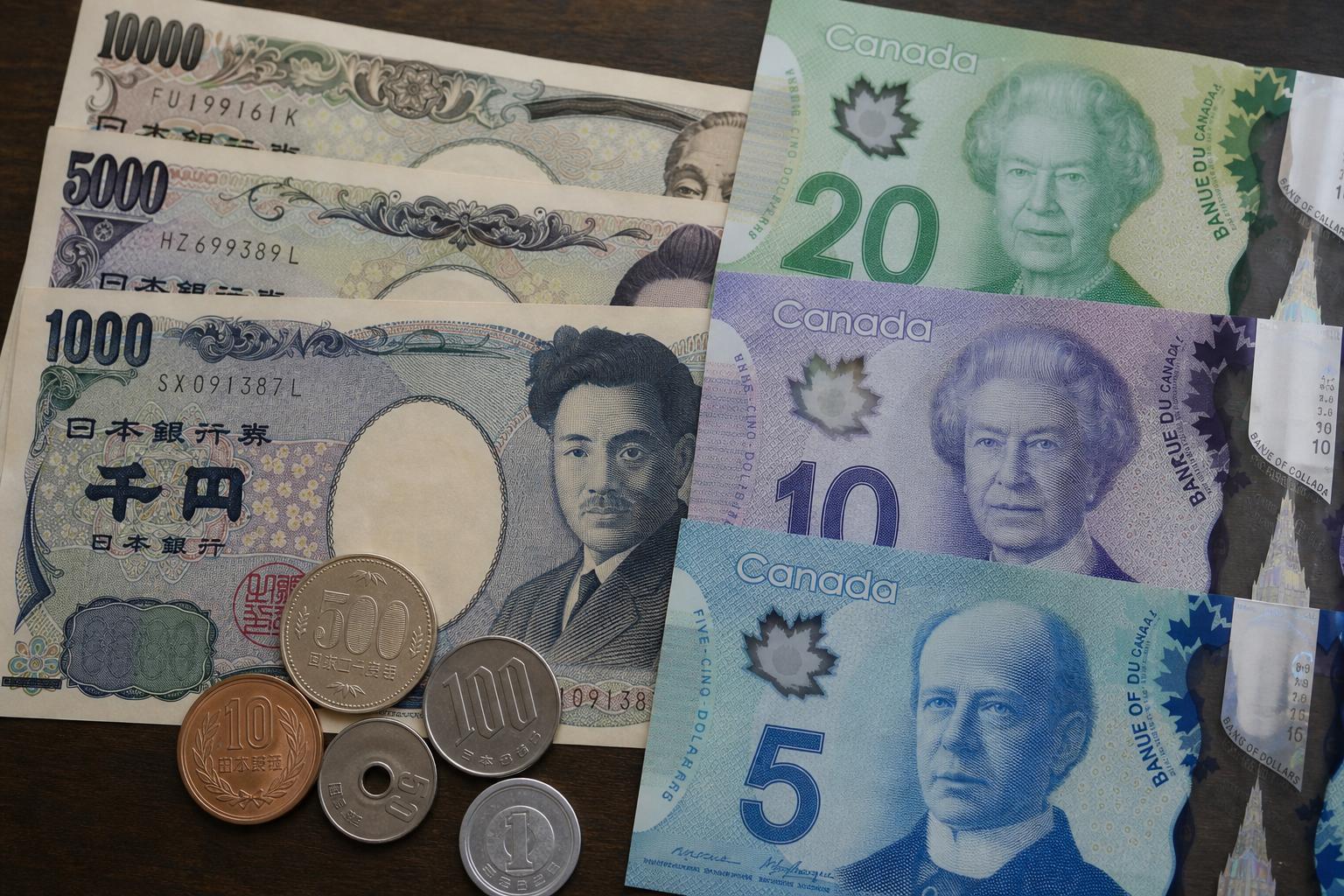
Japanese yen to CAD: a Canadian’s guide to smarter currency conversion, transfers, and timing
If you’ve ever stared at a price tag in Tokyo, a client invoice in Osaka, or a wire transfer form at your bank in Toronto and wondered, “What will this be in Canadian dollars?”, you’re in the right place. Converting Japanese yen to CAD seems straightforward—type a number into a converter and you’re done. In real life, the final number depends on timing, fees, spreads, and even tiny choices at a checkout terminal. The difference can be hundreds of dollars on larger amounts.
This guide is built for Canadians—travellers, students, freelancers, importers, investors—anyone who needs clear answers and practical steps. You’ll learn how to read a JPY/CAD quote, where hidden costs creep in, how to lower them, when timing matters (and when it doesn’t), and what Canadian-specific rules you should know before you move money. We’ll keep the language plain, the examples realistic, and the advice grounded in how things actually work here.
What “Japanese yen to CAD” really means
Let’s start with the basics. When you see a quote online such as “JPY to CAD 0.0093,” that’s an exchange rate: one Japanese yen buys 0.0093 Canadian dollars. You might also see the pair displayed as CAD/JPY, which flips the quote to say how many yen one Canadian dollar buys (the inverse of JPY/CAD). Markets use both notations. If the CAD/JPY quote is 107.5, the JPY/CAD rate is 1 ÷ 107.5 ≈ 0.00930.
There are two big categories of rates: the “mid-market” (or “interbank”) rate and the “retail” rate. The mid-market rate sits between wholesale buy and sell prices that large financial institutions quote each other. You’ll see this on financial sites, in Google results, and in many currency apps. It’s a useful reference, but most of us don’t get that exact rate at a bank counter or on a card transaction. Retail rates add a markup and, sometimes, a separate fee.
So when you search “japanese yen to cad,” you’ll get a mid-market anchor. Treat it like a weather forecast. It tells you the climate. The moment you walk into a bank, use your credit card in Kyoto, or send a wire from Vancouver, the local conditions—markups, network fees, settlement methods—decide the temperature you actually feel.
Why the JPY/CAD exchange rate moves
Day to day, the yen–loonie relationship responds to a web of factors. Some are global, some are specific to Canada or Japan. You don’t need to become a currency trader, but knowing what nudges the rate helps you read the headlines and decide when to act.
Interest rate policies are the heavy hitters. The Bank of Canada and the Bank of Japan set short-term rates that influence borrowing costs, investment flows, and the appeal of each currency. Historically, Japan has run ultra-low or even negative rates. That made the yen a funding currency for “carry trades,” where investors borrow yen cheaply to buy higher-yielding assets elsewhere, including in Canada. When global risk appetite is high, money flows out of JPY; when fear spikes, traders unwind and rush back to yen, which can strengthen it quickly.
Energy prices matter too. Canada is a major energy exporter; Japan is a large energy importer. Higher oil and gas prices can be wind at the Canadian dollar’s back and a headwind for the yen, and vice versa. If crude spikes, CAD/JPY might rise (meaning one Canadian dollar buys more yen), while JPY/CAD falls. If oil slumps, the effect can reverse.
Then there are official interventions. Japan has, at times, stepped into foreign exchange markets to manage rapid yen moves. These episodes can jolt the JPY/CAD rate, even if the motive is framed around the yen’s levels versus the U.S. dollar. Canada rarely intervenes, but the impact of global policy actions doesn’t respect borders.
Economic surprises round out the picture. Canadian jobs data, Japanese GDP prints, inflation readings, and trade balances—all can bump the pair. Even when the headlines reference USD/JPY or USD/CAD, the ripples reach JPY/CAD. If you’re aiming to convert a large amount of Japanese yen to Canadian dollars, keep an eye on these drivers, especially interest rate signals and risk sentiment.
How Canadians actually convert Japanese yen to CAD
There’s more than one road from yen to loonie. Each route has its own costs, speed, and paperwork. Choosing well is half the battle against hidden fees. Choosing poorly is how you end up paying 3–8% more than you needed to.
Banks and credit unions
Most Canadian banks and many credit unions will buy your yen and pay you in CAD, either by exchanging physical cash or by processing a wire transfer credit in JPY that’s converted on arrival. For travel cash leftovers, this is convenient. For large transfers, it can be expensive if you don’t compare rates. Banks build their margin into the rate they quote you, and they may charge a service fee. The markup on JPY/CAD often ranges from about 1.5% to 3.5% for retail customers, but the exact number varies by institution and channel (branch vs. online vs. wealth desk).
Banks generally don’t maintain JPY personal chequing accounts in Canada. You’ll see USD accounts everywhere, but Japanese yen accounts are rare for retail clients. Some brokerage platforms allow holding JPY cash for trading purposes, and business banking can open doors to multi-currency solutions. Always confirm availability before making plans.
Specialized online providers
Several regulated fintech firms operating in Canada let you convert and send money between JPY and CAD at or near the mid-market rate, charging a transparent fee. The all-in cost can be materially lower than typical bank spreads, especially for mid-sized transfers like tuition, rent deposits, or contract payments. For business use, some providers also offer batch payments, local collection accounts, and forward contracts.
Do your due diligence. Confirm they are registered with FINTRAC as a money services business in Canada, understand their verification process, and check delivery times to Japanese bank accounts. Payment routes vary: some providers use local payout rails in Japan, others use SWIFT. That affects speed and potential intermediary bank charges.
Card payments and ATM withdrawals in Japan
Paying in Japan with a Canadian credit or debit card can be efficient if your card has no foreign transaction fee. Many Canadian cards layer about 2.5% on top of the network exchange rate. A handful waive that fee entirely. The network rate (Visa/Mastercard) tends to be close to the mid-market rate, give or take a small spread; the bank’s foreign transaction fee is the main cost driver for retail purchases.
For cash, ATMs at Japan Post Bank and 7-Bank (inside 7‑Eleven) commonly accept Canadian cards and offer instructions in English. Your home bank might charge an international ATM fee. The local machine may also levy a fixed fee. Even with those, the effective rate can be fair compared to currency kiosks—especially if your card has low or zero FX fees. Withdraw larger, less frequent amounts to spread fixed fees over more yen.
Airport kiosks and hotel desks
These are the “fast food” of currency exchange: always open, always a bit pricey. The posted rate looks simple, the markup isn’t. Unless you’re dealing with a small, urgent amount, avoid converting large sums of Japanese yen to CAD (or CAD to JPY) at airports and tourist hot spots in either country. Convenience comes at a steep cost.
Brokerage and FX desks for larger amounts
If you’re moving tens of thousands of dollars—paying for a vehicle import, settling an invoice, funding a real estate deposit abroad—ask your bank about its dedicated foreign exchange desk or consider a reputable Canadian FX broker. You can often negotiate tighter spreads than a retail counter, set rate alerts, and even place “limit orders” that trigger only when a target JPY/CAD rate is available. Businesses can access forward contracts to lock a future rate, helpful for budgeting and protecting margins.
Where the real costs hide
You can’t manage what you can’t see. Here are the usual suspects that turn a clean mid-market “jpy to cad” quote into a bigger bill.
Rate markups
The biggest line item is often the spread between the mid-market rate and your actual retail rate. If the mid-market is 0.00930 CAD per JPY but you’re quoted 0.00905, that’s a 2.7% markup. Markups can be lower online than in-branch, and lower for larger transactions than for small ones. Always compare to the current mid-market reference before you say yes.
Flat fees
Wire transfers from Japan to Canada (or vice versa) may involve multiple banks. Your sending bank charges a fee; intermediary banks might take a slice; your receiving bank could charge a landing fee. Total fixed costs can run from the tens to over a hundred dollars, depending on the route. For smaller amounts, these flat fees hurt more proportionally than a percentage spread.
Credit card foreign transaction fees
Many Canadian cards add around 2.5% to the network exchange rate on foreign purchases, including yen transactions. Some premium and travel cards now waive this fee. If you’re planning a trip or regular online shopping from Japanese merchants, a no-foreign-transaction-fee card can pay for itself quickly.
Dynamic currency conversion (DCC)
At some Japanese shops or ATMs, the terminal might ask if you want to be charged in CAD “for your convenience.” That’s dynamic currency conversion. It often applies a poor exchange rate. In almost all cases, choose to pay in the local currency (JPY) and let your card network handle the conversion. The same holds when you’re back in Canada being offered a JPY price on a foreign card—it rarely helps you.
Weekend and off-hours pricing
Some services quote slightly wider spreads on weekends or holidays when currency markets are closed or liquidity is thinner. If the amount is large and timing is flexible, initiate conversions on business days during North American hours.
Worked examples: from JPY to CAD with realistic math
Numbers make the trade‑offs clear. Let’s assume, for illustration only, a mid-market rate of 1 JPY = 0.00930 CAD (equivalently, 1 CAD ≈ 107.53 JPY). Your true rate and costs will differ on the day you transact.
Example 1: Converting ¥100,000 to Canadian dollars
Mid‑market reference: 100,000 × 0.00930 = $930 CAD.
– Bank retail rate with 3.0% markup: effective rate ≈ 0.00930 × (1 − 0.03) = 0.009021. Payout ≈ $902.10 CAD (about $27.90 cost). Add a $10 service fee? Net ≈ $892.10.
– Online provider at mid‑market plus $2.99 fee: payout ≈ $930 − $2.99 = $927.01 (cost ≈ $2.99 if no markup).
– Credit card purchase with 2.5% FX fee: network rate close to mid‑market, final cost ≈ $930 × 1.025 = $953.25 CAD. You pay more in CAD for the same yen‑priced item because the card adds the fee on top.
– Airport kiosk: effective markup could be 6% or higher. Payout ≈ $930 × (1 − 0.06) = $874.20 (cost ≈ $55.80).
Example 2: Receiving ¥1,000,000 from a client in Japan
Mid‑market reference: ¥1,000,000 × 0.00930 = $9,300 CAD.
– Bank incoming wire: quoted rate 1.8% below mid‑market → effective rate ≈ 0.0091326. Payout ≈ $9,132.60. If your bank charges a $15 incoming fee and an intermediary takes $20, net ≈ $9,097.60.
– Specialist provider using local rails: fee 0.5% all‑in → $9,300 × (1 − 0.005) = $9,253.50, typically no intermediary fees if it’s a local payout on the JPY side and a domestic deposit in Canada.
– Negotiated FX desk spread 0.6% for a larger client: $9,300 × (1 − 0.006) = $9,244.20. With a $10 fee, net ≈ $9,234.20.
Example 3: Timing effect across a volatile week
Imagine the JPY/CAD rate swings from 0.00910 to 0.00945 in a week on central bank headlines. On ¥2,000,000, that’s the difference between $18,200 and $18,900 CAD before fees. Timing isn’t everything—but if you can move non‑urgent conversions away from poor levels, it matters.
At-a-glance: common methods and typical costs
| Method | Speed | Typical all‑in cost vs. mid‑market | Best for | Watch out for |
|---|---|---|---|---|
| Major bank branch | Same day for cash; 1–3 days for wires | ~1.5%–3.5% plus possible flat fees | Convenience, existing relationships | Wider spreads, intermediary bank fees |
| Online money transfer provider | Minutes to 2 days | Often 0.3%–1.0% all‑in on JPY/CAD | Small to mid transfers, transparency | Verification time for first transfer |
| Credit card purchase in JPY | Instant | ~0%–2.5% (depends on card) | Everyday spending, e‑commerce | Dynamic currency conversion; FX fee |
| ATM withdrawal in Japan | Instant | Network rate ± small spread + fixed fees | Travel cash needs | Per‑withdrawal fees; card limits |
| Airport/hotel kiosk | Instant | ~5%–10% in many cases | Last‑minute small cash only | Very poor rates |
| Broker/FX desk (negotiated) | Same day to 2 days | ~0.2%–0.8% depending on amount | Large transfers, hedging | Minimums, onboarding time |
Best options by scenario
Travelling from Canada to Japan (and back with leftover yen)
For everyday spending in Japan, a no‑FX‑fee credit card usually wins. The network rate is competitive, and you avoid ATM runs. Carry some cash for smaller vendors—Japan still has pockets where cash is king, especially outside major cities and at small eateries. For cash, use 7‑Bank or Japan Post ATMs with a debit card that has low international fees. Make fewer, larger withdrawals to minimize flat fees per transaction.
When you return to Canada with leftover yen, compare your bank’s buy rate with reputable currency exchange shops in cities like Vancouver, Toronto, and Montreal. Rates differ. If the amount is small, the convenience of your home branch may outweigh a slightly better spread elsewhere. Avoid airport buybacks except in a pinch.
Sending money to family in Japan from Canada
If you’re supporting relatives or paying rent for a student in Tokyo, consistency beats micromanaging every tick. Online providers that move money from CAD to JPY using local payout rails can keep costs low and predictable, especially for monthly remittances. Set up rate alerts or schedule transfers ahead of time near levels you like. If you need to send from JPY to CAD instead (say a family member is repaying you), check whether the provider supports both directions; not all do.
Getting paid by a Japanese client or marketplace
Freelancers and small exporters often accept invoices in yen. Ask your Canadian bank or provider how the JPY will be received and converted. If funds land via SWIFT in JPY and are auto‑converted at your bank’s retail rate, you might pay more than necessary. Some services let you receive JPY into a local Japanese account number in your name and convert to CAD later at a transparent, near‑mid‑market rate. That control can add up over a year’s worth of contracts.
Online shopping from Japan to Canada
Buying a camera body from a Japanese retailer or bidding on a vintage lens? If the checkout gives you a choice to pay in CAD or JPY, choose JPY and let your card network convert. Then separate FX from import costs. Canada Border Services Agency (CBSA) will assess duties and taxes when goods enter Canada based on the value converted to CAD at the applicable rate they use. Carriers may add brokerage fees. Factor those in when comparing “JP price vs. CA price.”
Students, new Canadians, and longer stays
Tuition payments, apartment deposits, and initial living expenses create lumpy currency needs. Don’t rely on last‑minute bank counter exchanges. For larger planned spends, compare a bank FX desk quote with specialist providers and consider splitting conversions over a few weeks to smooth rate risk. Keep documentation for each transfer—schools, landlords, and banks may request proof of source of funds or purpose of payment, especially for higher amounts. On arrival in Japan, set up a local bank account as soon as you’re eligible; it simplifies life and can reduce fees on domestic payments.
A step‑by‑step playbook for converting Japanese yen to Canadian dollars
Here’s a repeatable process you can use for any JPY→CAD conversion, from ¥50,000 to ¥5,000,000.
- Check the live mid‑market JPY/CAD rate on a neutral source. Treat this as your benchmark, not a promise.
- Decide on speed vs. savings. Do you need the money today, or can you wait a day or two for better pricing or verification?
- Get two quotes. Compare your primary bank’s rate and fees with at least one reputable online provider or FX desk. Ask for the exact CAD you’ll receive after all charges.
- Calculate the effective markup. (Mid‑market CAD − quoted CAD) ÷ mid‑market CAD. This shows the true cost as a percentage.
- Plan the route. For wires, confirm intermediary bank fees and who pays them (BEN, OUR, or SHA instructions). For card payments, verify your card’s FX fee and avoid DCC.
- Mind the calendar. Avoid weekend conversions when possible. Watch for Japanese and Canadian banking holidays that can add settlement days.
- Document everything. Save the quote, confirmation, and final receipt. If you ever need to prove the conversion rate (for accounting or a dispute), you’ll be glad you did.
Tools Canadians can use
You don’t need a Bloomberg terminal to get clarity. A few free tools go a long way.
– Bank of Canada exchange rate lookups: The Bank of Canada publishes indicative daily exchange rates for major currencies. They’re not tradeable quotes, but they provide a neutral reference, and many Canadian institutions reference BoC data in their documentation.
– Currency calculators and alerts: Sites and apps like XE, OANDA, and others show the mid‑market JPY/CAD rate and let you set alerts. Use alerts to nudge you when the yen moves into your target zone.
– Card network rate finders: Visa and Mastercard publish calculators where you can input a transaction date, amount, and your bank’s foreign transaction fee to estimate your final CAD cost. That’s helpful before a big purchase.
– Your bank’s foreign exchange desk: If you have a relationship manager, ask about rate tiers and forward options. Even as an individual, you may qualify for better pricing on larger one‑off conversions.
Timing the market: wise or wishful?
Should you wait a week to convert yen to Canadian dollars because a strategist on TV thinks the yen will strengthen? Maybe. Or maybe not. Currency moves are hard to predict consistently, and transaction costs can dwarf small improvements in the rate if you chase them with multiple transfers.
For recurring needs, a simple approach like dollar‑cost averaging—splitting an amount into a few scheduled conversions—can reduce the stress of picking a perfect day. For one‑time large amounts on a known date (tuition due, closing funds), consider a forward contract offered by an FX provider or your bank’s treasury desk. A forward lets you lock the JPY/CAD rate now for settlement later, removing uncertainty. You’ll need to post a small deposit (margin) and understand the contract terms.
If you insist on waiting for a better level, set a limit order: “convert ¥3,000,000 to CAD if JPY/CAD hits 0.00950.” It will either fill or it won’t, but you won’t be glued to a chart at 2 a.m. Just remember: protecting against bad outcomes is usually more valuable than squeezing for the last cent of upside.
Regulations, taxes, and paperwork Canadians should know
Moving money isn’t just math. It’s also rules. Canada has clear requirements around reporting, verification, and compliance. Japan does too. Plan a little time for this and you’ll avoid delays.
Identification and verification (KYC)
Whether you use a bank or a money services business, you’ll be asked to verify your identity and, for larger transfers, the source of funds and purpose of payment. This is normal under Canadian anti‑money laundering (AML) regulations. New customers often face initial limits that expand once verification is complete. Keep digital copies of ID and supporting documents (invoices, tuition letters, contracts) handy.
FINTRAC and large cash transactions
In Canada, financial entities must file Large Cash Transaction Reports to FINTRAC for cash transactions of CAD 10,000 or more in a single transaction or multiple transactions within 24 hours that total CAD 10,000 or more. This doesn’t prohibit you from exchanging more; it just triggers reporting by the institution. Electronic transfers are covered by other reporting mechanisms. Expect questions if you bring in a lot of physical yen to swap for CAD at a branch.
CBSA cross‑border currency reporting
When entering or leaving Canada, you must declare currency and monetary instruments totalling CAD 10,000 or more (or the equivalent in foreign currency). That includes cash, bank drafts, travellers’ cheques, and similar instruments. The declaration isn’t a tax; it’s a reporting requirement. If you’re carrying over that threshold in yen or a mix of currencies, declare it to CBSA to avoid penalties and seizure.
Japanese customs declaration
Japan requires a declaration when bringing in or taking out currency and certain instruments of over JPY 1,000,000 (or the equivalent in other currencies). If you’re flying with a thick envelope of yen or negotiating a cash‑heavy transaction, respect the rules on both sides of the Pacific. Forms are easy to fill out at airports; it’s far better than an awkward conversation at customs.
CRA tax considerations
The tax treatment of foreign exchange gains and losses in Canada depends on why you hold the currency. For individuals, foreign currency used for personal purchases or travel typically isn’t taxable; money held for investment or related to a business can trigger gains or losses that may be on income or capital account, depending on the situation. If you actively trade JPY/CAD or hold significant yen balances as part of investments, speak with a Canadian tax professional and keep precise records of dates, amounts, and rates. Avoid assumptions based on rules from other countries—they may not apply here.
Business and investing: JPY/CAD beyond travel money
For Canadian companies importing goods from Japan—auto parts, electronics, machinery—the JPY/CAD rate can make or break margins. If you price contracts in yen but report in Canadian dollars, you carry currency risk between order and payment. Simple hedging tools can reduce that risk. A forward contract locks a future exchange rate. An option gives the right, not the obligation, to exchange at a set rate by a given date, providing protection with upside potential (in exchange for a premium).
Exporters billing Japanese customers in CAD face the mirror image: your client’s cost in JPY fluctuates with the rate. Offering pricing in yen can help win deals, but it shifts FX exposure to your books. If you choose to bill in JPY, tighten your receivables cycle and consider hedging with forwards matched to expected cash inflows. Align hedges with actual payment dates, not just quarter‑ends, to avoid basis mismatches.
Investors watch CAD/JPY as a sentiment gauge. When global markets are calm and yields favour Canada over Japan, CAD/JPY can drift higher. When fear spikes, yen often strengthens as positions unwind. Retail investors should treat the pair with respect: leverage in FX markets cuts both ways. If you do hold Japan‑listed equities or funds, your returns in CAD reflect both asset performance in JPY and the JPY/CAD move. A rising Tokyo stock index can be offset by a weakening yen once translated into Canadian dollars.
Reading a rate and doing the math yourself
Even if a service calculates everything for you, it helps to sanity‑check the numbers. A couple of shortcuts go a long way.
– Inversion: If you’re given CAD/JPY and need JPY/CAD, take the inverse. Example: CAD/JPY = 108.70 → JPY/CAD ≈ 1 ÷ 108.70 = 0.009199.
– Percentage impact: A 1% move in the rate changes the CAD you receive by 1% for the same JPY amount (ignoring fees). That’s easy to estimate in your head.
– Effective cost: Compare the payout you’re quoted to the mid-market payout. If mid‑market says ¥500,000 = $4,650 and your quote is $4,560, your effective cost is ($4,650 − $4,560) ÷ $4,650 ≈ 1.94%.
Sample conversion table (illustrative only)
Assume the following JPY/CAD illustrative rates. Use this to get a sense of sensitivity. Your actual rate will differ.
| JPY | 0.00910 CAD/JPY | 0.00930 CAD/JPY | 0.00950 CAD/JPY |
|---|---|---|---|
| ¥50,000 | $455.00 | $465.00 | $475.00 |
| ¥100,000 | $910.00 | $930.00 | $950.00 |
| ¥500,000 | $4,550.00 | $4,650.00 | $4,750.00 |
| ¥1,000,000 | $9,100.00 | $9,300.00 | $9,500.00 |
To factor in a fee, reduce the payout by the fee amount or apply the effective spread. For a 2% all‑in cost, multiply the table value by 0.98.
Common pitfalls—and how to avoid them
Most nasty surprises fall into a few buckets. If you dodge these, you’re already ahead of the pack.
– Saying yes to dynamic currency conversion. When a terminal offers to charge you in CAD instead of JPY, decline. Pay in JPY.
– Assuming your bank’s incoming wire charge is the only fee. Intermediary banks on the SWIFT network can shave off their own fees. Ask the sender to use OUR (sender pays) charges if you need a fixed CAD arrival amount and confirm whether your bank still charges an incoming fee.
– Converting at the airport because it’s “just a bit worse.” On large sums, it’s not a bit—it’s a lot. Plan 24 hours ahead and you’ll almost always do better.
– Ignoring weekend spreads. If you can wait until Monday, do. If you can’t, expect the possibility of a slightly worse rate for some services.
– Forgetting banking holidays. A transfer initiated on Friday in Canada that meets a Japanese holiday might settle days later than you expect. Check calendars in both countries.
Forecasts vs. the real world
Currency forecasts fill pages, but the future rarely reads the script. Instead of fixating on a single target number for JPY/CAD, focus on a process: compare options, know your break‑even, and protect yourself from outliers. Set alerts at levels you like, but don’t anchor so hard that you miss reasonable prices while waiting for a perfect one that never comes.
If you’re managing a business exposure, formalize a policy. Decide what percentage of your next six months of yen needs you will hedge, how you’ll measure performance (versus average market rates, not versus hindsight), and who has authority to act. Consistency beats improvisation when invoices pile up.
Canada-specific tips worth your time
– Credit unions can be competitive. In provinces like British Columbia and Quebec, local credit unions sometimes offer sharper retail exchange rates than the big banks, particularly for popular tourist currencies. JPY may still carry a wider spread, but it’s worth a call.
– Interac e‑Transfer won’t send funds to Japan. For international payments, you’ll need SWIFT wiring or a specialized provider that can route to Japanese domestic rails. Don’t expect a cross‑border Interac solution.
– Documentation wins arguments. If a bank disputes an expected arrival amount on a JPY wire, your saved quote and transfer confirmation are your best friends. Screenshots with timestamps matter.
– Keep an eye on card perks. Several Canadian cards have dropped foreign transaction fees in recent years. If you visit Japan even once every couple of years, the savings on hotels, rail passes, and restaurant bills can justify a new card.
Glossary: quick definitions you’ll actually use
– Mid‑market rate: The midpoint between wholesale buy and sell quotes. A neutral benchmark for JPY/CAD.
– Spread/markup: The difference between the mid‑market rate and the retail rate you’re given. Your hidden cost, expressed as a percentage.
– SWIFT: The messaging network banks use for international transfers. Adds speed and reach but may involve intermediary fees.
– DCC (Dynamic currency conversion): A point‑of‑sale feature that charges your home currency instead of the local one, almost always at a worse rate.
– Forward contract: A binding agreement to exchange currencies at a set rate on a future date. Used to lock budgets and reduce risk.
– Limit order: An instruction to convert only if the market reaches a specified rate. Good for non‑urgent conversions.
Frequently asked questions about converting Japanese yen to CAD
What’s the easiest way to convert a small amount of yen to Canadian dollars after a trip?
For modest leftovers, visit your primary bank or a reputable downtown exchange office and compare quotes against the live mid‑market JPY/CAD rate. If the difference is more than a few percent, shop around. Avoid airport counters. If you plan another trip soon, consider holding the yen to reuse rather than paying two sets of spreads.
How do I get the best rate when converting a large amount of JPY to CAD?
Get competing quotes the same day. Ask your bank’s FX desk—not just a teller—what they can do for your amount. Compare with a regulated online provider. Request the exact CAD you’ll receive, net of all fees. If timing is flexible, place a limit order or split the transfer over a couple of tranches to average the rate.
Are Bank of Canada exchange rates the rates I’ll get?
No. The Bank of Canada publishes indicative exchange rates for reference and statistical use. They are not tradeable quotes. Retail conversion rates will differ and include spreads and, in some cases, fees. Use BoC rates as a benchmark to evaluate offers.
Can I use Interac e‑Transfer to send money to Japan?
No. Interac e‑Transfer is domestic. To send funds to Japan, you’ll need an international wire transfer through your bank or a money services business that supports CAD→JPY payouts via local rails or SWIFT.
Is it better to pay in JPY or CAD when a Japanese terminal offers a choice?
Pay in JPY. Choosing CAD triggers dynamic currency conversion and usually leads to a worse exchange rate than letting Visa or Mastercard convert at their network rate. The same applies at overseas ATMs offering to charge your account in CAD.
What fees should I expect on an incoming wire from Japan to my Canadian account?
Potentially three types: a fee charged by the sending bank in Japan, fees taken by intermediary banks en route, and an incoming wire fee charged by your Canadian bank. Ask the sender to specify fee type (OUR/SHA/BEN) and confirm with your bank whether intermediary and landing fees are likely on the route used.
Do Canadian banks offer Japanese yen accounts?
Retail JPY accounts are uncommon. Most Canadian banks offer USD accounts; yen accounts are typically limited to business banking or available through investment brokerages for trading purposes. If you need to hold yen routinely, a multi‑currency business account or a provider that lets you keep a JPY balance may fit better than a standard retail bank.
Is there a best day or time to convert JPY to CAD?
There’s no magic day. Liquidity is generally better on business days, and some services widen spreads on weekends and holidays. Avoid weekend conversions if possible. For larger amounts, monitor key events like central bank announcements that can move the rate.
How can I estimate the final CAD cost of a Japanese online purchase?
Check the live JPY/CAD mid‑market rate. If your card has a 2.5% foreign transaction fee, multiply the converted CAD amount by 1.025. If your card has 0% FX fee, the network rate will be close to mid‑market with a small embedded spread. Decline offers to pay in CAD at checkout.
Do I have to declare yen when entering or leaving Canada?
Yes, if the total value of currency and monetary instruments you’re carrying is CAD 10,000 or more (or the equivalent). Declare it to CBSA. Japan has its own threshold—declare amounts over JPY 1,000,000 when entering or leaving Japan.
Are foreign exchange gains taxable in Canada?
It depends on context. Personal travel and everyday purchases using foreign currency are generally not taxable. Currency held for investment or in the course of business can give rise to gains or losses that may be taxable. Keep records and seek advice from a Canadian tax professional if in doubt.
What’s the difference between JPY/CAD and CAD/JPY?
They’re inverse quotes. JPY/CAD shows how many Canadian dollars one yen buys. CAD/JPY shows how many yen one Canadian dollar buys. To switch between them, take the inverse (1 ÷ rate).
Can I lock in a JPY to CAD rate today for a payment due in three months?
Yes, via a forward contract offered by some banks and FX providers. You agree today to convert a set amount on a future date at a fixed rate. It removes uncertainty and simplifies budgeting. Understand margin requirements and contract terms before committing.
Why is my bank’s rate different from the rate I see on Google?
Google shows a mid‑market rate. Your bank applies a retail rate that includes its spread and, sometimes, fees. The difference is your cost of conversion. Always compare quotes to a neutral benchmark to keep that cost in check.
Is it safe to withdraw cash at ATMs in Japan with a Canadian card?
Yes, at well‑known networks like 7‑Bank and Japan Post. Enable your card for international use, know your daily limits, and expect possible per‑withdrawal fees. Withdraw more per transaction to reduce the impact of fixed fees and avoid late‑night runs with large sums of cash.
What’s the smartest way to handle recurring conversions from Japanese yen to CAD?
For regular inflows or outflows, set up a routine: use a low‑cost provider, schedule transfers near times of good liquidity, and consider splitting amounts to average the rate. Set alerts so you don’t miss favourable moves, and keep consistent records for accounting and, if applicable, tax purposes.
The takeaway
Converting Japanese yen to CAD doesn’t have to be a guessing game. Start with the mid‑market rate as your compass. Compare at least two routes. Watch for markups, not just explicit fees. Avoid dynamic currency conversion. For larger or recurring needs, consider forwards or simple averaging strategies. And remember the Canadian specifics: CBSA declarations at CAD 10,000, FINTRAC reporting by institutions, and CRA rules that hinge on purpose and context.
Do those few things, and you’ll keep more of your money on the right side of the Pacific—where it belongs.

Instacart Canada: Your Complete Guide to Fast, Reliable Grocery Delivery (and How to Make It Worth the Cost)
Grocery delivery has matured in Canada. It’s no longer a novelty for snow days or sick weeks; it’s a weekly ritual for busy households, car‑free city dwellers, and anyone who’d rather not spend Saturday in a supermarket queue. Instacart Canada sits at the centre of that shift, stitching together hundreds of retailers, tens of thousands of personal shoppers, and a logistics system that can place ripe avocados and dishwasher tabs on your doorstep the same day. If you’ve wondered how it works here, what it really costs in Canadian dollars, and how to use it without running up a bill of mystery fees, this is your deep dive.
Below, you’ll learn how Instacart operates in Canada, which cities and stores it serves, what fees to expect (including Canadian taxes and deposits), when Instacart+ is worth it, how alcohol delivery rules vary by province, smart ordering tactics, ways to tip fairly, and the best troubleshooting steps if something goes sideways. Expect practical examples tailored for Canadian shoppers—from HST to winter delivery notes for condo lobbies.
What Instacart Canada Is—and How It Works, Step by Step
Instacart is a marketplace. In Canada, that means you open the app or website, plug in your postal code, and see a menu of local retailers—supermarkets, warehouse clubs, pharmacies for over‑the‑counter items, pet shops, bulk stores, and specialty markets. You build a cart from one store at a time (or stack separate orders), select a delivery window, and a contracted Instacart shopper accepts the batch. That shopper heads into the store as your stand‑in, chats with you in‑app about substitutions, pays using Instacart’s system, and drives your order to your door.
The key idea: Instacart Canada is not a grocer; it partners with grocers. Store staff usually aren’t picking your order (exceptions exist for some retailers). Prices may differ from in‑store tags, and fees come from Instacart, not the grocer itself. You can schedule delivery later the same day or in a future window, typically within a week. Real‑time tracking shows the shopper’s progress and ETA.
Where Instacart Operates in Canada
Coverage is strongest in major and mid‑sized urban areas—think Toronto and the GTA, Ottawa–Gatineau, Montreal and surrounding suburbs, Quebec City, Vancouver and the Lower Mainland, Victoria, Calgary, Edmonton, Winnipeg, Halifax–Dartmouth, and many communities in Southern Ontario and Southwestern BC. Instacart Canada has also expanded to smaller cities where partner grocers already have a footprint. Rural and remote addresses can be hit‑or‑miss, and northern communities often lack coverage due to distance and weather realities.
Because availability changes frequently as retailers join or leave the platform, the fastest way to confirm service is to enter your postal code in the app (not just city names). You’ll see live delivery windows and eligible stores. In Quebec, interface language and customer communications are available in French and English, and age‑of‑majority rules (for alcohol delivery, where permitted) follow provincial law.
Which Stores You’ll Find on Instacart Canada—and What You Can Buy
Partner lists vary by city, but Canadians commonly see large national and regional banners in the app. Examples include:
- Supermarkets and discount grocers under big Canadian groups (availability varies by region).
- Warehouse clubs like Costco Wholesale Canada for same‑day delivery in many urban areas, often without requiring a Costco membership to order through Instacart. Prices may be higher than warehouse in‑store pricing.
- Pharmacies for over‑the‑counter medicine, beauty, and home goods; prescriptions are usually not available through Instacart due to provincial regulations.
- Bulk and specialty stores—pet supply, organic markets, international grocers, and gourmet shops.
Selection depends on the retailer’s online assortment. Fresh produce, bakery, and deli items are typically available; hot prepared foods are less consistent outside urban cores. Some loyalty programs don’t apply to Instacart purchases, and in‑store promotions may differ from Instacart pricing. Always check the store’s pricing note in the app—some retailers set online prices that are the same as in‑store, while others list higher prices to cover e‑commerce costs.
Setting Up and Placing Your First Order
Getting started is straightforward:
- Create an account with your Canadian address and mobile number. Enable SMS or push notifications so you don’t miss substitution questions.
- Enter your postal code to see eligible stores and delivery windows. If no windows appear, you may be outside the active delivery area or shopping at a time when staffing is tight—check back later or try pickup, where offered.
- Fill your cart. For produce, use item notes to specify ripeness (“firm avocados for next week,” “bananas slightly green”). For meat and deli, indicate weight cuts or “lowest sodium,” “thin sliced,” etc.
- Set substitution preferences per item—“Replace with brand X,” “Contact me,” or “Don’t replace.” This avoids panic approvals during checkout.
- Choose a delivery window. Same‑day slots are common, but popular times (weeknights, Sunday afternoons) can book up. If speed matters, snag the earliest viable window before finishing your cart; you can still edit afterward.
- Check fees on the checkout screen. Delivery fees, service fees, taxes, bottle deposits (in some provinces), bag charges, and heavy item surcharges will appear before you pay. Tip is optional but customary; more on tipping below.
- Place the order and leave helpful delivery notes: buzzer codes, security desk instructions, “Leave with concierge,” “Call on arrival,” or “Contactless: drop at back porch.” In winter, mention the clearest entrance if one walkway is iced over.
Once a shopper begins, you can chat in‑app. If an item is out of stock, you’ll see suggested replacements or get a message. When the order leaves the store, real‑time tracking shows the route and ETA.
How Much Instacart Costs in Canada: Fees, Taxes, and Real‑World Examples
Instacart Canada uses a mix of retail pricing and platform fees. The total you pay typically includes:
- Item prices: Set by the retailer in the Instacart storefront; sometimes match in‑store, sometimes run higher. Watch the banner that states “Prices are higher than in‑store” if applicable.
- Delivery fee: Varies by demand, order size, and window. Standard windows often range a few dollars higher during busy times. Instacart+ members usually get $0 delivery fees on eligible orders over a minimum (commonly $35), though other fees still apply.
- Service fee: A platform fee that helps cover operations; usually a percentage that scales with order size and type. Alcohol orders generally carry higher service fees due to ID checks and handling.
- Heavy fee: Applied to bulky items like cases of water, large pet food bags, or multiple flats of beverages.
- Bags and environmental charges: Many cities and provinces have moved away from single‑use plastics; retailers charge for paper or reusable bags. In some provinces, beverage container deposits and environmental handling fees (for certain products) apply.
- Taxes: Canada’s GST/HST or GST+PST (and QST in Quebec) rules apply. Most basic groceries are zero‑rated for GST/HST, but prepared foods, some snacks, and non‑food items are taxable. Delivery and service fees are taxable in your province.
- Tip: Optional but expected; paid to the shopper. Customers aren’t charged GST/HST on tips.
To avoid surprises, expand the fee breakdown at checkout. Instacart Canada shows line items before you confirm payment. If you spot an unexpected charge (e.g., heavy fee you didn’t anticipate), remove or adjust the item before placing the order.
Ontario Example: HST on Fees, Zero‑Rated Groceries
Ontario applies 13% HST. Most basic groceries (milk, bread, fresh produce) are zero‑rated, but prepared foods (a hot rotisserie chicken) and many snacks are taxable. Delivery and service fees are taxable. A sample calculation:
| Line Item | Amount (CAD) | Tax Notes |
|---|---|---|
| Grocery subtotal (mostly zero‑rated items) | $100.00 | Zero‑rated for HST |
| Delivery fee | $5.99 | 13% HST applies |
| Service fee | $5.00 | 13% HST applies |
| Bag charges | $1.00 | 13% HST applies in most cases |
| HST (13% on fees/bags) | $1.82 | Calculated on $11.99 |
| Tip (to shopper) | $8.00 | Not taxable to customer |
| Total | $120.81 |
If your cart includes taxable items (say $20 of snacks), HST would also apply to those item lines. Alcohol adds deposits and can include additional handling and service fees.
British Columbia Example: GST + PST, Plus Deposits
BC uses 5% GST and 7% PST on many goods and services. Basic groceries are generally zero‑rated for GST and exempt from PST, but delivery and service fees are typically taxable. BC also has beverage container deposits and recycling fees for many drinks. A simple example:
| Line Item | Amount (CAD) | Tax Notes |
|---|---|---|
| Grocery subtotal (basic items) | $100.00 | Zero‑rated GST; PST exempt |
| Delivery fee | $6.49 | GST + PST applies |
| Service fee | $5.50 | GST + PST applies |
| Deposit/recycling fees (e.g., beverage containers) | $2.40 | Per container rules; not a tax |
| GST (5% on fees) | $0.60 | On $11.99 of fees |
| PST (7% on fees) | $0.84 | On $11.99 of fees |
| Total before tip | $117.83 |
Deposits vary by container size and material. You’ll see them itemized. If you return eligible containers at a depot, you get deposits back under provincial rules.
Instacart+ in Canada: Benefits, Limits, and When It Pays Off
Instacart+ (formerly Instacart Express) is the optional membership. In Canada, it typically provides $0 delivery fees on eligible orders above a minimum threshold (commonly $35), reduced service fees on some orders, and shared family accounts. It doesn’t remove taxes, bag charges, heavy fees, or alcohol service fees. Pricing for Instacart+ is shown in the app in Canadian dollars and can be monthly or annual; promotions pop up often.
When is Instacart+ worth it? Two scenarios illustrate the math:
- Urban family ordering weekly: If you place four eligible deliveries a month and your typical delivery fee would be $4–$7 each, the membership can pay for itself quickly, especially if you value priority support and reduced service fees on some orders.
- Occasional user: If you order once or twice a month or tend to pick up instead of delivery, paying per order may be cheaper.
Before subscribing, check your usual delivery windows and see what you would have paid over the last month in delivery fees alone. If the number is near or above the monthly fee, Instacart+ likely makes sense. Remember: service fees still apply.
Tipping on Instacart in Canada: What’s Fair?
Instacart shoppers supply their own vehicle, time, and often extra care in rotten weather. In Canada, a common tipping range is 10–20% of the pre‑tax item subtotal, with a practical floor around $5–$7 for small orders. For heavy, complex, or far‑flung deliveries, tip on the higher side. When blizzards or heat waves hit, tips are especially appreciated.
Tips go to the shopper. You can edit the tip after delivery within a limited window if service was exceptional or if there were serious issues unrelated to item availability (e.g., careless handling). Instacart discourages “tip baiting” (setting a high tip to get faster acceptance, then slashing it later). If you adjust, do it transparently and fairly.
Alcohol Delivery in Canada: Eligibility, ID Checks, and Provincial Rules
Alcohol delivery through Instacart Canada depends on provincial law and store partnerships. Key points:
- Legal drinking age varies: 18 in Alberta, Manitoba, and Quebec; 19 in other provinces and territories. ID must be checked in person. The recipient must be sober and present.
- Retail types differ by province. For example, Quebec allows beer and wine sales in many grocery stores; spirits are controlled by the SAQ. Other provinces use government or licensed private retailers. Instacart can only deliver from participating stores permitted to sell alcohol.
- Expect extra fees and strict delivery protocols. If you’re not home with valid ID, alcohol cannot be left, and redelivery or cancellation fees may apply.
- Some municipalities and buildings prohibit alcohol deliveries to lobbies or concierge desks; you may need to meet the shopper at the entrance.
When ordering alcohol, double‑check your time window—cut‑off times or Sunday hour limits may apply in your location.
Pharmacy and Health Items: What You Can (and Can’t) Get
Instacart Canada generally supports over‑the‑counter health products, personal care, and household essentials from participating pharmacies and retailers. Prescription medications are regulated at the provincial level and usually require direct fulfillment by a licensed pharmacy with identity verification and counselling. As a result, most prescription delivery in Canada operates outside Instacart’s platform and must be arranged with the pharmacy itself.
For OTC medicines, age restrictions and quantity limits may apply. If you’re ordering temperature‑sensitive products (e.g., certain probiotics), add a note reminding the shopper to bag with cold items and minimize time in a hot car during summer.
Returns, Refunds, and Customer Support in Canada
Things happen—squashed bread, missing yogurts, a substitution you didn’t approve. Instacart Canada’s help flow is designed for quick fixes:
- Use “Help” on the order receipt in the app to report an issue within a short window after delivery.
- For damaged or missing items, request a refund or credit. Photos help if the issue is visible.
- For substitutions you didn’t want, choose “Didn’t approve” and submit feedback. If the shopper contacted you and you approved, refunds may be discretionary.
- Refunds typically land as Instacart credits quickly; card refunds can take a few business days depending on your bank.
- Alcohol items have stricter return rules; unopened returns may require working directly with the retailer under provincial law.
Keep an eye on “final receipt” adjustments: weighed items (produce, meat) may vary slightly from estimates shown at checkout. You’ll get a final total after delivery reflecting exact weights and any substitutions or out‑of‑stocks.
Advanced Tips to Shop Smarter on Instacart Canada
Want fewer disappointments and lower bills? These techniques work:
- Specify ripeness and size. “Bananas: slightly green” beats “6 bananas.” For avocados, mention ripeness for now vs. later in the week.
- Use unit notes for weighed items. “About 1.5 kg of Granny Smith, medium size. If sold by piece, 8 apples.” This avoids paying for mystery weights.
- Mark must‑haves as “Don’t replace.” For a child’s allergy‑safe bread, no substitute is better than the wrong one.
- Time your orders. Early morning windows often have the best stock since shelves were replenished overnight. Late evening can be slimmer pickings for bakery and meat.
- Split categories strategically. If you must have a specific bakery item only one store carries, but your pantry restock is cheaper at a discount grocer, consider two smaller orders—just weigh the extra fees against savings.
- Save a “core list.” Build a favourites or staples list for weekly repeats—milk, eggs, greens, cereal. It cuts time and reduces missed items.
- Watch “busy pricing.” During storm days or holidays, delivery fees can surge. Scheduling a next‑day morning slot can slash fees.
- Review retailer notes on pricing. If a store lists “Prices are higher than in‑store,” it may still be worth it for specialty items, but compare alternatives nearby.
- Leverage multi‑use items to hit free‑delivery minimums. Pantry staples with long shelf life (rice, canned tomatoes) can help you reach the threshold without waste.
Condos, Houses, and Rural Deliveries: Practical Logistics
Delivery looks different across Canada’s housing types. For condos and apartments:
- Provide buzzer and unit numbers clearly. If the concierge must accept deliveries, name them in the notes and confirm your building allows grocery drop‑offs.
- Ask for a call or text five minutes before arrival if your lobby requires resident pickup. It avoids awkward standoffs with security desks that refuse parcels.
- In Quebec and many city centres with controlled access, specify whether the shopper is permitted to bring items to your door or must leave them at reception.
For houses and townhomes:
- In winter, clear a path if you can. Icy steps or unshovelled walks may force drivers to leave bags at the safest visible spot.
- For contactless delivery, pick a sheltered area out of sight to minimize porch theft and protect frozen items from direct sun.
- Add landmarks for rural addresses: “Blue house, second driveway after the mailboxes,” or “Use the side entrance.” Cell coverage can drop—detailed notes help.
PO boxes and parcel lockers aren’t supported. Instacart Canada needs a deliverable street address within the coverage area and a way to contact you on arrival.
Packaging, Bags, and Sustainability in a Canadian Context
Canada’s move away from single‑use plastics means many retailers use paper or reusable bags and charge per bag. Expect itemized bag fees on your receipt. If you prefer fewer bags, add a polite note like “Please consolidate where safe” or “I’ll reuse bags—no need to double‑bag.” For raw meat and fish, it’s still wise to keep them separate to avoid leaks.
Chilled and frozen products are typically packed last. In summer heat or during long elevator treks in high‑rises, ask the shopper to separate ice‑cream pints into their own bag. If you have a cooler on your porch, mention it and invite the shopper to place frozen items inside.
On the bright side, delivery batching and route optimization can cut total car trips in dense neighbourhoods. If you’re close to a store and want to skip emissions and fees, consider pickup windows—many Canadian retailers on Instacart offer them with lower or no delivery fees.
Accessibility and Ease‑of‑Use Features
The Instacart app supports large text, voiceover accessibility, and contactless handoff. Seniors and those with mobility challenges often pair Instacart Canada with standing lists and recurring calendar reminders. In Quebec, French interface and communications are available. Payment methods include major credit cards and digital wallets; US‑style EBT/SNAP benefits do not apply in Canada. Instacart gift cards, when available in CAD, can be used to fund orders.
Privacy and Safety Basics
Instacart masks direct phone numbers and keeps communication inside the app. Shoppers see only the information required to complete the order: first name, delivery instructions, and contact method. You’ll see your shopper’s name and vehicle details for delivery tracking. Receipts include the breakdown needed for expense tracking and tax records, including GST/HST where applicable.
Beware of off‑platform requests. If someone asks you to pay cash, share a code outside the app, or move the delivery to another address, decline and contact support. Instacart Canada’s protections rely on keeping the transaction inside the platform.
For Offices, Production Sets, and Group Orders
Instacart Canada works well for office snacks, meeting lunches sourced from grocers, and last‑minute supplies for shoots. Tips for teams:
- Centralize the delivery location with clear notes for security or loading docks.
- Use separate carts for perishables vs. pantry goods to organize storage on arrival.
- Download tax receipts from your order history; GST/HST numbers appear on invoices where relevant.
- Schedule earlier windows to avoid missing tight meeting start times.
How Instacart Canada Compares to Alternatives
Grocery delivery isn’t a one‑size‑fits‑all game in Canada. Alternatives include:
- Retailer‑run services: Some Canadian grocers operate their own delivery networks or use third‑party couriers for store‑branded sites. Benefits include in‑store pricing alignment and loyalty points that may not apply on marketplaces.
- Voilà by Sobeys: In select markets, orders come from centralized automated fulfilment with consistent stock on national brands and private label. Delivery areas are still expanding.
- Uber Eats and DoorDash for grocery: Strong on ultra‑fast convenience and late‑night windows in dense cores, but selection and pricing can vary widely.
- Warehouse club same‑day via Instacart: Handy if you don’t have a car or live far from the club. Markups tend to be higher than in‑store; calculate total cost against a once‑a‑month warehouse trip.
- Click‑and‑collect/pickup: Often the sweet spot for price control—lower fees than delivery, plus you keep loyalty benefits in many cases. Requires a short drive and time slot pickup.
Where Instacart Canada shines is speed and breadth: same‑day windows, multiple stores, and a robust substitution/chat flow. Where it can stumble is cost transparency if you don’t watch fees and markups closely. The smartest Canadian shoppers mix and match: Instacart for time‑sensitive runs, pickup for big weekly hauls, and in‑store for specialty visits.
Is Instacart Canada Worth It? Scenario‑Based Answers
Worth is personal, but concrete situations help:
- Young family in Toronto without a car: Likely yes. Factor the value of two hours saved with a toddler in tow, transit fare, and impulse buys. Instacart+ may pay off within a month.
- Student in Montreal near multiple grocers: Maybe. Pickup or quick walks can be cheaper. Instacart shines during exams, snowstorms, or for heavy items like a 10‑kg rice bag.
- Shift worker in Calgary with odd hours: Yes for scheduling reliability. Booking early‑morning or late‑evening windows preserves sleep and sanity.
- Rural household outside delivery range: Not today. See if pickup is supported locally; otherwise, occasional bulk Instacart orders while in town can help, but plan fees in your budget.
Common Problems—and How to Fix Them Quickly
Most headaches have a straightforward remedy:
- “My favourite brand is always out of stock.” Solve it with detailed substitutions and a second‑choice retailer. Order earlier in the day when restocks land.
- “The delivery was late.” Check live tracking. If the delay is severe or caused spoilage, report it through Help; Instacart Canada often credits fees when service slips substantially.
- “Weighed items cost more than expected.” Add notes on acceptable ranges: “1.2–1.5 kg total.” You’ll still pay by exact weight, but avoid surprises.
- “Frozen items were soft.” Ask for insulated packing notes, schedule earlier windows in summer, or meet the shopper in the lobby to shorten transfer time.
- “I was charged a heavy fee.” Large water cases, pet food, or bulk beverages trigger it. If you only need a few, swap for smaller formats to avoid the surcharge.
What Helps Your Shopper Help You
Clear notes and quick replies are the secret sauce. Shoppers juggle time, store maps, and your preferences while texting you in aisles with spotty reception. Keep your phone handy during the picking window if you can. If you’re unreachable, your substitution rules do the heavy lifting. After delivery, rate honestly and add a line of praise if they navigated a snowstorm or rescued a recipe with a clever replacement.
Looking Ahead: Trends That Affect Instacart Canada
Canadian grocery e‑commerce will keep evolving. Expect more local producers to appear in marketplace storefronts, richer loyalty integrations where retailers allow it, and tighter sustainability standards for packaging. On the regulatory side, alcohol delivery protocols continue to be fine‑tuned province by province, and language accessibility in Quebec remains a priority. Same‑day will stay the norm in cities, while pickup expands in smaller communities as a cost‑effective middle ground.
Frequently Asked Questions
Is Instacart Canada available in my city?
Enter your postal code in the app or website for the most accurate answer. Coverage is robust in and around major cities and many mid‑sized towns, with limited or no service in remote areas.
How long does delivery take?
Same‑day windows are common, sometimes within a couple of hours. During peak times (holidays, storms), book earlier to secure a spot. You can also schedule days ahead.
How much does Instacart cost in Canada?
Total cost = item prices (which may be higher than in‑store at some retailers) + delivery fee + service fee + bag and environmental charges + applicable taxes + optional tip. Check the fee breakdown at checkout before paying.
What is Instacart+ and is it worth it?
Instacart+ is a membership that typically removes delivery fees on eligible orders over a minimum and may reduce some service fees. It’s worth it if you order multiple times a month. Pricing is shown in CAD in the app and can change with promotions.
Do I need a Costco membership to order Costco via Instacart in Canada?
Generally, you can order Costco through Instacart Canada without a Costco membership, but prices are usually higher than in‑warehouse. Confirm current terms in the app for your city.
Do I earn grocery loyalty points when ordering through Instacart?
Often, no—many retailer loyalty programs don’t apply to marketplace purchases. Some exceptions or promotions may exist. Check the store’s Instacart page or your loyalty program’s terms.
What’s a good tip for Instacart in Canada?
Commonly 10–20% of the pre‑tax subtotal, with a minimum of $5–$7 for small orders. Tip more for heavy, complex, or weather‑challenged deliveries.
Can Instacart deliver alcohol in Canada?
Yes, where provincial law and store partnerships allow. You must be of legal drinking age in your province (18 or 19, depending on location), present valid ID, and be sober. Alcohol cannot be left unattended.
Are taxes charged on groceries?
Most basic groceries are zero‑rated for GST/HST. Prepared foods, snacks, alcohol, non‑food items, and Instacart’s fees are typically taxed according to your province’s rules. The receipt will show GST/HST/PST/QST as applicable.
Can I return items?
Use the app’s Help menu to request refunds for missing, damaged, or incorrect items. Alcohol returns are more restricted and may require retailer involvement under provincial rules.
What if I live in a secure condo?
Provide accurate buzzer codes, permission notes for concierge, and whether the shopper can bring items to your door. Some buildings require residents to meet in the lobby.
Is my data safe?
Instacart uses in‑app communications and masks contact details. Shoppers see only what’s needed to fulfill the order. Avoid moving conversations or payments outside the app.
Does Instacart deliver prescriptions in Canada?
Prescription medications generally aren’t handled through Instacart Canada due to provincial regulations. Contact your pharmacy for direct delivery options.
Can I schedule recurring orders?
You can re‑order from past purchases and set calendar reminders. Some users create a standing weekly slot, but availability still depends on real‑time capacity.
Why was I charged more than the checkout estimate?
Weighed items and substitutions can change the final total. You’ll receive a final receipt after delivery reflecting exact weights, deposits, and any approved replacements.
What if I need to reach the shopper?
Use in‑app chat or calls. Keep your phone nearby during the picking window in case they need quick approvals for substitutions.
Final Takeaway
Used thoughtfully, Instacart Canada saves time without wrecking your budget. The trick is knowing your local stores, reading fee disclosures, setting smart substitution rules, and tipping in line with Canadian norms. When winter piles up or life gets busy, having groceries on your doorstep—fresh, correct, and fast—feels like magic. The more you tailor your notes and timing, the better that magic gets.
Hummer EV in Canada: The Ultimate Guide to GMC’s Electric Supertruck for Real Canadian Roads
If you’ve seen a GMC Hummer EV in the wild, you know it doesn’t sneak up on anyone. It’s a rolling statement: unapologetically big, packed with tech, and engineered to do things trucks weren’t supposed to do—like move diagonally. But is the Hummer EV a smart choice for Canadian drivers who face real winters, long distances, and the occasional goat track to a lakeside cabin? This in-depth guide unpacks what the Hummer EV is like to live with in Canada: charging, range, costs, off-road chops, urban practicality, regulations, and how it stacks up against rivals like the Ford F-150 Lightning, Rivian R1T, and Tesla’s entries. You’ll find clear answers, real-world tips, and the context you need to buy with confidence.
Meet the Hummer EV: What It Is—and What It Isn’t
The GMC Hummer EV is an all-electric, full-size luxury pickup (and SUV) that sits at the top end of the market for power, capability, and price. Built on GM’s Ultium platform, it pairs a massive battery with advanced motor control, four-wheel steering, adaptive air suspension, and plenty of party tricks. The best-known versions in Canada are the Hummer EV Pickup 3X and Hummer EV SUV. Most Canadian allocations to date have centred on higher-spec trims with three electric motors, though availability changes by province and dealer.
Two things set the Hummer EV apart immediately. First, capability: it’s designed to tackle serious off-road terrain with features like CrabWalk (diagonal driving at low speeds), Extract Mode (extra ride height for obstacles), and a suite of underbody cameras. Second, charging: the Hummer EV supports 800-volt DC fast charging and can accept high peak rates on 350 kW stations in ideal conditions. In short, it’s not a “me-too” electric truck. It’s a category-changer.
And yet, despite the nameplate’s legacy, this isn’t the old gas-guzzling Hummer reborn. It’s quieter, quicker, and cleaner at the tailpipe. The trade-off? It’s still very large, very heavy, and—by EV standards—thirsty on energy. If you’re considering a Hummer EV in Canada, you’re choosing a flagship. That comes with both standout strengths and practical compromises.
Canadian Availability, Ordering, and Pricing
The Hummer EV launched with limited availability and lengthy wait lists. Allocation for Canada is smaller than the U.S., so delivery timing can vary widely by dealer and province. If you’re serious, talk to multiple GMC dealers, ask about incoming allotments, and get waitlist positions in writing. Smart move: put your name down at more than one store if you’re flexible on colour or options.
Pricing in Canada lands well into six figures before taxes and fees. Exact MSRP varies by trim and model year, but the Hummer EV Pickup and Hummer EV SUV sit among the most expensive electric vehicles you can buy here. Expect luxury-car insurance rates, luxury-car repair costs, and a luxury-car buying process—extended warranties, protection packages, and significant freight/PDI line items.
Incentives matter for many EVs, but here’s the blunt truth: the federal iZEV program has price caps based on a vehicle’s MSRP, and the Hummer EV’s sticker is far above those thresholds. That means no federal rebate. Provincial programs add another layer—but they also have caps. As of 2024, Quebec and British Columbia offer provincial rebates for eligible EVs, subject to pricing and other criteria, but the Hummer EV’s MSRP is generally too high to qualify. Programs change often, so verify current rules with official sources. Either way, plan your budget without assuming an EV rebate will apply to a Hummer EV in Canada.
Powertrain, Performance, and the Stuff You Can Feel
The Hummer EV’s drivetrain is the headline. Higher trims use a three-motor setup (two motors at the rear, one at the front) delivering enormous power and torque. GMC’s marketing number of “up to 11,500 lb‑ft of torque” reflects wheel torque through gear reduction. The real takeaway is simpler: it’s fast. Launch control—branded Watts to Freedom—turns this nearly-four-tonne vehicle into a rocket, with 0–100 km/h figures that would embarrass sports cars a third its size.
More important for daily life, the Hummer EV is easy to drive at low speeds. Electric torque is immediate, the throttle is precise, and one-pedal driving quickly becomes second nature. Four-wheel steering dramatically tightens the turning circle for parking lots and trailheads. It won’t feel nimble like a compact SUV, but it’s far more manoeuvrable than its footprint suggests.
Ride quality? On pavement, the adaptive suspension smooths broken surfaces better than many traditional trucks. Off-road, the system can raise for obstacles, hunker down for stability, and keep the cabin calmer than you’d expect over washboard gravel. If your life includes snow-packed cottage roads, logging routes in B.C., or a construction site in Alberta, this suspension and motor control suite is the difference between “we should turn around” and “we’ll make it.”
CrabWalk, Extract Mode, and Other Party Tricks That Actually Matter
CrabWalk isn’t a gimmick. In tight trail sections, angled ditches, or urban situations like awkward laneway access to a garage, the ability to rotate the rear wheels in sync with the fronts at low speed helps the Hummer EV move diagonally to dodge obstacles. It’s situational, but when you need it, you really need it.
Extract Mode raises the suspension significantly—on the order of several inches—to clear rocks, deep ruts, or snow berms. Think of it as an escape hatch that saves your underbody from damage when a trail gets deeper or the plow bank at the end of your driveway turned into a small ridge overnight. Use it sparingly; the geometry changes and range efficiency suffer. But as a last resort, it’s valuable.
Undercarriage cameras and armour are the unglamorous heroes. With a vehicle this large, seeing what’s under you is priceless on trails or when cresting a sharp ledge. Skid plates protect expensive parts when you misjudge. You won’t brag about them at the pub, but you’ll remember them the first time they save you a four-figure bill.
Range and Efficiency: Realistic Numbers for Canadian Weather
Range figures for the Hummer EV depend on configuration, wheel/tire choice, and driving conditions. Official ratings vary by model year and test cycle, and Canadian NRCan ratings can differ from U.S. EPA numbers. What you need to know is practical: the Hummer EV generally offers long range thanks to a very large battery, but it’s not among the most efficient EVs. Big truck, big tires, big frontal area: physics shows up on your energy bill.
Owner-reported consumption commonly lands in the 35–50 kWh/100 km range depending on speed, temperature, and terrain. On a mild day at suburban speeds, expect the lower end. On winter highways at 110–120 km/h with a roof box or bikes, expect the higher end. It’s not unusual to see substantial winter range reductions in Canada—20 to 40 percent is a fair rule of thumb for cold weather at highway speeds for many EVs, especially big ones.
What about maximum range? With its biggest battery, the Hummer EV can deliver road-trip-worthy distances between charges in ideal conditions. But plan conservatively in winter and when towing. The combination of cold air, rolling resistance from winter tires, and heater use adds up. If you’re stretching a leg between Regina and Brandon at -25°C with a headwind, plot your DC fast charging stops tightly and precondition the battery.
Winter Strategies That Actually Work
Simple steps make a big difference. Precondition the cabin and battery while plugged in, even on Level 2 at home. Use seat and steering wheel heaters instead of blasting cabin heat. Keep highway speeds modest on frigid days. If you can, charge more often in winter and arrive at fast chargers with 10–30 percent state of charge; charging is faster in that window than topping up from 60 to 90 percent.
And a practical Canadian tip: snow-packed wheel wells waste energy and can rub on turns. Knock the slush out when you stop for coffee. It’s small, but on a heavy EV running big tires, the savings and smoother steering are noticeable.
Charging the Hummer EV in Canada
The Hummer EV supports multiple charging scenarios: slow (Level 1 household outlet), practical and fast for home (Level 2 wall charger), and road-trip quick (DC fast charging). The most important is Level 2 at home or work. If you’re considering a Hummer EV, plan your charging setup before the truck arrives.
Home and Workplace Charging: What to Expect
Level 2 charging on a 240-volt circuit is the sweet spot. Depending on the onboard charger configuration (varies by trim and model year), the Hummer EV can accept high AC rates—up to around 19 kW on certain versions. Many Canadian homes don’t have spare capacity for a full 80-amp circuit without an electrical service upgrade. A licensed electrician can assess your panel, run a dedicated circuit, and install a certified EVSE (charging station) in the garage or on an exterior wall.
Not every house needs a 19 kW solution. A 40- or 48-amp EVSE (roughly 9.6–11.5 kW) will still add substantial range overnight, which is how most Canadians charge. If you regularly return home near empty, winter highway commute daily, or plan to share the charger with a second EV, the higher-capacity setup will feel worth it. Otherwise, a mid-range Level 2 station paired with smart scheduling (charge when electricity is cheapest) is typically enough.
Condo and apartment dwellers in Canada: check your province’s rules and your building’s bylaws. Many strata or condo boards now support EV-ready upgrades with load management systems that prevent overloading the building’s electrical service. Expect an approval process and some lead time. In Quebec and British Columbia in particular, there are established pathways for strata/condo EV charging installations; the more you show up with a plan and quotes, the faster it moves.
Public Charging: CCS Today, NACS Tomorrow
On the road, the Hummer EV uses CCS fast charging. In 2025 and beyond, GM plans to roll out NACS (the Tesla connector) support via an adapter for access to Tesla Superchargers in Canada. That’s a big deal for route flexibility, especially across the Prairies and parts of Atlantic Canada where non-Tesla coverage can be spotty outside major corridors. For now, your planning will centre on CCS networks.
Peak DC fast speeds are excellent under ideal conditions. With an 800-volt architecture on certain trims, the Hummer EV can accept very high rates on 350 kW stations, allowing quick top-ups. As always, charging curves matter: even if you see a big peak number, the highest rates apply at lower states of charge and taper as the battery fills.
Major Canadian Fast-Charging Networks at a Glance
| Network | Connector(s) | Typical Power | Coverage Notes |
|---|---|---|---|
| Electrify Canada | CCS, CHAdeMO (limited) | Up to 350 kW | Urban hubs and major highways; strong 800V support |
| Petro-Canada | CCS, CHAdeMO | Up to 350 kW | Trans-Canada Highway coverage; good corridor options |
| FLO | CCS | Typically 50–100 kW, some higher | Widespread across cities; plenty of Level 2 as well |
| Circuit électrique (Hydro-Québec) | CCS, CHAdeMO | 50–180 kW, expanding | Best-in-class density in Quebec; improving on corridors |
| Ivy (Ontario) | CCS | Typically 50–150 kW | Good coverage along 400-series highways and Northern ON |
| BC Hydro / Greenlots | CCS, CHAdeMO | 50–100 kW | Key for smaller communities and rural British Columbia |
| Tesla Supercharger | NACS (adapter for Hummer EV planned) | Up to 250 kW | Excellent highway density; broader access expected from 2025 |
Pricing models vary—per kWh where permitted, per minute in some locations, or session-based fees. A practical planning number: fast charging often works out to roughly $0.40–$0.65 per kWh in Canada, depending on the operator and province. To keep costs down on long trips, arrive low, leave in the 70–80 percent range, and finish charging at your destination on Level 2 if possible.
How Fast Is “Fast”? Setting Realistic Expectations
GMC has stated that under ideal conditions, the Hummer EV can add around 100 miles (roughly 160 km) of range in about 10 minutes on a high-output DC fast charger. You’ll see the best results with a preconditioned battery, moderate ambient temperatures, and a state of charge below about 40 percent. Cold packs, headwinds, and towing lower those numbers. The good news: Canada’s DC fast charging landscape is maturing quickly, especially along core corridors from Windsor to Quebec City and throughout southern B.C.
Electricity Costs vs Gas: What You’ll Actually Pay
Energy cost is one reason many Canadians switch to EVs. Even a power-hungry truck like the Hummer EV usually beats a comparable gas vehicle on operating costs, especially if you charge at home.
- Quebec example: At roughly $0.07–$0.10/kWh for residential power, 40 kWh/100 km costs $2.80–$4.00 per 100 km. Even at 50 kWh/100 km on a snowy day, you’re around $3.50–$5.00 per 100 km.
- Ontario example: With off-peak time-of-use at roughly $0.08–$0.12/kWh and on-peak higher, plan for $3.20–$6.00 per 100 km at home depending on when you charge.
- BC example: Around $0.12–$0.14/kWh residential translates to roughly $4.80–$7.00 per 100 km at home.
- DC fast charging: At the rough $0.40–$0.65/kWh equivalent, 40 kWh/100 km comes out to $16–$26 per 100 km. Still often cheaper than fueling a big gas truck, but much more than home charging.
Electricity rates vary by utility and time of day. Real-world consumption varies by season, speed, and tires. The pattern is consistent though: home Level 2 is the lowest-cost plan, fast charging is a convenience premium, and even a large EV undercuts most gas trucks on fuel spend over time.
Towing and Payload: What the Numbers Mean on the Highway
GMC lists towing ratings that place the Hummer EV below heavy-duty diesels but squarely in light-duty territory. Depending on configuration, the Hummer EV Pickup has been rated up to around 8,500 lb, and the Hummer EV SUV around 7,500 lb (manufacturer figures vary by year and build). That’s plenty for most recreational trailers, boats, and sled haulers, but not a fit for large fifth-wheels or multi-axle car haulers. Payload is similarly adequate for adventure gear and tools but not aimed at commercial contractors who max out trucks daily.
Two realities of towing with an EV deserve emphasis:
- Range drops a lot. The usual ballpark for EVs is 30–50 percent less range when towing at highway speeds, depending on trailer size, shape, and weight. A low-profile aluminum snowmobile trailer is one thing; a tall box camper is another.
- Trip time goes up. You’ll stop more often for DC fast charging, and you’ll want to target stations with easy trailer access. Unhitching every two hours is a quick way to ruin a road trip. Apps that show pull-through chargers and wide lots are gold.
Smart setup helps. Use a weight-distributing hitch if required, keep speeds reasonable, and stick to aerodynamic trailers when possible. Pre-plan charging on corridors with 350 kW stations for best results. For cottage weekends within a few hundred kilometres of home, the Hummer EV tows comfortably and confidently; for trans-Canada adventures with a tall camper, build a conservative itinerary and be prepared to adapt.
Size and Everyday Practicality: Can It Fit Your Life?
The Hummer EV is wide and heavy—comparable to or larger than many HD pickups. Before you sign, measure your garage and the turn-in from your street or alley. Parkade height restrictions are a real consideration in downtown Toronto, Vancouver, Calgary, and Montreal. With roof racks or gear boxes, you may be flirting with clearance bars in older parkades. Verify access at your office or condo before delivery day.
On the upside, four-wheel steering shrinks the parking-lot pain and makes U-turns far easier than the footprint suggests. The MultiPro tailgate is genuinely useful if you’re loading bikes, lumber, or a bulky cooler. The pickup’s bed is shorter than a traditional long-box truck, but workable for weekend projects and adventure gear. The Hummer EV SUV trades bed length for an enclosed cargo area and slightly shorter overall length—welcome news for urban owners who still want the capability.
Tech and Safety: Super Cruise and Everyday Smarts
GM’s Super Cruise driver-assist is among the most polished hands-free highway systems available in Canada. On mapped divided highways, it’s a set-and-relax feature that reduces fatigue (but still demands alertness). Automatic lane changes feel natural, and the in-cabin attention system is less naggy than some competitors. If your life involves long stretches of the 401, Trans-Canada, or Autoroute 20, Super Cruise is valuable.
Cabin tech is modern, with large screens, trail-cam views, and configurable drive modes. One-pedal driving is smooth, and regenerative braking quickly becomes the default around town. Over-the-air updates and app integrations continue to improve, though service availability can vary by region and dealer support. Safety ratings and detailed crash-test data evolve over time; check current results from Canadian and U.S. authorities when you buy.
Off-Road in Canada: Where Capability Meets Etiquette
The Hummer EV’s off-road hardware is overbuilt for cottage trails and logging roads, which means you can drive at a relaxed pace and focus on your line rather than tiptoeing. Air suspension, four-wheel steer, torque vectoring, armour, and big tires take the edge off ruts and rocks. If your weekends include Crown land in Northern Ontario, service roads in the Kootenays, or washed-out tracks on the Avalon Peninsula, it’ll feel like cheating.
Capability comes with responsibility. Respect seasonal closures, stick to existing tracks to prevent erosion, and watch your speed past campsites and hikers. Pack out what you pack in. On shared-use areas like Quebec’s multi-use trails or Alberta public land, sound carries; even quiet EVs can surprise people. Use your horn sparingly and announce with lights on blind bends. It’s not just good manners—it keeps trails open for everyone.
Maintenance, Service, and Reliability
EVs carry fewer moving parts than gas trucks, and there’s no oil to change. Tires and brakes take the brunt of a heavy vehicle’s wear. Regenerative braking helps pad life, but the Hummer EV’s mass and acceleration mean tires won’t last as long as on a compact crossover. Budget accordingly for quality winter tires and replacements every few seasons if you drive spiritedly or tow.
Dealer support matters on a flagship model. Choose a GMC dealer with EV certification and a track record with Ultium-platform vehicles. Ask about parts lead times for body repairs and glass—specialized components on low-volume models can take longer to source. Keep software up to date, and if you plan hard off-road use, schedule periodic underbody inspections for peace of mind.
Insurance, Registration, and Rules That Catch People Out
Insurance premiums for a Hummer EV in Canada will typically be higher than for mainstream EVs due to MSRP, repair complexity, and parts costs. Shop multiple providers, ask about winter tire discounts, telematics, and multi-vehicle bundling. If you’re switching from an older truck, confirm replacement cost coverage and glass riders; those roof panels and cameras aren’t cheap.
Registration is straightforward, but mind local rules on vehicle modifications and lighting. Weight restrictions posted in older parkades or on some low-volume bridges may apply; always respect signage. Ferries in B.C., Newfoundland and Labrador, and the Maritimes typically charge by length and height rather than weight, but verify your route if you’re towing or carrying rooftop gear.
Condo and Strata Charging in Canada: Getting to “Yes”
If you live in a condo in Toronto, Vancouver, Calgary, or Montreal, you’ll need a plan. Most boards now have policies for adding EV charging. Expect to provide a load calculation, a proposal from a licensed electrician, and a commitment to pay for installation and electricity. Many buildings opt for shared networked Level 2 stations with usage billing, which works fine for a Hummer EV if you can plug in often. Overnight access to a dedicated Level 2 spot is ideal, but shared charging with a consistent routine is workable. Be patient; governance takes time, and early movers often help shape the building’s EV policy for years to come.
Environmental Footprint: An Honest Conversation
There’s no way around it: the Hummer EV is a very large EV with a very large battery. Compared to a compact electric hatchback, the cradle-to-gate footprint is higher. If you need extreme capability, towing, and space, the Hummer EV replaces a thirsty gas truck with something quieter and far cleaner in daily operation, especially on Canada’s increasingly low-carbon grids in provinces like B.C., Quebec, Manitoba, and Ontario. If you don’t need this much truck, a smaller EV will have a lighter footprint and cost less to run. The point is not to moralize—it’s to match the tool to the job.
How the Hummer EV Compares to Other Electric Trucks in Canada
Choices are expanding. Here’s how the Hummer EV stacks up against common alternatives you’ll find (or soon find) across Canada.
| Model | Character | Strengths | Considerations |
|---|---|---|---|
| GMC Hummer EV (Pickup/SUV) | Flagship, off-road-focused luxury EV | Extreme capability, 4-wheel steer, 800V fast charging, Super Cruise | High price, heavy, lower efficiency, large footprint |
| Ford F-150 Lightning | Everyday-friendly full-size EV truck | Familiar platform, good dealer network, frunk utility | Range varies with config, DCFC speeds vary by trim |
| Rivian R1T | Adventure-focused midsize/full-size crossover truck | Strong off-road modes, clever storage, refined road manners | Limited dealer presence, service logistics vary by province |
| Chevrolet Silverado EV | Practical full-size with long-range options | Ultium platform, strong towing in certain trims | Availability ramping, bed and cab options vary by launch phase |
| Tesla Cybertruck | Polarizing design, high-tech | Supercharger access, structural storage | Availability and service details evolving in Canada; size/visibility |
If you prioritize off-road hardware and tech theatre, the Hummer EV leads. If you want maximum practicality and dealer footprint, the F-150 Lightning and Silverado EV are compelling. For a slightly smaller footprint and sharp dynamics, the Rivian R1T is worth a test drive where available. Try them all if you can. Specs tell one story; the seat of your pants tells the rest.
Buying New vs Used in Canada
New Hummer EVs move through dealer allocations, and some buyers may find lightly used models on the market. With a used Hummer EV, request a service history, confirm software is current, inspect underbody armour and suspension components, and check for wheel/tire damage (big wheels are pothole magnets). If it’s an ex-demo or media vehicle, ask for documentation of usage; those often see spirited test drives.
For both new and used, scrutinize the charging equipment included, roof panel condition (if applicable), spare key availability, and accessory lists. A thorough walkaround with the cameras and underbody view is worth the time. Finally, consider an extended warranty through GM for peace of mind with complex electronics on a flagship model.
Accessorizing a Hummer EV for Canadian Life
Winter tires are non-negotiable. Choose a load-rated set that matches the truck’s weight and driving style. A good set will transform braking grip and steering precision on cold pavement and packed snow. Consider:
- Mud flaps and paint protection film to manage salt and gravel rash.
- All-weather mats and a cargo liner—spring thaw is a mess.
- A high-quality Level 2 EVSE with Wi‑Fi for scheduling and usage tracking.
- A tonneau cover for the pickup to reduce drag and protect gear in rain and snow.
- Recovery boards and a proper tow strap if you explore remote areas.
Keep rooftop accessories minimal in winter to reduce wind drag. If you must carry skis or a box up top, factor in the clearance for urban parkades and the penalty to highway range.
Road-Trip Planning: Across Provinces Without Drama
Canada is big. The Hummer EV can cross it—you just need a plan. Think corridor-to-corridor: Windsor–Quebec City and Vancouver–Okanagan–Calgary are straightforward with modern CCS. Northern routes are improving but still require more care. Build your itinerary around high-power stations where possible, and identify L2 backups in towns with community centres or hotels in case a fast charger is busy or out of service.
Precondition the battery by setting a DC fast charger as your navigation destination—many EVs warm the pack automatically for best charging speeds. In cold snaps on the Prairies, arrive with 10–20 percent remaining rather than running to 0; you’ll charge faster and have buffer if a station is down. Apps from the major networks plus community-powered tools help you verify station status and pull-through access for trailers.
Frequently Overlooked Costs and Considerations
A few line items buyers forget to budget for:
- Electrical upgrades: a 200-amp service upgrade can be necessary in older homes if you want a high-amp EVSE and have electric heating or other large loads.
- Tires: quality winter and summer sets for a heavy EV aren’t cheap; price them before you buy.
- Storage: if you remove roof panels, you’ll want safe storage space. Protect them properly.
- Parking: downtown parking spaces can feel tight; measure twice, especially in older buildings.
- Trailer charging: some DC stations don’t support trailer pull-through. Scout locations in advance when towing.
Who Should Buy a Hummer EV in Canada?
If this is your first EV and you just need an A-to-B commuter, the Hummer EV is overkill. If you want a flagship electric truck for real off-road use, winter confidence, highway comfort, and technology that still feels futuristic after the novelty wears off, it’s squarely in your lane. It suits buyers who:
- Regularly drive to cottages, ski hills, trailheads, or job sites where capability matters.
- Value fast DC charging and plan long interprovincial trips.
- Have dedicated home Level 2 charging (and ideally, a garage or driveway wider than average).
- Prefer a bold design and don’t mind being the conversation starter at every fuel stop—sorry, charging stop.
Not you? Consider a mid-size EV SUV for urban life, or a more conventional electric pickup if you want a full-size truck without the supertruck theatrics.
Quick Tips for a Smooth First Year
- Install your Level 2 EVSE before delivery. Test it with a neighbour’s EV if possible.
- Learn the charging curve. Stop around 80 percent on road trips for better time efficiency.
- Use driver profiles and save a winter mode with gentler throttle and max regen.
- Keep a compact emergency kit: gloves, hat, traction aids, and a small shovel. You’ll help others more than yourself, but you’ll be glad it’s there.
- Check wheel torque and tire pressures monthly, especially after off-roading or big temperature swings.
Final Take
The GMC Hummer EV is an electric supertruck that makes Canada’s worst weather and roughest roads feel smaller. It’s expensive, large, and not shy about its appetite for electrons, but it’s also uniquely capable and genuinely enjoyable to drive. If the fit is right—and you’ve thought through charging—there’s nothing else quite like it on sale here. If you’d rather keep things practical and understated, Canada now offers several excellent electric trucks and SUVs that hit a different target. Either way, the days of compromising capability to go electric are over. The Hummer EV proves it.
FAQ
Does the Hummer EV qualify for Canadian EV rebates?
Generally no. The federal iZEV program has MSRP caps that the Hummer EV exceeds. Provincial programs in Quebec and B.C. also have price limits that usually exclude the Hummer EV. Always verify current rules, but plan your budget without incentives for this model.
What’s the real Hummer EV range in Canadian winters?
Plan conservatively. Owner reports suggest consumption often rises into the 40–50 kWh/100 km range at highway speeds in sub-zero weather. Factor a 20–40 percent winter hit from ideal conditions, more if towing or driving into strong headwinds. Preconditioning and moderate speeds help.
How fast can the Hummer EV charge on Canada’s DC fast networks?
On high-power 350 kW CCS stations with a warm battery, it can add significant range quickly—GMC cites roughly 160 km in about 10 minutes under ideal conditions. Real-world speeds vary by station, temperature, and your state of charge. Arrival between 10 and 30 percent is the sweet spot for fast sessions.
Is the Hummer EV practical for city living in Toronto, Vancouver, or Montreal?
It can be, but plan for its size. Four-wheel steering helps with tight turns, yet older parkades and narrow laneways can be challenging. Confirm home charging access and garage/parkade clearances before buying. If you rarely leave the city and don’t need a truck, a smaller EV is easier to live with.
What’s the towing capacity of the Hummer EV?
Depending on configuration, the Hummer EV Pickup has been rated by GMC up to around 8,500 lb, and the Hummer EV SUV around 7,500 lb. Always check the specific rating for your build and model year. Expect range to drop significantly when towing at highway speeds.
Will I be able to use Tesla Superchargers with a Hummer EV?
GM has announced a transition to the NACS (Tesla) standard and access via an adapter beginning in 2025. That should open a large portion of the Supercharger network in Canada to compatible Hummer EVs. Until then, you’ll use CCS fast chargers from networks like Electrify Canada, Petro‑Canada, and others.
How much does it cost to charge a Hummer EV at home in Canada?
At typical residential rates, many owners pay between roughly $3 and $7 per 100 km when charging at home, depending on province, time-of-use, and driving conditions. Fast charging on the road is more expensive—often $16–$26 per 100 km—so most owners keep it to road trips and occasional top-ups.
Can I install a Level 2 charger in a condo?
Often yes, but you’ll need board approval and a plan. Many condos in B.C. and Quebec already support EV charging with load management. In other provinces, the process is growing more common. Bring quotes from licensed electricians and be ready to discuss electrical capacity and cost allocation.
How does the Hummer EV compare to the Ford F-150 Lightning and Rivian R1T?
The Hummer EV is the most extreme on off-road tech and fast-charging capability, with a higher price and larger footprint. The F-150 Lightning is more conventional and broadly supported by dealers. The Rivian R1T offers sharp dynamics and clever storage in a slightly smaller package, though service coverage varies by region.
What should I budget for tires?
Quality, load-rated winter and all-season or summer tires for a heavy EV are a significant expense. Prices vary by brand and size, but expect more than you’d pay for a compact SUV. Shop early each season for availability and consider road hazard warranties given the truck’s weight.

Huatulco, Mexico: A Complete Canadian’s Guide to the Bays, Beaches, and Laid-Back Magic of Oaxaca’s Coast
If you’ve been craving an ocean escape that isn’t a carbon copy of every big-name resort town, Huatulco, Mexico delivers in spades. Tucked into the southern state of Oaxaca and wrapped around nine sparkling bays and more than thirty beaches, this coastal region balances wild nature with thoughtful development. It’s quieter than Cancún, sunnier than much of the Pacific in winter, and built with sustainability in mind. For Canadians—whether you’re planning a one-week all-inclusive, a condo winter escape, or a road-trip add-on to Oaxaca City—this guide will show you how to make the most of Huatulco, Mexico with practical, current, and Canada-specific advice.
Below, you’ll learn where to stay (and how each bay feels on the ground), the best time to go, the easiest ways to fly in from Toronto, Montreal, Calgary, Vancouver and beyond, what to budget in Canadian dollars, the best beaches for kids and snorkelers, and how to explore the jungle, waterfalls, and coffee fincas that make this corner of Oaxaca unforgettable. You’ll also get safety tips, etiquette, accessibility details, and sample itineraries to fit your style—plus a straight-talking FAQ at the end.
Huatulco, Mexico in a Nutshell: Why It Belongs on Your Shortlist
Huatulco—formally Bahías de Huatulco—sits on the Pacific coast of Oaxaca, where the Sierra Madre mountains meet the sea. The destination is built around nine main bays: Tangolunda, Santa Cruz, Chahué, Órgano, Maguey, Cacaluta, San Agustín, Conejos, and Chachacual. Every bay has its own personality. Some are resort-backed and convenient. Others require a boat or a short hike and reward you with empty sand and pelicans for neighbors.
Unlike many beach towns that grew haphazardly, Huatulco was planned from the outset. Development focused on clustering hotels in certain bays while protecting broad swaths of coastline and forest as part of Huatulco National Park. The result feels airy and low-slung: no wall-to-wall towers, plenty of green, and a town—La Crucecita—that locals actually use, not just visitors. You can slip from a beach morning into a taco lunch in the zócalo in under fifteen minutes.
For Canadians, the big appeal is timing: while the west coast of Canada goes grey and wet, Huatulco enjoys a dry, sunny winter with bathtub-warm water. Seasonal direct flights often pop up from major Canadian cities in the colder months, and the airport (HUX) sits a short drive from the main hotel zones. Add in mellow surf (on the right beaches), world-class snorkeling at La Entrega and San Agustín, boat tours through turquoise coves, and day trips to waterfalls and coffee farms in the mountains, and you’ve got a destination that’s easy to love on trip one and richer on trips two and three.
Geography and Bays: Getting Your Bearings
Think of Huatulco as a necklace of bays beaded along a rugged shoreline. From west to east, here’s what matters for trip planning:
Tangolunda Bay: Resorts and Golf
Tangolunda is where many of the larger all-inclusive resorts sit on wide, golden sand—an easy, no-fuss base. You’ll find family-friendly options and adults-only properties, beachfront pools, and easy taxi access to town. There’s an 18-hole course (Las Parotas) cut through forest and mangroves; it’s not a budget round, but twilight rates can be more approachable if you’re eyeing a couple of games between beach days.
Santa Cruz and La Crucecita: Harbours and Heart
Santa Cruz is the working-yet-pretty harbour. Bay tours depart from the marina, small shops stock sunscreen and snorkels, and there’s a walkable beach bordered by casual palapa restaurants. La Crucecita, a few minutes inland, is the main town. You’ll find most ATMs, pharmacies, clinics, groceries, bakeries, and a proper town square. Staying in La Crucecita (in a condo or boutique hotel) trades a beach doorstep for local life and value—easier if you don’t mind a short taxi ride to the sand.
Chahué: Condos, Beach Clubs, and Space
Chahué’s long beach is beautiful but can have stronger surf; think morning walks, sunsets, and beach clubs over swimming with small children. The area hosts many condos and small hotels, plus a marina. If you like the idea of self-catering with easy access to La Crucecita and Santa Cruz, Chahué is a convenient compromise.
Órgano and Maguey: Calm Coves for Snorkeling
These sister coves sit within the protected area and are known for gentler water. Maguey has rustic restaurants on the sand and reliable snorkeling right off the beach. Órgano is quieter, with fewer services and a bit more of a castaway feeling. Bring pesos and reef-safe sunscreen.
La Entrega: Beginner-Friendly Reef
La Entrega is where many first-time snorkelers fall in love with Huatulco. The water is typically clear and calm, and you can swim out to the reef from shore. Yes, it gets busy on weekends and holidays, but it’s busy for a reason. Arrive early and rent a life vest if you want extra float time without effort.
San Agustín: Day-Trip Snorkel Heaven
At the western end, San Agustín is a standout for underwater color. The road can be dusty, but the payoff is a sweeping, horseshoe beach with lively reefs at either end. Palapas serve fresh seafood, and you can hire a local panga for a private snorkel circuit if you prefer being led to the fish.
Cacaluta, Chachacual, and Conejos: Wild and Photogenic
If you crave drama—jungle backdrops, arcs of cream sand, and almost no one around—these bays deliver. Some require boat access (Chachacual in particular), while Cacaluta can be reached via a hot, rewarding hike. Conejos offers striking views but often stronger surf; consider it more for beachcombing or photos than swimming unless conditions are especially gentle.
When to Go: Weather, Seasons, and Ideal Timing for Canadians
Huatulco sits in a tropical savanna climate with a pronounced dry season roughly November through May and a wet (green) season from June through October. “Wet” doesn’t mean constant rain; think intense afternoon or evening downpours, with many mornings still bright. Here’s how that plays out for planning:
- December–March: Dry, sunny, low humidity. Peak Canadian travel window. Water is warm, and visibility for snorkeling is often excellent. Expect higher hotel prices and more families during holiday periods.
- April–May: Hotter and still dry. Crowds thin outside Easter. Great for beach time if you can handle heat; shade and hydration matter.
- June–October: Lush hillsides, afternoon showers or storms, and fewer visitors. It’s hurricane season in the eastern Pacific, so keep an eye on forecasts; major direct hits are uncommon but possible. Prices and flight availability can be better.
- Shoulder weeks (late November, early December): A sweet spot—post-rains greenery meets returning sunshine and reasonable rates.
Typical Conditions by Month
Use the table below as a general guide; local weather varies year to year. For snorkeling and calm seas, winter and early spring are consistent favorites.
| Month | Air High (°C) | Rain | Notes |
|---|---|---|---|
| Jan–Feb | 28–31 | Very low | Prime season; book early for best flight times. |
| Mar–Apr | 30–33 | Low | Warmer; great beach days; spring break crowds ebb mid-April. |
| May | 31–34 | Rising late-month | Hot; good deals; hydrate and seek shade at midday. |
| Jun–Sep | 29–32 | Frequent | Green season; afternoon storms; fewer tourists; watch surf conditions. |
| Oct | 29–31 | Decreasing | Still lush; improving seas toward month end. |
| Nov–Dec | 28–31 | Low | Return of classic sun; holidays book fast. |
Getting to Huatulco, Mexico from Canada
Airports and Flight Basics
Huatulco International Airport (HUX) is about 20–30 minutes by road from the main hotel zones around Tangolunda, Santa Cruz, and La Crucecita. In winter, Canadian carriers and tour operators typically add seasonal nonstops or direct charters from major cities such as Toronto, Montreal, Calgary, and sometimes Vancouver or Winnipeg. Outside peak season, the easiest connection is usually via Mexico City (MEX), with additional options via U.S. hubs depending on your airline loyalty and routing rules.
Because seasonal schedules shift year to year, the most reliable approach is to:
- Check your preferred Canadian carrier or vacation brand for winter nonstops (packages often include transfers and can price surprisingly well).
- Otherwise, search Toronto/Montreal/Calgary/Vancouver → Mexico City → Huatulco on a single ticket. Aeromexico often operates the domestic hop to HUX; flying one ticket reduces misconnection stress and baggage hassles.
- Compare with Oaxaca City (OAX) if you’re considering a two-stop itinerary combining culture and coast. You can bus or fly onward to Huatulco, though the mountain road is long and winding.
Typical Flight Durations
- Nonstop winter charters from Toronto or Calgary: roughly 5–6 hours in the air.
- Connecting via Mexico City: total travel time commonly 8–12 hours depending on layover.
- From Vancouver or Halifax: usually one to two connections; plan a flexible day on arrival.
Entry for Canadians: Documents and Rules
Canadians don’t need a visa for tourism in Mexico. You’ll receive a stay length (up to 180 days) determined by the border officer; keep your passport stamp safe. Airlines and immigration policies evolve, but in general you’ll need:
- Passport valid for the duration of your stay (some airlines prefer six months’ validity; check your carrier’s rules when booking).
- Proof of onward travel and accommodation details if asked.
- Customs declaration if requested; declare currency over the equivalent of US$10,000.
Health insurance from your Canadian province won’t cover international care at destination rates. Buy travel medical insurance that covers emergency treatment, evacuation, and trip interruption. If you plan activities like snorkeling, boating, ATV tours, or surfing, confirm they’re not excluded as “adventure” activities under your policy.
Airport Arrival, Money, and Transfers
On arrival at HUX, you’ll find ATMs and authorized taxi counters before the exit. Authorized taxis post fixed zone rates; paying in pesos is easiest, though many accept cards. Expect roughly 250–600 MXN to common hotel zones for a standard sedan and more for a van. Shared shuttles run to popular resorts, and many vacation packages include transfers—worth confirming before you queue. If you’re traveling light and staying in La Crucecita, a shared van or pre-booked shuttle often offers the best value.
Where to Stay in Huatulco: Resorts, Condos, and Boutique Finds
Accommodation spreads across bays and town. Your best base depends on how you travel and who’s coming with you.
All-Inclusive Resorts
Most all-inclusives cluster around Tangolunda Bay, Conejos, and Santa Cruz. Expect broad beaches, multiple pools, and on-site activities. If your goal is to minimize logistics—one kid wants the splash pad, another wants the kids’ club while you book a tee time—this is a frictionless setup. Adults-only properties in Conejos and Tangolunda amp up the calm with quiet pools and spa-heavy menus.
What to check before you book:
- Beach characteristics: Does the resort’s beach have stronger surf or a swimmable cove? Photos can be deceiving—read recent reviews about waves and red-flag days.
- Room location: Hillside rooms can mean stairs or shuttles; great views but less stroller-friendly.
- Shade and palapas: If you burn easily, look for ample natural shade or reserve systems for beach palapas.
Condos and Vacation Rentals
Chahué and La Crucecita have the densest mix of condos and small hotels. This is the move if you like kitchen space, walkable dining at night, and lower nightly rates over beachfront. Taxi rides to beaches are easy and inexpensive, especially if you group outings (for example, one big groceries run on arrival, then walk/eat locally most nights).
Practical tip: many smaller beach restaurants are cash-only. Book a rental within easy stroll of an ATM or bank branch in La Crucecita, and withdraw pesos in larger but not excessive amounts to reduce fees.
Boutique and Eco Stays
Scattered through bays like Santa Cruz, Órgano/Maguey, and out toward San Agustín are petite properties and eco-lodges. They tend to emphasize nature and personal service over marble lobbies. These can be perfect for couples or solo travelers looking to unplug. Double-check access: some require stairs or have limited vehicle access because of protected zones.
Budgeting and Costs: Real Numbers in Canadian Dollars
Huatulco is reasonably priced compared with many Caribbean islands and parts of the Riviera Maya. Your per-day spend depends on your accommodation style and activity choices. As a broad orientation (all numbers approximate; exchange rates fluctuate):
| Item | Budget Range | Notes |
|---|---|---|
| All-inclusive week (per person, dbl occ.) | CAD $1,400–$2,500+ | Winter high season on the higher end; shoulder weeks can dip under. |
| Condo/hotel (per night) | CAD $80–$250 | Location, pool, and proximity to beach drive rates. |
| Mid-range dinner for two | CAD $25–$60 | Seafood on the beach or Oaxacan plates in town, excluding alcohol. |
| Beer/cocktail in a bar | CAD $2–$10 | Hotel bars pricier; happy hours common. |
| Taxi (La Crucecita to Tangolunda) | CAD $3–$8 | Short rides are affordable; confirm fare before you ride. |
| Bay tour (shared, per person) | CAD $30–$60 | Private boats cost more but split well with a group. |
| Snorkel gear rental (day) | CAD $5–$15 | Consider bringing your own mask for fit and hygiene. |
Exchange rate note: in recent years, 1 CAD has hovered around 12–15 MXN. Always check current rates. Most Canadians withdraw pesos at ATMs; bank machines in La Crucecita typically offer the best access and security. Decline dynamic currency conversion on card terminals to avoid poor exchange rates.
Tipping Norms
- Restaurants: 10–15% is customary for good service.
- Housekeeping: 40–70 MXN per day left daily is appreciated.
- Bellhop: ~20–30 MXN per bag depending on distance/effort.
- Tours: ~10% of tour cost for the guide; more for exceptional service.
Bring small denomination pesos. While many resorts accept CAD or USD tips, pesos ensure staff can use them immediately without conversion losses.
Beaches and Water: Where to Swim, Snorkel, and Sail
Not all Pacific beaches are created equal. Huatulco’s charm is the mix: lively swimming coves next to untamed arcs with pounding surf. If you’re planning for young kids or anxious swimmers, pay attention to local flags and choose bays designed for calmer water.
Best for Swimming and Families
- La Entrega: Sheltered, shallow entry, equipment rentals, and lifeguards during busy times. Can be crowded on weekends—arrive by 9 a.m.
- Maguey: Calm water most days and simple seafood shacks with feet-in-sand seating.
- Santa Cruz: Central, convenient, and walkable to shops if someone in your group needs a midday break from the sun.
Best for Snorkeling
- La Entrega: Reliable reef close to shore; visibility best in the morning.
- San Agustín: Deeper sections with more dramatic coral heads; go with a guide if you’re new to ocean currents.
- Maguey/Órgano: Quiet coves with fish life; bring a rash guard to avoid stinging sun.
Beautiful but Often Rough
Cacaluta, Conejos, and stretches of Chahué can have stronger waves and currents. On red-flag days, treat the sea with respect and ask lifeguards or locals about conditions. Those same beaches make stunning picnic and photo spots, especially at golden hour.
Boating and Bay Tours
Standard bay tours leave from Santa Cruz and visit a handful of bays with time to swim or snorkel. Shared boats are social and budget-friendly. Private pangas let you customize stops—chase dolphins in season, linger at empty coves, and pick a quiet beach shack for lunch. Take a dry bag for your phone, reef-safe sunscreen, and pesos for the captain’s tip.
Sportfishing and Surfing
Offshore, sailfish, marlin, and dorado (mahi-mahi) run in season, and local captains know the drop-offs. Charters can include bait and licenses; clarify what’s included and what you keep. For surfing, Barra de la Cruz (northwest of Huatulco) is famous among wave hunters. It’s not a beginner’s break—book a local guide who understands the sandbar and etiquette, and remember this is a sensitive environment managed by the community.
Nature, Culture, and Day Trips: Beyond the Beach
Huatulco National Park
Covering nearly 12,000 hectares of land and sea, Huatulco National Park protects dry tropical forest, mangroves, reefs, and a busy roster of birdlife. Guided hikes introduce you to parota and copal trees, iguanas warming on rocks, and pelicans skimming surf lines. Choose reputable operators who follow park rules (no touching coral, no anchoring on reefs, no litter). A portion of your tour fee supports conservation—ask where your pesos go.
Copalita Eco-Archaeological Park
Just east of Tangolunda along the Copalita River, this site blends a small museum with a trail to pre-Hispanic ruins and a dramatic viewpoint over the river mouth and Pacific. It’s a compact, rewarding visit for history-inclined travelers without the long haul to Monte Albán. Go early to avoid heat, wear closed shoes, and bring water.
Waterfalls and Coffee Country
Head inland to the Sierra Madre foothills for a different world: shaded coffee fincas and cold mountain streams. Popular waterfall trips—like the cascades near San Miguel del Puerto—pair a winding drive with swimming holes and simple country lunches. Roads are paved partway, then turn to well-traveled dirt; motion-sickness tablets can be wise if you’re sensitive. This makes a great full-day escape when you want a break from salt water and sun.
Mazunte, Zipolite, and Puerto Escondido
Northwest along the coast, a string of beach towns offers day or overnight diversions. Mazunte is known for its laid-back vibe and the National Mexican Turtle Center (a responsible way to learn about conservation). Zipolite has a clothing-optional beach and a bohemian crowd. Puerto Escondido is larger, with famous surf at Zicatela and mellow coves at Carrizalillo. If you’re traveling with kids, screen each town’s vibe to match your comfort level and plan transport accordingly—private transfers are the most time-efficient.
Oaxacan Food and Drink
Oaxaca is a culinary powerhouse. In Huatulco you’ll find seafood front and center—grilled red snapper, shrimp in garlic, octopus a la plancha—alongside regional icons like tlayudas (giant crisp tortillas topped with beans, cheese, and tasajo), memelas, and mole sauces. You’ll also encounter mezcal, which hails from Oaxaca’s interior. Sip it slowly, neat, in small copitas. Responsible operators offer tastings that explain agave species, roasting pits, and sustainable practices. Ask who they buy from and how they ensure fair pay to producers.
Getting Around: Taxis, Car Rentals, and Local Buses
Huatulco is compact. Most trips are ten minutes or less, and taxis are plentiful around La Crucecita, Santa Cruz, and major hotels.
- Taxis: Fares are zone-based; ask the price before you hop in. Carry small bills. Don’t be surprised if drivers offer full-day rates for waterfall or bay-hopping trips.
- Collectivos and suburban vans: Useful for budget travel between towns on the main highway, but they’re less convenient for beach-hopping with gear.
- Car rentals: Fine if you plan multiple day trips or want freedom at dawn/sunset. Buy Mexican liability insurance; your Canadian policy isn’t valid in Mexico. Inspect the car, photograph existing scratches, and confirm the credit card deposit.
As of recent years, ride-hailing apps have limited or no presence in Huatulco. Plan on taxis. If a driver was kind and reliable, ask for their WhatsApp number for future rides.
Safety, Health, and Insurance: Straight Talk for Canadians
Huatulco, Mexico is widely considered one of the safer resort regions in the country. That doesn’t mean you should switch off common sense. The usual travel smarts apply:
- Use ATMs inside banks or busy supermarkets. Shield the keypad and avoid stand-alone machines late at night.
- Keep valuables minimal at the beach; a small dry bag or portable lockbox can save headaches.
- Watch ocean conditions. On red-flag days, skip swimming at exposed beaches. Stick to protected coves.
- Hydrate, wear hats, and use sunscreen. The sun is stronger than most Canadian summers—heat exhaustion sneaks up.
- Dengue and other mosquito-borne illnesses exist in tropical climates. Pack repellent with DEET or picaridin, use it at dawn/dusk, and consider long sleeves for evenings.
For emergencies, Mexico’s national number is 911. La Crucecita has clinics and a hospital capable of handling common issues, with more advanced care in larger cities. Bring a small travel pharmacy (rehydration salts, antihistamines, anti-nausea tablets, and any prescriptions). Keep medications in original containers with a copy of your prescription—a good practice under both Canadian and Mexican rules.
Canada-specific: provincial health plans don’t cover out-of-country medical costs at destination rates, and credit card insurance can be limited. Confirm your travel medical coverage, pre-existing condition exclusions, and adventure-activity clauses. Consider adding trip interruption insurance during hurricane season (June–November) in case weather disrupts flights.
Responsible Travel and Sustainability
Huatulco has long positioned itself as a sustainable destination, with protected marine and forest zones and community-driven conservation programs. As a guest, your habits matter:
- Choose reef-safe, biodegradable sunscreen and apply at least 30 minutes before entering the water.
- Never stand on coral or touch marine life. Fins and careless kicks do lasting damage.
- Pack out what you pack in. Even a cigarette butt can harm beach ecosystems.
- Support tours that avoid anchoring on reefs and respect whale, dolphin, and turtle distances.
- Use refillable water bottles. Many hotels provide filtered water stations.
Mexico strengthened smoke-free laws nationwide in 2023, banning smoking in many public spaces, including beaches and restaurants. Respecting these rules isn’t just polite—it protects you from fines and supports a cleaner environment.
Connectivity, Money, and Everyday Practicalities
Cash, Cards, and ATMs
Peso is king. Resorts and larger restaurants take cards, but small beach spots prefer cash. ATMs in La Crucecita and at the airport are convenient; those inside bank branches or major supermarkets feel safest. Your Canadian bank and the Mexican ATM may both charge fees, so withdraw sensible amounts. Decline dynamic currency conversion on card payments; it’s almost always a worse rate than letting your bank do the math.
Mobile and Internet
Most Canadian carriers (Rogers, Bell, Telus and their sub-brands) offer daily roaming passes in Mexico; they’re convenient but can add up. For longer stays, consider a local SIM or eSIM from Telcel or AT&T Mexico. Coverage is solid around town and resorts, thinner in remote bays and mountain roads. Wi‑Fi is common in hotels and cafes; speeds vary from modest to excellent depending on your property.
Power and Time Zone
Mexico uses 110V with Type A/B plugs—the same as Canada—so you won’t need adapters for most devices. A small surge protector is smart in storm season. Huatulco follows Central Time. Mexico largely abolished daylight saving in 2022; Oaxaca does not switch clocks. The time difference with Canada changes seasonally depending on your province.
Language and Etiquette
Spanish is the local language; English is widely spoken in tourism. A few phrases go far: “Buenos días,” “Por favor,” “Gracias,” and “La cuenta, por favor” soften every interaction. Dress is casual. Beachwear stays on the beach; a light cover-up is fine for town. Public drinking laws exist; keep that beer to the beach restaurants and bars rather than sidewalks.
Smoking and Vaping Rules
Mexico’s smoke-free legislation bans smoking in many public places, including beaches, parks, and restaurants. Vaping regulations are strict as well. Look for designated areas if you smoke; otherwise, fines are possible. When in doubt, ask staff discreetly.
Family Travel to Huatulco, Mexico
The combo of calm bays, manageable distances, and friendly service makes Huatulco easy with kids. A few practical pointers:
- Pick a cove beach (La Entrega, Maguey) for little swimmers. Bright rash guards and hats help against the sun and make kids easy to spot.
- Strollers are fine in resorts and on boardwalks, trickier on uneven sidewalks. Lightweight umbrella strollers and baby carriers are ideal.
- Child seats are not standard in taxis. If you want one, bring your own or book a private transfer that guarantees it.
- Pack kids’ meds you trust. Pharmacies carry basics, but brands differ.
- Snacks save the day on boat tours; pack fruit, crackers, and refillable water bottles.
Couples’ Escapes and Special Occasions
Huatulco’s rhythm suits couples who prefer long swims, slow lunches, and golden-hour walks to thumping nightlife. Consider adults-only resorts in Tangolunda or Conejos, book a private panga for a half-day snorkel, and schedule a sunset dinner at a cliffside spot. If you’re celebrating, local planners can arrange a beach vow renewal or small wedding; beaches themselves are public, so plan on a beach club or boutique hotel for privacy.
Accessibility: Beaches, Hotels, and Getting Around
Accessibility in Huatulco is improving but uneven. Many larger resorts have accessible rooms, ramps, and beach mats during high season. However, some coves have sandy or sloped entries without paving. If access is essential, contact your hotel directly with specific questions about room layouts, pool lifts, beach access points, and transportation options. When booking tours, ask about steps, boat boarding methods, and restroom access in advance.
Remote Work and Longer Stays
Huatulco’s quieter pace and sunny mornings make it appealing for workations. Wi‑Fi reliability depends on your property; ask for recent speed tests and whether power backups exist for storms. Many Canadians take multiple 30–90 day trips in winter rather than a single long stay. Immigration officers determine your stay length on arrival; if you need extended time, bring proof of funds, onward travel, and accommodation bookings to support your case.
For snowbirds exploring property purchases: consult Mexican legal counsel and a reputable Canadian-connected brokerage familiar with fideicomisos (bank trusts) used for foreign ownership in restricted coastal zones. Don’t skip due diligence on titles and HOA rules. Local property managers can advise on utilities, strata norms, and realistic rental occupancy outside peak months.
What to Pack (and What to Leave)
- Essentials: High-SPF reef-safe sunscreen, wide-brim hat, sunglasses, light long-sleeve for sun, water shoes for rocky entries, quick-dry towel, and a compact dry bag.
- Snorkel mask you like: Fit matters. Fins are optional; rentals are easy if you want them.
- Med kit: Rehydration salts, antihistamines, anti-itch cream, motion sickness tablets, and your prescriptions.
- Bug protection: DEET or picaridin repellent and a light after-bite cream.
- Payments: Two debit/credit cards from different banks, a mix of small bills, and a photocopy of your passport.
- Leave behind: Heavy jackets, too many shoes, and bulky beach toys. You can buy inexpensive sand gear locally if the kids insist.
Sample Itineraries
Three-Day Teaser
Day 1: Land, check in, and unwind with a sunset swim at Santa Cruz. Dinner at a casual Oaxacan spot in La Crucecita—tlayudas or a plate of tasajo with beans and tortillas.
Day 2: Morning snorkel at La Entrega. Afternoon nap or spa hour. Evening mezcal tasting and seafood dinner on the sand.
Day 3: Half-day private panga to Órgano and Maguey. Long lunch under a palapa, and one last float before you pack. If time allows, walk the zócalo at dusk for ice cream and people-watching.
Seven-Day Classic
Day 1–2: Settle in; alternate pool and beach time. Try Santa Cruz and Maguey for easy swims. If you golf, book an early tee time.
Day 3: Copalita Eco-Archaeological Park in the morning, then Chahué beach club for a lazy afternoon. Dinner in town.
Day 4: Full-day boat tour with snorkeling. Watch for dolphins; ask the captain to stop at a quiet bay for lunch.
Day 5: Waterfalls and coffee finca day trip into the hills. Bring water shoes and pesos for a country-style meal.
Day 6: Free day for shopping, a cooking class, or a temazcal (traditional steam lodge) session. Sunset at a high-view restaurant.
Day 7: San Agustín snorkel morning, then pack and enjoy one last swim in your hotel’s calmest cove.
Two Weeks, Slow and Deep
Week 1: Do the seven-day classic at an easy pace. Add an evening street food walk in La Crucecita and a second snorkeling morning if the water is especially clear.
Week 2: Shift bases—spend three nights in a condo near Chahué to feel more local. Day trip to Mazunte for the turtle center and sunset at Punta Cometa. Take a mezcal education session and shop for Oaxacan textiles and crafts at the Saturday market. End with a no-plans final weekend: swims, naps, paperbacks, and your new favorite beach shack’s grilled fish.
Food and Drink: What (and Where) to Eat
Start with seafood: pescado a la talla (butterflied, grilled fish, often snapper), camarones al mojo de ajo (garlic shrimp), and ceviche. Pair them with a cold michelada or agua fresca. Then branch into Oaxacan specialties: try mole negro over chicken, coloradito on enchiladas, or a tlayuda split for the table. For breakfast, look for chilaquiles, enfrijoladas, and fresh papaya with lime.
Where to eat? Beach palapas at La Entrega and Maguey serve honest, fresh plates with toes-in-sand appeal. In La Crucecita, you’ll find family-run restaurants dishing regional classics. Higher-end hotel restaurants handle the special-occasion sunset dinner angle; just book ahead in high season. If you’re self-catering, markets and supermarkets in town stock local produce, tortillas still warm, and Oaxacan cheeses (quesillo is the stretchy, mozzarella-like one you’ll see everywhere).
Rules, Norms, and “I Wish I’d Known” Tips
- Beach access in Mexico is public. Resorts may control loungers and shade structures, but the sand and water are for everyone.
- Biodegradable sunscreen is encouraged in protected areas. Some tours will ask you to rinse off conventional sunscreen before snorkeling.
- Respect turtle nesting areas and signage. No flash photography at night, and keep a distance from hatchlings and mothers.
- If you rent a car, watch for topes (speed bumps) in towns. They can be large and unmarked.
- Expect siesta-ish rhythms. Afternoons can be quiet; evenings are when plazas fill up.
- Sunday is family day in Mexico. Beaches and La Entrega especially get lively—in a good way. Arrive early for shade.
Comparing Huatulco with Other Mexican Beach Spots
Riviera Maya has cenotes and Mayan ruins; Los Cabos brings desert-meets-sea drama; Puerto Vallarta mixes a classic town with a busy bay. Huatulco stands out for its low-density planning, protected bays, and reliable winter sun without wall-to-wall crowds. If you loved Zihuatanejo’s mellow mood or the quieter sides of Puerto Vallarta but wish for clearer winter water, Huatulco will likely fit you. If you prefer thumping nightlife and massive shopping malls, you might find it too subdued.
Planning and Booking Strategies for Canadians
- Winter flights: If you see a fair nonstop from your city, grab it early. School breaks and February long weekends sell out fast.
- Packages vs. DIY: All-inclusives bundled with flights and transfers can undercut à la carte prices in high season. If you want a condo or boutique stay, DIY makes sense—book flexible airfare and a cancellable room.
- Shoulder wins: Late November and early December often deliver great weather and better pricing.
- Payment methods: Some Canadian credit cards add a 2.5% foreign transaction fee; no-foreign-fee cards save money on a two-week trip.
- Travel advisories: Check the Government of Canada’s travel advice page before you buy and again before you fly. Register with the Registration of Canadians Abroad for longer stays.
Beach-by-Beach Snapshot
| Beach | Best For | Scene | Notes |
|---|---|---|---|
| La Entrega | Snorkeling, families | Busy on weekends | Rent gear on-site; arrive early for parking/shade. |
| Maguey | Calm swims, casual lunches | Relaxed | Palapas on the sand; bring cash. |
| Santa Cruz | Convenience, marina access | Lively | Shops and services close by; good for mixed groups. |
| Chahué | Walks, beach clubs | Open, breezy | Stronger surf; swimming depends on conditions. |
| San Agustín | Snorkel day trips | Local, low-key | Road can be bumpy; reward is worth it. |
| Órgano | Quiet cove time | Peaceful | Few services; pack snacks and water. |
| Cacaluta | Wild beauty, photos | Remote | Hike-in or boat; usually not for swimming. |
| Conejos | Views | Scenic | Often rough seas; check flags. |
Common Scams and How to Avoid Them
- Timeshare pressure: If a “free breakfast” comes with a hard sell, you know the drill. Walk away politely or set a hard time limit if you genuinely want to hear the pitch.
- ATM currency conversion: Terminals may tempt you with a “guaranteed rate.” Decline it and let your bank convert at the network rate.
- Beach vendor confusion: Prices are usually fair, but confirm the total before sitting at a palapa (especially for seafood platters) to avoid surprises.
- Unlicensed tours: Book through your hotel, a well-reviewed agency, or a recommended captain at Santa Cruz. Cheaper isn’t better if safety gear is missing.
Local Laws and Practical Considerations
- Driving: Your Canadian licence is valid for tourists. Mexican liability insurance is mandatory; buy it, even on short rentals.
- Drones: Mexico regulates drone use; permits and registration may be required depending on weight and purpose. Don’t fly near people, ports, or protected areas without clear permission.
- Alcohol and cannabis: Public drinking is restricted, and cannabis remains illegal for visitors. Consume alcohol in licensed venues or private spaces.
- Environment: Protected areas have rules on anchoring, fishing, and wildlife distances. Guides should brief you—if they don’t, ask.
Is Huatulco Right for You?
Ask yourself: do you want clear winter sun, warm water, and a slower pace? Are you happier finding “your” beach shack than lining up outside a megaclub? Does snorkeling over a tropical reef before lunch sound like a perfect morning? If you’re nodding, Huatulco, Mexico likely fits you. Families find calm coves and easy logistics. Couples get quiet corners and sunsets that actually hush a conversation. Solo travelers enjoy safety, walkability, and a sense of place that feels lived-in, not manufactured.
FAQs: Huatulco, Mexico
Is Huatulco safe for Canadian travelers?
Yes, Huatulco is widely regarded as one of Mexico’s safer beach regions. Petty theft can happen anywhere—use standard precautions. Stick to licensed taxis, ask about ocean conditions, and secure valuables at your hotel.
When is the best time to visit Huatulco?
December through March is peak for dry, sunny weather and warm water. April and May are hotter but still dry. The green season (June–October) brings afternoon showers, lower prices, and lusher hillsides; watch for storm forecasts.
Are there direct flights from Canada to Huatulco?
In winter, seasonal nonstops or direct charters often run from major Canadian cities like Toronto, Montreal, or Calgary. Schedules change yearly. Outside peak season, connect via Mexico City on one ticket to simplify bags and misconnection protections.
Do Canadians need a visa for Mexico?
No visa is required for tourism. You’ll receive a stay length (up to 180 days) from the border officer on arrival. Keep your passport stamp handy and meet standard entry requirements like proof of onward travel if asked.
Can you swim at all beaches in Huatulco?
No. Some beaches are calm (La Entrega, Maguey, Santa Cruz), while others can have strong waves and currents (parts of Chahué, Cacaluta, Conejos). Obey flags and lifeguards, and choose coves designed for safer swimming if you’re with kids.
What are the must-do activities?
Snorkeling at La Entrega or San Agustín, a boat tour of the bays, a day trip to waterfalls and coffee country, and a sunset dinner overlooking the Pacific. Add Copalita Eco-Archaeological Park if you enjoy history and viewpoints.
Is the water clear for snorkeling in winter?
Generally, yes. Winter and early spring bring clearer conditions with calmer seas on many days. Mornings typically offer the best visibility. Always check local conditions before you go.
Are Ubers available in Huatulco?
Ride-hailing options are limited or unavailable. Plan on taxis, which are easy to find in La Crucecita, Santa Cruz, and outside resorts. Save a reliable driver’s number for return trips.
How much should I tip?
Restaurants: 10–15%. Housekeeping: 40–70 MXN per day. Tours: ~10%. Tip in pesos when possible. At all-inclusives, small, regular tips for bartenders and servers are appreciated but optional.
What about internet and roaming?
Canadian carriers offer daily roaming passes. For longer stays, a local Telcel or AT&T Mexico SIM/eSIM is often cheaper. Wi‑Fi is common in hotels; speeds vary—ask your property for a recent speed test if working remotely.
Is Huatulco good for kids?
Yes. The calm coves, short taxi rides, and family-friendly restaurants make life easy. Bring sun gear, water shoes, and basics like kids’ fever meds. Choose beaches like La Entrega and Maguey for little swimmers.
Can I drink the tap water?
Stick to bottled or filtered water. Many hotels provide refill stations. Ice in established restaurants is typically made from purified water, but if you’re unsure, ask.
What’s the best bay to stay on?
Tangolunda for resort ease and golf, Santa Cruz for marina access, Chahué for condo convenience, and Órgano/Maguey for quieter cove time (with fewer services). If you prefer local life, consider staying in La Crucecita and taxiing to beaches.
How do I choose a bay tour?
Decide between a shared boat (budget-friendly and social) or a private panga (customized stops, great for families). Confirm snorkel time, safety gear, and whether lunch stops are included.
Are there strong environmental rules?
Yes. Much of Huatulco sits within or beside protected areas. Use reef-safe sunscreen, don’t touch coral, respect wildlife distances, and pack out all trash. Mexico’s smoke-free laws also apply on many beaches and public spaces.
What’s the time zone and do clocks change?
Huatulco follows Central Time. Oaxaca does not observe daylight saving time, so the time difference with Canada varies by province and season.
Can I rent a car easily?
Yes, at HUX and in town. Purchase Mexican liability insurance, inspect the car carefully, and be alert for speed bumps in towns. For most visitors, taxis are easier for short hops; rent a car if you’re planning multiple day trips.
What if I get sick?
Clinics and a hospital in La Crucecita handle most traveler needs. Use bottled water, practice sun and heat safety, and carry a travel pharmacy. Buy travel medical insurance before you go; your provincial plan won’t cover local costs in full.
Is Huatulco good for remote work?
Yes, if you choose your lodging carefully. Ask for recent Wi‑Fi speed tests and whether backup power exists. Cafes in La Crucecita offer workable spaces, and mornings are great for focused work before the heat climbs.
What’s unique about Huatulco compared with Cancún or Puerto Vallarta?
Lower density, protected bays, and a quieter vibe. It feels more like a cluster of small, distinct coves than a single continuous strip. If you want winter sun and warm water without the thrum, Huatulco, Mexico makes a compelling case.

Home Depot Regina: A Local’s Guide to Smarter Shopping, Faster Projects, and Better Results in Saskatchewan’s Capital
If you live in or around Regina and you’ve got a DIY project brewing—maybe a deck for prairie summer nights or insulation for the first cold snap—chances are you’ve typed “home depot regina” into your search bar. Good call. This guide walks you through how to get the most value out of Home Depot in Regina, from planning your visit and choosing materials that actually stand up to Saskatchewan’s climate, to navigating price matching, delivery, tool rental, and installation services with confidence. You’ll find practical, local-first advice, insights for both homeowners and trades, and tips that save time and money without cutting corners.
Consider this your field manual for projects in Regina: clear steps, real-world considerations, and no fluff. Whether you’re picking up screws or planning a full bathroom reno, being prepared before you hit the store (or the “Add to Cart” button) makes a world of difference. Let’s dig in.
Why Home Depot Regina Is a Go-To for DIYers and Pros
Regina’s pace is practical and project-friendly. Between heritage bungalows, post-war infill, and new builds in growing neighbourhoods, the city demands a mix of old-school craftsmanship and modern energy efficiency. Home Depot Regina caters to both. You get wide selection, fair pricing, and the convenience of online-to-store integration that actually works. That combination is why so many homeowners, landlords, and contractors use Home Depot as their first stop—or at least their baseline for comparing prices and specs.
For do-it-yourselfers, the draw is simple: a one-stop shop for lumber, hardware, paint, flooring, lighting, landscaping, seasonal gear, power tools, and the little bits you forgot you needed. If you’ve ever decided to “just check paint colours” and rolled out with a new drill, brackets, smart thermostat, and six bags of mulch, you know the drill (literally). The store layout, seasonal displays, and service desks are designed to get you unstuck and back to the job site fast.
For professionals, the case is stronger. Volume pricing, special orders, jobsite delivery, Pro Desk service, and early morning hours (check your local store page for specifics) can compress timelines and reduce friction. When you’ve got subs waiting and a client watching the clock, the ability to resolve material shortages or find a substitute that meets spec without losing a day matters. Home Depot’s contractor support, while not perfect, is built to shave minutes and headaches from your week.
Locations, Hours, and Smart Ways to Plan Your Visit
Home Depot operates retail stores in Regina serving the city and surrounding communities. To confirm exact locations, hours, phone numbers, and service availability (tool rental, truck rental, installation desks), use the official Store Finder on Home Depot Canada’s website or app. Hours can vary by season and by department—garden centres and Pro Desks often have different schedules—so it pays to check the current listing before you roll out.
Planning ahead is the simplest way to turn a multi-hour errand into a quick, targeted stop. Visit the product page for each item you need and toggle to your preferred Regina store to check live stock levels. If you need a dozen identical items (interior doors, LED pot lights, pavers), click “Check other stores” to find backup inventory in case your first choice is low. If the item is special-order only, the product page will show lead times and shipping options.
Best Times to Shop and How to Skip the Line
Weekend mid-mornings are predictably busy, especially in spring and early summer when every second cart has deck boards in it. If you can, aim for weekday mornings or later evenings. For quick trips, place a Buy Online, Pick Up In Store order (often called “BOPIS”) and wait for the confirmation email or app notification before you head over. With that in hand, you can go straight to the online pickup counter. If curbside pickup is enabled at your chosen location, follow the instructions in the app; staff will bring your order out so you don’t even need to unbuckle.
For large orders—say, drywall stacks, a pallet of pavers, or full framing packages—consider scheduling a jobsite delivery rather than crowding your vehicle and your day. It’s hard to beat having the heavy stuff staged where you need it, especially if you’re working alone.
Parking, Accessibility, and Navigating the Store Quickly
Stores typically have spacious lots with loading zones and dedicated spots for online pickup. Garden centres are usually accessible via separate exterior entrances during seasonal months; if your entire cart is plants and soil, you can sometimes check out right at the garden tills and avoid the main line. Lumber, tool rental, and Pro Desk are usually clustered with direct access to loading areas for easier vehicle staging.
If you’re navigating with mobility aids, ask at the service desk for assistance to pull items or cut materials. Staff can help locate a flatbed cart, move heavy goods, and coordinate loading. It’s their job, and it makes your trip smoother.
What You Can Get Done at a Regina Home Depot Today
One strength of Home Depot in Regina is how many tasks you can handle in a single visit. Even if one department is slammed, you can pivot and keep the project progressing.
Tool and Equipment Rental
Need a plate compactor for a day? A tile saw for a weekend? Tool rental is a lifesaver if you’re installing pavers, cutting laminate, aerating a lawn, or hoisting roof shingles. Not every store carries identical rental fleets, so check the rental catalogue for your chosen location. Expect to see common rentals like drain augers, concrete mixers, nailers, floor sanders, trenchers, scaffolding, and insulation blowers. Bring a valid ID and a credit card for deposits. Inspect the tool before you leave, and ask for a quick demo if it’s your first time using that model.
Pro tip: Book ahead during peak seasons—spring for landscaping tools and fall for aerators and insulation blowers. If you’re stuck between renting or buying, do the math: If you’ll use a mid-range tool three or more times per year, ownership often pays back within 12–24 months. For once-a-year jobs, renting wins.
Lumber Cutting and Sheet Goods
Most Regina Home Depot locations offer basic lumber and sheet-cutting services. This is ideal for trimming plywood or OSB to fit a vehicle, or taking 12-foot boards down to manageable lengths. Cuts are typically rough—good enough to transport and rough-fit, but not a substitute for precise joinery. Mark your cut lines clearly and keep your measurements handy. If you need many identical rips for cabinetry, plan to do fine cuts at home or ask the Pro Desk about shop services through local partners.
Paint Colour Matching and Coatings Advice
Bring a paint chip, a small piece of drywall, or even a cabinet door, and staff can scan and match the colour. Ask about the right paint line for your use—bathrooms need moisture resistance, doors and trim prefer harder-wearing finishes, and basement floors do best with coatings designed for concrete. Want fewer fumes? Look for low- or zero-VOC options. If you’re painting during a cold snap, read the can: minimum curing temperatures matter in Regina’s climate, especially if you’re painting a garage or porch.
Key Cutting and Lock Rekeying
Most stores cut standard house keys and can rekey certain lock brands so you can use one key across multiple locks. If you’re changing tenants or just tidying up mismatched locks on a garage, this is a painless way to bring a property back to order. Bring your existing key and the lock or a matching brand for best results.
Truck Rental and Delivery
If you can’t squeeze that new vanity, twelve 2x10s, and a stack of insulation into your SUV, short-term truck rentals are often available. Check the store’s rental desk or online listing for rates and requirements. For truly bulky orders—appliances, roofing, masonry—scheduling a delivery often costs less than your time plus fuel. For jobsite deliveries inside Regina, plan a delivery window and ensure someone is on-site to sign and direct placement. If you’re just outside the city (think White City, Emerald Park, Pilot Butte, Lumsden), delivery is typically available too—fees and lead times vary by distance and order size.
Garden Centre and Seasonal Supplies
Regina’s growing season is short but rewarding. The Garden Centre is stocked with prairie-hardy perennials, annuals, trees, shrubs, and the soil amendments to give them a fighting chance. Pick up mulch to retain moisture and control weeds, and don’t forget drip hoses to make watering efficient during dry spells. In fall and winter, you’ll find snow shovels, blowers, ice melts, and weatherstripping—essentials when windchill changes from “brisk” to “brutal.” Buy early if a major storm is forecast; demand spikes overnight.
Installation Services in Regina: What’s Included and How to Set Expectations
Home Depot Canada connects customers with vetted local installers for projects like flooring, doors and windows, roofing, HVAC, water heaters, kitchen refacing, countertops, and bathroom remodels. The usual process is simple: you request a quote, an estimator visits (or conducts a virtual assessment for certain projects), you approve a detailed scope and price, and the installer completes the work under Home Depot’s umbrella with defined warranties. This can be a stress reducer if you don’t know where to start or don’t have time to manage multiple trades.
Expect transparent documentation: materials lists, labour scope, estimated timelines, and warranty terms. Ask for specifics on product brands, energy ratings (especially for windows and doors), and exactly what’s included in disposal and site protection. Installers are generally licensed and insured for their trades; in Saskatchewan, that matters because electrical and gas work require permits and qualified personnel.
When Installation Services Make Sense
Consider using Home Depot’s installation network when the job involves multiple trades, specialized tools, or safety-critical steps. For example:
– Window and door replacements that must meet the National Building Code’s egress or energy performance criteria.
– High-efficiency furnace and heat pump installations that require gas and electrical permits, proper sizing, and commissioning.
– Roofing replacements where proper ventilation and underlayment details affect warranty validity.
If you’re a capable DIYer with the right tools, simpler projects—laminate flooring, toilet swaps, painting, basic backsplashes—are still very doable on your own. The trick is being honest about time, safety, and code requirements. When in doubt, consult the service desk or a local tradesperson.
Online Ordering, Delivery, and Pickup in Regina
Home Depot’s online system is tightly tied to local store inventory, which makes planning easier. Here’s how to make it work for you.
In-Stock vs. Special Order
On a product page, choose your preferred Regina store to see what’s on the shelf now. If the item is listed as “Available for pickup,” you can add it to a pickup order. If it’s “Ship to Home” or “Special Order,” you’ll see lead times and shipping costs. For big-ticket items (appliances, walk-in tubs, certain windows), delivery is standard, and you can often pick a date in checkout.
Urgent timeline? Filter search results by “In-Store Today” and sort by aisle and bay numbers. If the site shows low stock, call the store with the SKU and ask for a quick confirm. Staff can hold items for a short time in many cases—just be courteous and follow through.
Pickup Tips
Wait for the confirmation email or app notification that your order is ready; this means staff have actually picked and staged your items. Bring valid ID and your order number. For curbside pickup, follow the parking and check-in instructions in the email or app. If your order includes cut-to-size items or product substitutions, check them on the spot and ask questions before you leave.
Delivery Types
Home Depot Regina typically offers:
– Parcel delivery for small items.
– Scheduled home delivery for larger items (appliances, furniture).
– Truck or flatbed delivery for building materials and pallets.
– Jobsite delivery with offloading to curb or driveway; some services can place materials closer to the work area if site conditions allow.
To avoid surprises, photograph tricky access points (narrow lanes, overhead lines, soft ground) and share them in advance. Be on-site for signature and to guide placement. If you’re out of town during delivery, authorize a trusted person and ensure payment is confirmed ahead of time.
Price Match, Returns, and Warranties in Canada: Use the Policies to Your Advantage
Policies evolve, so always check the current Home Depot Canada policy page. That said, a few principles can reliably save you money and reduce friction.
Price Match Basics
Home Depot Canada’s price match policy generally states that if you find a current lower price on an identical, in-stock item from a Canadian retailer, they’ll match the price and beat it by 10% of the difference. “Identical” usually means same brand, model, size, and features. Bring proof: a print ad, a competitor’s app or website page showing stock at a Canadian location, and a photo if the item is on a local shelf. Price matches often exclude clearance, open-box, and marketplace sellers. Online-only competitors can be eligible; ask at the service desk or via customer support chat to confirm.
Example: If a competitor advertises an identical cordless drill kit for $249 and Home Depot Regina lists it at $269, the match drops it to $249 and then reduces the difference ($20) by 10%—another $2—so you pay $247 before tax. It’s not a life-changing discount, but it’s a habit worth keeping.
Return Windows and Common Exceptions
Most new, unopened items can be returned within a standard window (often around 90 days) with a receipt. Keep in mind:
– Major appliances have stricter timelines for returns or damage reporting—inspect on delivery.
– Custom orders, cut materials, tinted paint, and clearance items are often final sale.
– Power equipment that has held fuel typically can’t be returned unless there’s a documented defect.
For online purchases, you can usually return items to any Home Depot store in Regina with your digital receipt. If you paid by card, bring the same card. If you lost the receipt but used a Home Depot credit card or the app, staff may be able to locate the purchase. Always check the product page and your receipt for the exact return policy on that item—there can be exceptions tied to brand warranties or safety regulations.
Budgeting Your Regina Project: Taxes, Rebates, and Financing
When you’re pricing materials, don’t forget tax. In Saskatchewan, you’ll pay GST (5%) and PST (6%) on most retail purchases, for a combined 11% at checkout. If you’re a contractor bidding a job, budget with taxes baked in so you don’t eat margin on materials. If you’re a homeowner comparing quotes, ask whether taxes, delivery, and disposal fees are included.
Financing options may be available through Home Depot Canada, including consumer credit cards or project-based financing. Offers change frequently—no-interest-for-a-period or deferred payments promotions come and go—so check the current terms on the Home Depot Canada site or ask the service desk.
Rebates and Programs to Watch
Incentive programs open and close, so verify current availability:
– Canada Greener Homes Loan: An interest-free loan (up to a government-specified limit) for eligible energy-efficient upgrades. An energy assessment is usually required.
– Oil to Heat Pump Affordability program: Expanded federal support for homeowners switching from oil to heat pumps in certain conditions.
– SaskPower and SaskEnergy programs: Periodic rebates or financing for efficient equipment (smart thermostats, furnaces, insulation), and on-bill financing options. Offers change—check each utility’s website before you buy.
Pro tip: If you’re planning a big energy upgrade—insulation top-up, windows, doors, or HVAC—research incentives first. Many programs require pre-approval, specific efficiency ratings, or an energy audit before work begins. Document everything: quotes, product specs, photos, and receipts.
Regina-Specific Building Rules, Permits, and Inspections: What to Know Before You Build
It’s tempting to skip red tape. Don’t. In Regina, permits and inspections protect your investment and your safety, and they’re often required by your insurer or lender. Getting them right up front is faster than fixing violations later.
Building Permits: City of Regina
The City of Regina’s Planning & Development Services issues building permits for projects like new garages, additions, basement developments, structural changes, and many decks. A good rule of thumb: if it affects structure, egress, or safety, you probably need a permit. Decks above a certain height (often around 0.6 m or 2 feet above grade) typically require permits and guards, and footings must extend below frost depth. In Saskatchewan’s climate, that often means around 1.2 m (4 feet) or more; check the current City of Regina standards for exact requirements.
When you apply, be ready with drawings, lot plans, and details on materials and anchoring. If you’re not comfortable drawing your own plans, consider hiring a drafting technician or asking the Pro Desk for referrals to local designers who know the city’s process.
Electrical, Gas, and Plumbing: TSASK and Licensed Trades
Technical Safety Authority of Saskatchewan (TSASK) oversees permits and inspections for electrical, gas, plumbing, and boilers/pressure vessels. In most cases, electrical and gas work must be completed by licensed professionals or under permits with clear rules for homeowner participation. Don’t gamble here—improper work can void insurance and create real hazards. Before you change a panel, run new circuits, or install a gas heater, confirm permit requirements with TSASK and plan to hire qualified trades.
Egress Windows and Basement Development
If you’re adding a bedroom to a basement, the National Building Code of Canada requires an egress window that allows safe escape. As a general benchmark from NBC guidance, many jurisdictions require an egress opening of at least 0.35 m² (about 3.77 sq. ft.) with no dimension less than 380 mm (about 15 inches). There are details around how to measure the “clear opening,” window well depth, and ladder requirements. Check the City of Regina’s specifics before you order a window. If you’re using Home Depot’s installation services, ask the estimator to confirm compliance in writing.
Call Before You Dig
Whether you’re setting deck posts or planting a tree, contact Sask 1st Call (the provincial underground locate service) before you dig. It’s free and may save you from hitting gas, power, or telecom lines. Book ahead—locates can take a few business days, especially during peak construction season.
Regina’s Climate: Choosing Materials That Last
Prairie winters, spring thaws, summer sun, and fall winds are unforgiving. Choosing the right materials is half the battle.
Insulation: In a cold climate like Regina, many homes benefit from attic insulation levels in the R-50 to R-60 range (RSI ~8.8–10.5). If you’re topping up, air-seal first—around attic hatches, plumbing stacks, and light fixtures—before blowing in more insulation. This reduces heat loss and ice dam risk. For basement walls, look at continuous rigid foam or mineral wool over a proper vapour strategy rather than stuffing batts directly against concrete.
Windows and doors: Low-E, argon-filled, ENERGY STAR–rated units designed for cold climates help with comfort and bills. Triple-pane is increasingly common in Saskatchewan. Ask about U-factor and Solar Heat Gain Coefficient (SHGC) to balance winter heat gain with summer overheating.
Roofing: Pay attention to underlayments, ice-and-water shield coverage, and proper attic ventilation. Prairie winds and freeze-thaw cycles stress shingles; better underlayment and correct nailing patterns help shingles last. Discuss wind ratings with your installer or roofing desk.
Decking and exterior finishes: Pressure-treated lumber is the budget workhorse; cedar offers beauty and better stability; composite resists maintenance but costs more upfront. For posts, use proper frost-depth footings and consider helical piles or engineered screw piles if soil conditions require. Exterior caulks and sealants should be rated for cold weather and UV exposure.
Practical Shopping Strategies at Home Depot Regina
A great shopping day starts before you leave the house. Here’s a process that regulars swear by.
Build a Real List (With Part Numbers)
Don’t stop at “2x4s” and “screws.” Add sizes, counts, finishes, and SKUs from the website. If you’re comparing brands, record the model numbers and prices. On the job, nothing slows you down like having to choose between three nearly identical boxes with slightly different specs. When you need help from staff or the Pro Desk, a list with SKUs gets results faster.
Measure Twice, Then Measure Again
Take wall-to-wall measurements, diagonals, door swing directions, and ceiling heights. For flooring, calculate waste factors (often 5–15% depending on pattern and room complexity). For blinds and shades, confirm whether you’re ordering inside- or outside-mount and measure accordingly. Snap photos on your phone—of damaged trim, odd rough openings, plumbing stub-outs—so you can show staff exactly what you’re dealing with.
Leverage Online Inventory and Alternate Stores
If an item is low at your preferred Regina Home Depot, check secondary stores in the city or nearby. For faster turnaround, split your order: pick up in-store what’s available today, and schedule delivery for the rest. If substitution is possible (e.g., a different brand of construction adhesive with the same cure profile), check the data sheet before you swap.
Ask for Volume Pricing and Pro Support
For bulk purchases—framing packages, flooring across several rooms, a dozen interior doors—talk to the Pro Desk. Volume pricing, job accounts, and planned delivery windows can cut material costs and smooth logistics. If you’re a registered business, ask about any pro loyalty programs, special buys, or negotiated discounts. Keep quotes in writing with SKUs and quantities; it’s the easiest way to keep everyone honest and aligned.
Use the Return Policy Ethically—but Smartly
Overbuying a little is better than leaving a job half-done, but keep packaging intact on overage so you can return unused items. For tiles, paint, flooring, and fixtures, keep lot numbers consistent; mixing lots can lead to visible shade differences. For appliances and powered equipment, read the return policy before you plug it in. If you open or fuel up an item and then discover you chose the wrong model, you may be outside the return window.
Popular Regina Projects: Materials, Steps, and Local Considerations
Let’s get specific. These are common projects in Regina, with pointers to help you choose well and move faster.
1) Building a Deck for Prairie Summers
Materials: Pressure-treated (PT) is the most common choice, with cedar or composite for higher-end finishes. Use hot-dipped galvanized or stainless fasteners with PT lumber to avoid corrosion. Consider hidden fasteners for composite.
Footings: Plan for frost depth—often around 1.2 m (4 ft)—and verify the City of Regina’s current standard. Sonotubes or engineered screw piles are common. If soil is poor or saturated, screw piles can speed installation and increase stability. Don’t forget to call Sask 1st Call before digging.
Layout and permits: If your deck is over a certain height or attached to the house, permits and guards are typically required. Draw a plan to scale, mark post locations, joist spans, and ledger attachments. Use proper flashing at the ledger to prevent water intrusion. Ask the Pro Desk to print span tables for your chosen lumber size and species.
Finishing: Stain or seal PT wood after it’s had time to dry (often a few weeks to a few months; follow manufacturer guidance). In Regina’s climate, reapplication intervals matter—choose a product designed for UV and freeze-thaw exposure.
2) Insulating and Air-Sealing a 1970s Bungalow
Attic: Air-seal first—around penetrations, the top of partition walls, and the attic hatch—then top up blown-in cellulose or fiberglass to R-50–R-60. Add baffles at eaves to maintain ventilation and prevent insulation from choking soffits. If you have pot lights, confirm they’re insulation-contact (IC) rated before burying them.
Basement: Avoid placing batt insulation directly against concrete. Use rigid foam or mineral wool over a proper vapour approach, then frame and finish. Address moisture first: check exterior grading and downspouts. In older Regina homes, sump pits and weeping tiles may be worth discussing with a qualified contractor.
Windows and doors: If you can’t replace them now, weatherstripping and a proper air-sealing pass with caulk and foam are low-cost, high-return steps. Add insulated curtains or cellular shades to cut drafts.
3) Heating a Garage Workshop
Options: Electric unit heaters are simple and permit-friendly; natural gas unit heaters heat faster and often cost less to run. For gas, you’ll need gas and venting work by qualified trades under permit. Insulate and air-seal first—throwing heat at a leaky garage is throwing money away.
Safety: Add a CO detector. Maintain clearances to combustibles. For any open-flame heater in a garage, consider vehicle exhaust and flammable vapour risks. Confirm installation details with manuals and TSASK requirements.
4) Basement Egress Window for a Legal Bedroom
Code basics: As noted, many NBC-compliant jurisdictions require a clear opening of at least 0.35 m² with no dimension less than 380 mm. The sill height should allow easy escape; window wells must be sized for full opening and drained. Because details matter and local amendments can apply, review the City of Regina’s current rules before ordering.
Execution: Use a window brand that lists clear-opening sizes by model. Consider digging and forming the well with drainage rock and a weeping connection if needed. If cutting a foundation, hire a contractor skilled in coring and lintel installation, and pull the right permits. Plan for dust control and protection inside the house.
Sustainability and Waste Management: Doing It Right in Regina
Good projects don’t end with the last screw. Dispose of leftovers responsibly and take advantage of recycling programs.
Paint and hazardous products: Many Home Depot stores in Canada participate in Product Care programs for paint recycling—ask at the service desk. Keep lids on, bring original containers, and follow quantity limits. For leftover adhesives and solvents, check local hazardous waste drop-off events.
Batteries and bulbs: Stores often accept rechargeable batteries and certain bulbs for recycling. Confirm what your Regina location takes.
Metals, cardboard, and pallets: Break down boxes for curbside recycling. Scrap metal can go to local recyclers. If you receive a pallet with your delivery, ask if the carrier will take it back; many do if it’s in good condition.
E-waste and bottles: Saskatchewan’s SARCAN Recycling handles electronics and beverage containers—use their depots around Regina.
Customer Service, Accessibility, and Language Support
Staff in Regina are used to working with everyone from first-time homeowners to seasoned journeypeople. If you’re unsure about a product spec, ask for the data sheet or manual and take a moment to read it. If you need accessibility accommodations—assistance lifting, finding items, or navigating the aisles—request help at the service desk. For complex questions, the Pro Desk often has team members with trade backgrounds who can talk details and coordinate with suppliers.
If English isn’t your first language, bring photos and model numbers. Translating specs is easier with visuals, and most staff are glad to take an extra minute to make sure you leave with the right part.
Working at Home Depot Regina: Jobs, Training, and What to Expect
Home Depot stores in Regina regularly hire for sales associates, cashiers, department specialists, night stock, delivery coordinators, and Pro Desk roles. If you like talking shop, solving puzzles, and moving at a decent clip, retail home improvement can be a solid fit. Applications run through Home Depot Canada’s careers page; filter by “Regina” to see what’s open now. Expect on-the-job product training, safety protocols, and some physicality—especially in lumber, garden, and freight.
Students often work seasonal roles in spring and summer, when traffic spikes. If you’re a tradesperson looking for steadier hours, department specialist roles can leverage your experience while getting you off ladders in February. The flip side: retail schedules can include evenings and weekends. Weigh the fit against your lifestyle.
Alternatives and When to Choose Them
As good as Home Depot is for breadth and convenience, specialized suppliers have their place in a Regina project plan. Lumberyards can source specific species, grades, or engineered products with more precision. Tile boutiques carry lines and sizes that mass retailers don’t. Electrical wholesalers stock obscure breakers and controls. Plumbing showrooms let you test higher-end fixtures in person. Peavey Mart, Canadian Tire, RONA, and specialty trade suppliers around Regina can fill gaps or offer unique brands.
Use Home Depot Regina for commodity items, fast availability, and price benchmarks. Use specialists for custom orders, deep technical support, or when your design vision requires a specific finish or feature that mass retail can’t match. A combination approach is normal and smart.
Common Mistakes to Avoid at Home Depot in Regina
Every store sees the same avoidable missteps. Here are the greatest hits and how to dodge them.
Not checking permits: A quick call to the City of Regina or TSASK can save you from rework and fines. Don’t frame, wire, or pour footings blind.
Underbuying critical items: For finishes with batch or dye lots (flooring, tile, siding), buy enough with a cushion. If you have to come back for two more boxes later, matching might be impossible.
Ignoring climate needs: Cheap caulk and exterior screws rust and crack in prairie weather. Choose products rated for cold, UV, and wind.
Forgetting transport logistics: Know the true dimensions of what you’re buying. Count the trips or book a truck. Roof racks are great until you meet a crosswind on Ring Road.
Skipping return policy details: Tinted paint, custom blinds, and special orders are often final sale. Verify before you commit.
When to Shop In-Store vs. Online: A Quick Comparison
| Scenario | Shop In-Store | Order Online |
|---|---|---|
| Colour matching paint | Best: bring a sample and get an exact match | Not ideal unless reordering an exact code |
| Bulky building materials (lumber, drywall) | Inspect boards, pick straight pieces | Great for scheduling delivery; accept minor variability |
| Power tools and accessories | Handle tools, compare ergonomics | Find deals quickly; check reviews and specs |
| Appliances | See finishes in person, confirm handles/clearances | Easy to schedule delivery; watch for promo bundles |
| Fasteners and consumables | Grab-and-go if you’re nearby | Add to pickup order to save time |
Services You’ll Likely Find at Home Depot Regina (and How to Prep)
| Service | What to Bring | Tips |
|---|---|---|
| Tool Rental | Photo ID, credit card | Reserve ahead during peak seasons; inspect before leaving |
| Lumber/Sheet Cutting | Measurements, cut list, marker | Expect transport cuts, not finish carpentry accuracy |
| Paint Matching | Physical sample, room photos | Choose sheen based on room use; verify cure temps |
| Key Cutting/Rekey | Original key, lock brand or cylinder | Test keys before leaving; keep spares together |
| Truck Rental | Driver’s licence, credit card | Measure load; bring ratchet straps and blankets |
| Installation Services | Photos, measurements, wish list | Ask for written scope, warranty details, and timelines |
Regina Seasonal Buying Calendar: What to Watch and When
| Season | Focus | Why It Matters in Regina |
|---|---|---|
| Late Winter | Insulation, weatherstripping, interior paint | Energy savings before final cold snaps; indoor projects are easier now |
| Spring | Deck materials, fencing, garden soil and plants | Short construction season; inventory moves quickly |
| Summer | Exterior doors/windows, roofing, outdoor power equipment | Warm weather speeds curing and installation |
| Fall | Furnaces/filters, weatherproofing, snow tools | Prep for first snowfall; avoid post-storm shortages |
| Year-Round | Power tools, fasteners, cleaning supplies | Promos rotate; use price match and loyalty tools |
Permit and Authority Quick Reference for Regina Projects
| Project Type | Who to Contact | Notes |
|---|---|---|
| Decks, additions, garages | City of Regina – Building Permits | Footing depth, guards, and setbacks apply |
| Electrical work | TSASK (permits/inspections) + licensed electrician | Panel changes, new circuits require permits |
| Gas appliances/heaters | TSASK + licensed gasfitter | Venting, combustion air, clearance rules |
| Plumbing changes | TSASK + licensed plumber (as required) | Venting and drain sizing have strict rules |
| Basement bedrooms/egress windows | City of Regina – Building Permits | Follow NBC egress window requirements |
| Digging post holes or trenches | Sask 1st Call | Request utility locates before digging |
How to Use “home depot regina” Searches to Your Benefit
Typing “home depot regina” into Google or Bing does more than bring up a map pin. Click through to:
– The store page for current hours and department services.
– Live inventory with aisle and bay info in your chosen store.
– Flyers and sale events focused on your region.
– Pro Desk contact details if you’re planning a bulk order.
Bookmark your preferred store page in your browser or the Home Depot app. It cuts steps every time you shop, especially if you bounce between in-store runs and online orders during a project.
Examples: Real-World Shopping Scenarios in Regina
Scenario A: Urgent Water Heater Replacement in Winter
Your tank springs a leak on a Friday night in January. You need a solution before pipes freeze. Steps:
1) Search for in-stock water heaters at your nearest Home Depot Regina. Filter by fuel type and size.
2) Call the Pro Desk to confirm availability and ask about recommended installers who can handle permits and same- or next-day swaps.
3) Check if your venting and gas line meet the new heater’s requirements—snap photos to share.
4) Book delivery or rent a truck if you’re transporting the unit yourself; water heaters are bulky and awkward.
5) Before the installer leaves, verify the work order and warranty registration.
Going through Home Depot can help you secure both the unit and the installation pipeline quickly. Bonus: if your utility or a federal program has a rebate in play, ask the installer to provide the right paperwork.
Scenario B: DIY Flooring in a 1950s Regina Home
You’re replacing old carpet with vinyl plank in the living room and hallways. Tips:
– Use the app to check stock on your favourite shade at your Regina store; buy 10% extra for waste.
– Bring home two or three sample planks before you commit; lighting in your house can shift colour perception.
– Confirm subfloor flatness requirements on the product data sheet—vinyl plank needs a smooth surface.
– Rent a floor roller if the manufacturer requires it for proper adhesion on certain click-lock types with underlayment.
If you’re unsure about transitions and floor height at doorways, bring measurements and photos to the flooring desk. They’ll suggest the correct reducer or T-moulding so you don’t end up trimming doors at midnight.
Scenario C: Preparing for a Spring Landscaping Push
You want to build a fire pit patio as soon as the ground thaws. Plan now:
– Book a plate compactor and a trencher (if you’re running lighting conduits) in advance of the spring rush.
– Price base materials: road crush, sand, pavers. Ask about bulk delivery to avoid damaging your vehicle.
– Choose pavers with a freeze-thaw rating; some budget products don’t love repeated cycles.
– Pick up high-quality polymeric sand and a sealer designed for Canadian climates.
Split your order: grab tools and geotextile now if they’re in stock; schedule base material delivery for the week you break ground; finalize paver colours in person closer to install so you can match pallets under consistent lighting.
Troubleshooting: Getting Help When Things Go Sideways
Even with planning, stuff happens. Received the wrong vanity top? A pallet arrived damaged? A tool is missing a part? Act quickly.
– Keep your receipt and order numbers handy. They’re your golden ticket.
– For damaged deliveries, photograph the box before opening and the damage inside. Contact customer support immediately.
– For in-store issues, head to the service desk with the product and packaging. Calm, clear explanations and documentation usually get faster resolutions.
If you’re mid-project and can’t wait on a replacement, ask for solutions: a similar SKU swap, loaner tools from the rental desk, or a partial refund that lets you source a substitute. Staff can be resourceful if you explain your constraints.
Beyond the Basics: Getting Pro-Level Results with Retail Materials
Good results aren’t about buying the fanciest thing on the shelf; they’re about following specs and choosing components that work together. A few guiding principles:
– Read the data sheets. Cure times, temperature ranges, and compatibility matter far more than marketing claims.
– Buy the system. If a waterproofing membrane specifies certain tapes and primers, use them.
– Mock it up. Dry-fit tiles, lay out decking patterns, and check fastener spacing on scrap before committing.
– Use the right consumables. Exterior-grade screws for decks, polymer-modified thinset for certain porcelain tiles, polyurethane adhesives for subfloors in cold weather.
When in doubt, bring data to the discussion. Staff respect a customer who says, “This product wants a minimum 10°C cure for 24 hours; my garage is 5°C overnight—what’s my workaround?” You’ll either get a better product suggestion or a safer install sequence.
Frequently Asked Questions About Home Depot Regina
Does Home Depot have more than one store in Regina?
Home Depot operates retail locations serving Regina and area. To see current stores and choose the one nearest you, use the Store Finder on Home Depot Canada’s website or app. It shows addresses, hours, and available services for each location.
What are typical Home Depot Regina hours?
Hours vary by store and by season, and certain departments (like the Garden Centre or Pro Desk) may have different schedules. Check the store’s page online for the latest daily hours before you visit, especially on holidays.
Does Home Depot Regina rent tools and trucks?
Many Regina locations offer tool rental and short-term truck rentals. Availability depends on the store. Browse the rental catalogue online for your selected location, or call the rental desk to confirm models and rates.
Can I get building materials delivered to my home or jobsite in Regina?
Yes. Home Depot offers delivery options for everything from appliances to pallets of masonry. Fees and scheduling depend on order size and distance. You can choose delivery at checkout online or arrange it through the Pro Desk for complex loads.
How does Home Depot Canada’s price match work?
Generally, if you find a lower price on an identical, in-stock item from a Canadian retailer, Home Depot will match it and beat the price by 10% of the difference. Bring proof (ad, website, or app screenshot) and confirm eligibility at the service desk. Policies can change—review the current terms online.
What’s the return policy at Home Depot Regina?
Most new, unopened items can be returned within the standard return window with a receipt. Some categories, like major appliances, generators, custom products, and tinted paint, have special rules or shorter windows. Check your receipt and the product page for details.
Can I return online purchases to a Regina store?
Yes, in most cases. Bring your order confirmation and the card used for payment. Some shipped-from-vendor items may require return by mail—check your order details.
Do Home Depot stores in Regina cut lumber, pipe, or glass?
Most locations offer basic cutting for lumber and sheet goods, and some can cut metal pipe or rethread depending on tools available. Glass cutting is not always available. Call your chosen store to confirm services and any fees.
Are there installation services for windows, doors, roofing, or HVAC in Regina?
Yes. Home Depot Canada coordinates with vetted local installers for many categories. Request a quote online or in store. Ensure the scope includes permits, disposal, and warranties, and verify that products meet local code requirements.
Does Home Depot Regina support curbside pickup?
When enabled, curbside pickup lets you check in from dedicated parking spots and have your order brought out. The store page or your order email/app notification will confirm whether curbside is currently available.
Can Home Depot deliver to nearby communities like White City or Emerald Park?
Delivery is typically available to surrounding communities; fees and lead times vary. Enter your postal code at checkout to see options or ask the Pro Desk to schedule.
Is there a senior discount at Home Depot Canada?
Home Depot Canada does not generally offer a standing senior discount. Watch for flyers, online deals, and price match opportunities instead.
Who handles electrical and gas permits for installations in Regina?
Technical Safety Authority of Saskatchewan (TSASK) oversees permits and inspections for electrical and gas work. Licensed trades usually obtain the permits as part of the job. Confirm this in your installation contract.
What taxes will I pay on purchases at Home Depot in Regina?
Most retail purchases in Saskatchewan are subject to GST (5%) and PST (6%), for a combined 11% at checkout. Some items or services may differ; check your receipt.
Does Home Depot in Regina offer workshops or kids’ activities?
Home Depot Canada periodically offers DIY workshops and kids’ projects. Check the events page for your selected store to see upcoming sessions and registration requirements.
Final Thought
Home improvement in Regina rewards people who prepare. Use “home depot regina” searches to find the right store and current inventory, lean on the Pro Desk when a project gets big or complicated, and choose materials that respect prairie winters and summers. Do that, and you’ll spend less time in the aisles and more time enjoying the results—deck boards underfoot, a warm garage in January, and utility bills that don’t make your eyes water. That’s the goal.

Hollister Canada: A Complete, No‑Nonsense Guide to Shopping the Brand North of the Border
Hollister Canada means different things to different people. For many, it’s the California-cool clothing label that fills wardrobes with easy jeans, soft hoodies, and laid-back basics. For others, it’s Hollister Incorporated—the medical company known for ostomy and continence care supplies—available through Canadian pharmacies and specialty suppliers. If you’ve ever typed “hollister canada” and ended up in a maze of clothing, coupons, and medical product listings, you’re not alone.
This guide clears the fog. You’ll learn how to shop Hollister Co. in Canada without surprise fees, how sales and returns work here, which sizes actually fit, and how to blend SoCal style into a Canadian climate. You’ll also find a clear sidebar on the other Hollister—Hollister Incorporated—so you can get to the right place if you’re looking for medical supplies or provincial coverage. Along the way, you’ll get practical tips specific to Canadian laws, taxes, and shopping habits. No fluff, no filler—just what you need to navigate Hollister in Canada confidently.
What “Hollister Canada” Really Means
Hollister Co. in Canada: The fashion brand with a West Coast vibe
Hollister Co. is the youthful sibling of Abercrombie & Fitch, with an unmistakable surf-and-sun DNA. In Canada, you’ll find Hollister stores in major malls across provinces—think the Toronto, Vancouver, Calgary, Edmonton, Ottawa, and Montreal areas—and a dedicated Canadian site (hollisterco.com/en-ca) showing CAD prices. The product lineup leans casual: denim, tees, graphic hoodies, joggers, outerwear, and accessories. Gilly Hicks—Hollister’s intimates, lounge, and active sub-brand—appears online and in select stores, often with cozy sets and seamless basics.
Why do Canadians gravitate to Hollister clothing? Consistent fits, approachable prices, and an aesthetic that’s easy to style for campus, weekend trips, or a casual office. If you like American Eagle or Uniqlo but want something a touch more coastal, Hollister hits that middle ground nicely.
Hollister Incorporated in Canada: Ostomy and continence care products
There’s another Hollister—Hollister Incorporated, which makes medical products such as ostomy pouches, skin barriers, and continence care items. In Canada, these products are typically available through medical supply stores, pharmacies with specialty ordering, or authorized distributors. Coverage varies by province. Programs you may hear about include Ontario’s Assistive Devices Program (ADP), Alberta Aids to Daily Living (AADL), and B.C. PharmaCare’s ostomy benefits, among others. Ostomy Canada Society (a national nonprofit) is a reliable place to start for support and provincial guidance. If you landed here searching “Hollister ostomy Canada,” connect with a local supplier or your provincial health ministry’s site for eligibility rules and claims steps.
For clarity, the rest of this article focuses on Hollister Co. apparel in Canada—shopping, savings, sizing, shipping, and all the details smart buyers care about.
Where and How to Shop Hollister in Canada
Online at hollisterco.com/en-ca: The easiest path to CAD pricing
Start with the Canadian site. You’ll avoid the mental math of exchange rates and minimize cross-border surprises. Product pages show CAD prices, and checkout calculates applicable GST/HST or GST+PST/QST. If you find yourself on the U.S. site by accident, switch regions to Canada to see localized inventory and pricing. That single step saves headaches with duties, brokerage, and currency conversion fees from your bank.
Creating an account speeds up checkout and tracks orders. You’ll also see saved sizes and addresses for future purchases. If you’re wary of too much email, you can opt into order updates only and later add promotional emails when you’re ready to hunt for a Hollister sale in Canada.
What about shipping? Retailers adjust shipping thresholds often. Sometimes Hollister Canada offers free delivery over a certain spend, sometimes a flat rate, sometimes limited-time free shipping with no minimum. Watch the site banner: that’s where live promos appear first. Standard shipping typically uses a major courier or Canada Post for last‑mile delivery. Expect a few business days to major cities and a bit longer for rural or remote regions, especially in winter.
In-store across Canadian malls: Try-ons, same-day purchases, easy exchanges
Prefer to try before you buy? Hollister stores remain a solid bet in larger malls across Ontario, Quebec, British Columbia, Alberta, Manitoba, and more. The in-store experience is brighter than the famously dim era of a decade ago, and inventory is curated to local demand. You’ll often find core denim fits and seasonal drops. Popular sizes can sell out quickly during back‑to‑school and Boxing Week, so plan ahead if you’re picky about washes or inseam lengths.
In-store shopping helps with fit—especially for jeans, hoodies, and cropped tops where proportions matter. It’s also the simplest path for returns and exchanges of online orders in many cases. Policies can differ by location or change seasonally, so ask the cashier whether they accept online returns at that store and whether refunds go back to your original payment method or onto a merchandise credit if you’re outside the return window.
Prices, Taxes, Duties, and Fees: The Canadian Reality
Understanding sales tax across provinces and territories
Hollister clothing Canada purchases are subject to Canadian sales tax that varies where you ship or where you buy in-store. If you’re shopping online for delivery, the tax rate is based on the delivery address. In-store, it’s the store’s province. Here’s a quick snapshot to set expectations:
| Province/Territory | Tax | Rate (approx.) |
|---|---|---|
| Alberta | GST | 5% |
| British Columbia | GST + PST | 5% + 7% = 12% |
| Manitoba | GST + RST (PST) | 5% + 7% = 12% |
| Saskatchewan | GST + PST | 5% + 6% = 11% |
| Ontario | HST | 13% |
| Quebec | GST + QST | 5% + 9.975% ≈ 14.975% |
| New Brunswick | HST | 15% |
| Newfoundland and Labrador | HST | 15% |
| Nova Scotia | HST | 15% |
| Prince Edward Island | HST | 15% |
| Northwest Territories | GST | 5% |
| Nunavut | GST | 5% |
| Yukon | GST | 5% |
Tax rates don’t change often, but they can. The figures above are the common rates you’ll see at checkout. If you’re ordering gifts to another province, the tax may look different than what you pay locally—that’s normal.
Duties and cross-border realities: Avoiding surprise fees
Stick to the Canadian site for Hollister Canada shipping and you greatly reduce the chance of being billed later for duties or brokerage. If you order from a U.S.-only page and ship directly across the border by courier, Canadian rules kick in. Under CUSMA, courier shipments from the U.S. or Mexico may be:
- Duty-free up to CAD $150 in value (with exceptions and product origin rules), and
- GST/HST-exempt up to CAD $40.
Above those amounts, you should expect to pay taxes, and possibly duties and brokerage fees. Clothing can carry duties if it doesn’t qualify as North American origin, even if shipped from a U.S. warehouse. That’s why the safest path for Hollister Co. clothing is to use hollisterco.com/en-ca. You see CAD totals that already include taxes and any fees the retailer handles, and you won’t get a mystery bill at your door. When in doubt, check the shipping and duties section on the retailer’s Canadian site before paying.
Shipping within Canada: Timelines and carriers
Most Canadian orders ship with major couriers or Canada Post for last-mile delivery. Timelines vary by season and location. A city route—Toronto, Vancouver, Calgary, Montreal—often arrives in a handful of business days. Rural, Atlantic, and Northern addresses should add time, especially during holiday peaks or winter storms. If you’re on a deadline (a trip, a game day, or a school event), place the order early or choose an upgraded shipping method if available.
Promotional free shipping thresholds come and go. Sometimes Hollister Canada offers free shipping over a certain CAD amount; sometimes it’s a limited weekend promo with no minimum. Keep an eye on banners and email alerts, and remember that returns by mail can still carry a label fee unless specified otherwise by the promotion.
Returns and exchanges: The Canadian angle
Return windows and methods can change, so always check the policy on the day you buy. Typically, online orders can be mailed back using a prepaid label or returned in-store where permitted. In-store returns are often the fastest route to exchange an item that didn’t fit. Bring your order confirmation email or packing slip, and present the original card used for purchase if you want a refund instead of a merchandise credit.
A quick legal reality check: in Canada, retailers aren’t legally required to offer refunds on non-defective goods. They set their own return policies, and they must honour what they advertise. Defective items are a different story—provincial consumer protection laws generally require that goods be of acceptable quality and fit their intended purpose. Quebec’s Consumer Protection Act has additional rights and disclosure requirements for distance sales. Translation: always read the store’s posted policy and keep your receipts. If you’re in Quebec, the Office de la protection du consommateur offers clear explanations of your rights for online and in‑store purchases.
Sales, Discounts, and Loyalty at Hollister Canada
When to buy: A Canadian sales calendar worth bookmarking
Hunting for a Hollister sale in Canada? Timing helps. While markdowns pop up year‑round, there are predictable high points when selection and discounts converge:
| Season/Event | What to Expect | Tips |
|---|---|---|
| January End‑of‑Season | Winter clearance on hoodies, jackets, warm layers | Combine sale with possible extra‑off codes if they appear |
| Family Day Weekend (Feb) | Weekend promos on loungewear, basics | Stock up on joggers and tees |
| Spring Mid‑Season | Rotating deals on denim and transitional jackets | Shop popular washes early—sizes go first |
| Victoria Day/May Long | Warm-weather drop promos | Grab summer shorts and tanks before full heat hits |
| Back‑to‑School (Aug–Sept) | Strong denim and hoodie promos | Expect crowds; buy two sizes if you’re unsure and return one |
| Thanksgiving–Black Friday–Cyber Monday | Biggest selection and multi‑day markdowns | Watch site banners and emails for code windows |
| Boxing Week | Deep post‑holiday deals; fast sell‑through | Go early for sizes; check multiple store locations online |
Hollister jeans Canada shoppers often land the best value during back‑to‑school and the November–December promo stretch. If you miss a code, don’t panic—markdowns roll in waves and restocks happen.
Promo codes, email alerts, and loyalty
For Hollister promo code Canada hunters, the most reliable method is direct: sign up for the brand’s emails or app notifications on the Canadian site. Third‑party coupon sites sometimes show expired codes or U.S.‑only offers. Direct communications usually flag Canada‑specific deals, free shipping windows, or earn‑and‑redeem events if there’s an active loyalty program (Hollister has run “Club Cali” in the past—if you see it in Canada, it’s worth joining for points and members‑only promos).
Student deals exist, but they move around. Retailers in Canada often partner with platforms like UNiDAYS, Student Beans, or SPC for limited‑time student discounts. If you’re a student, check those apps and Hollister’s Canadian banners. Even when no standing student deal exists, back‑to‑school is fertile ground for price drops on Hollister hoodies, tees, and denim multipacks.
Price adjustments and checking twice
Some retailers offer short‑window price adjustments if an item drops right after you buy it. Others don’t. If you’re shopping during a choppy promo stretch, ask customer service whether Hollister Canada offers adjustments and under what conditions. Keep your receipt and order confirmations so you can move quickly if the window is tight.
Fit and Sizing: What Works Best for Canadian Shoppers
Getting denim right: Cuts, stretch, and inseams
Hollister jeans skew young and modern, but the range covers different tastes: slim, skinny, straight, boot, and looser cuts like relaxed or baggy in rotating seasons. Expect stretch in most women’s fits and a mix of rigid and stretch in men’s. If you’re used to American Eagle’s stretch-heavy denim, Hollister’s comparable fits will feel familiar—soft, with rebound that avoids bagging if you buy the right size.
Inseam lengths vary by product line. Short, regular, and long options appear frequently; extra-long exists in select styles. If you’re tall or petite and live outside a major metro, order two inseams during a free‑shipping window and return the miss—saves a second order later. For winter wear, relaxed and straight fits layer better over thermals; skinny styles pair best with longer socks and insulated boots when the temperature drops.
Tops, hoodies, and outerwear: Proportions matter
Hollister hoodies Canada fans know the draw: soft fleece, dependable colours, and a graphic or two when you feel playful. Sizing trends swing slightly oversized, but specifics change by drop. If you want a truly roomy hoodie for layering under a puffer, go up one size; for a cleaner fit that still allows a base layer, stick to your measured size. Cropped tops and shrunken tees run shorter by design; check the product length measurement against a tee you own to avoid guesswork.
Outerwear varies from lightweight bombers and shirt jackets to insulated puffers. If you’re in Toronto or Montreal, a midweight puffer with good layering underneath often covers November through March unless temperatures plunge. On the Prairies or in Northern regions, you’ll want either a heavier jacket from another brand for the coldest weeks or strategic layers under Hollister’s puffers—thermal top, hoodie, then puffer.
How to read size charts like a pro
The fastest path to the right size is a tape measure and five minutes. For tops, measure your chest at the fullest point and your natural waist. For bottoms, measure natural waist and hips; for men’s jeans, your actual waist and an inseam from a pair that fits well. Most Hollister size charts list centimetres and inches. If you’re between sizes on stretch denim, size down; on rigid denim or non‑stretch chinos, true to size or even one up can be more comfortable.
Remember footwear and layering. If you plan to wear thicker socks and tuck a hoodie into jeans in winter, that changes the stack and feel. The return policy exists for a reason—order two sizes during a Hollister Canada sale, keep the winner, and return the runner‑up promptly.
What to Buy at Hollister Canada Right Now
Everyday staples that earn their keep
Start with denim. Look for mid‑blue washes you’ll wear three times a week, then add a black pair for nights out and a lighter wash for summer. Hollister jeans Canada shoppers report solid cost‑per‑wear when they choose neutral washes and avoid hyper‑distressed looks that date quickly.
Next, hoodies and crewnecks. A plain, midweight fleece hoodie in grey, navy, or forest green covers school, errands, and casual Fridays. Grab a graphic if it makes you smile; just keep at least one clean solid in rotation for versatility. Tees are worth buying in multipacks during promos—white, black, and a colour that suits your skin tone makes layering simple.
Seasonal and regional picks
In Vancouver and the Island, water‑resistant layers and light puffers get more use than deep‑winter gear. In Calgary and Edmonton, grab a warmer puffer or pair your midweight jacket with thermals and a beanie—wind‑blocking matters more than you think. In Southern Ontario and Montreal, a midweight puffer plus hoodie combo is a smart “always ready” uniform from November to March, with a heavier option for the deep freeze snaps. Atlantic Canada sees gusty, wet spells—look for wind and water‑resistant outer layers to pair with knitwear.
For late spring and summer, Hollister shorts and breezy shirts pair well with white sneakers and ball caps. Opt for 5–7 inch inseams if you’re taller and want a more modern cut; go longer if you prefer a classic look. Linen blends appear in summer drops—great for humidity in Toronto or Montreal.
Gilly Hicks in Canada: Cozy basics and gym-adjacent pieces
Gilly Hicks Canada offerings shift, but you’ll typically find seamless bras, bralettes, leggings, bike shorts, and lounge sets. The value sits in comfort: if you want soft, color-coordinated sets for study days or light training, check Gilly during sitewide promos. Sizing runs XS to XL in many pieces, with some extended options online. If a store near you stocks Gilly Hicks, try on for band and strap comfort—fit trumps a deal if you’re wearing it all day.
Make SoCal Work in a Canadian Climate
Layering by region without looking bulky
Chasing a California vibe in January? Start with fabric. A moisture‑wicking base (merino or a tech blend) keeps you dry under a cotton hoodie. Add a puffer or lined overshirt that blocks wind. Pick jeans with a bit of stretch so they move with the layers. Finish with wool socks and weatherproof sneakers or boots. You’ll keep the silhouette clean, not marshmallow‑man.
On the wet coast, prioritize water resistance. A lightweight rain shell over a hoodie delivers the Hollister look without the soggy shoulders. In the Prairies, fight wind first—tight knit beanies and neck gaiters do more work than you think. In Quebec and Atlantic provinces, keep gloves in your bag; a warm head and hands stretch a midweight jacket much further.
Campus and commute uniforms that actually work
For school: jeans, tee, hoodie, and a midweight puffer. Swap the hoodie for a crewneck if your lecture halls run hot. For the office: dark denim or chinos, a long‑sleeve tee or oxford shirt, and a clean bomber or overshirt. If your commute involves walking, keep a foldable umbrella and a pair of dry socks in your bag—Canadian weather writes its own script.
Care and maintenance: Making your pieces last
Hollister hoodies and tees live longer on cold washes and low heat. Tumble low or air dry to keep prints crisp and fleece soft. Turn denim inside out and wash sparingly to preserve colour; hang dry to avoid seam twist. For winter salt stains on jeans or shoes, a damp cloth with a touch of white vinegar helps. Store puffers uncompressed between seasons; flattening down or fill for months robs it of loft.
Sustainability, Quality, and Value: Shopping with Intention
Fabric choices and what they mean
“Cotton” isn’t one fabric. A 100% cotton tee can be soft or scratchy depending on knit and finish. Blends with modal or polyester change drape and durability. Stretch denim combines cotton with elastane or similar fibres; the percentage affects rebound. If you want jeans that don’t bag at the knee, a small amount of stretch (1–2%) with a sturdy weave is your friend. For hoodies, midweight fleece balances comfort and longevity better than ultra‑light, which can feel thin after a few washes.
How to inspect quality quickly, in-store or at home
Run your fingers along the seams—are stitches even, with no loose threads? Check zippers for smooth glide. Buttons should be secure, not wobbly. On denim, the pocket bags should feel sturdy; flimsy pockets blow out first. For graphic prints, stretch the fabric slightly—if the print cracks easily, it won’t age well. These 30‑second checks save you a return trip.
Buy better, keep longer: Repair, resale, and donation in Canada
Small repairs extend life dramatically. A tailor can reinforce a seam, fix a zipper, or taper a jean for less than the cost of a new pair during non‑sale weeks. If you rotate styles often, Canada’s resale ecosystem is strong: Facebook Marketplace, Poshmark Canada, and local consignment handle gently used Hollister pieces quickly, especially jeans and hoodies in neutral colours. For donations, choose organizations that accept clothing seasonally—winter layers are gold in December, tees in spring.
Accessibility, Privacy, and Your Rights as a Canadian Shopper
Accessibility in stores and online
Most large Canadian malls meet or exceed accessibility standards. Hollister stores inside those centres generally align with mall guidelines on ramps, elevators, and wide aisles. In Ontario, the Accessibility for Ontarians with Disabilities Act (AODA) sets expectations for customer service and accessibility standards; other provinces follow their own codes and building standards. If you need specific accommodations, calling the store ahead of time saves a trip.
Privacy and marketing emails: PIPEDA and CASL basics
Canadian retailers must follow PIPEDA for handling personal information and CASL for commercial emails. In practice, that means you should see clear consent boxes at sign‑up and an easy unsubscribe link in promotional emails. If you only want order confirmations, adjust your preferences during account setup or via a link in the email footer. If a promo email ignores your unsubscribe request (rare with major brands), report it under CASL guidelines.
Consumer protection: Returns, warranties, and defective items
Returns on non‑defective items are a retailer policy choice in Canada. But if an item is defective or not as described, you have rights under provincial law. Document the issue—photos, receipts, order numbers—and contact customer service promptly. If you’re in Quebec, the Consumer Protection Act includes strong warranty protections and distance-selling rules; consult the Office de la protection du consommateur for specifics. Elsewhere, provincial consumer affairs sites outline your options if a merchant won’t address a legitimate defect.
Troubleshooting: Common Hollister Canada Shopping Issues
Order is delayed or lost
Check tracking first; weather and holiday peaks can add days. If there’s no scan for several days, contact the courier and Hollister customer service with your order number. Ask whether a replacement can ship now while the investigation runs. Keep your communication in writing (email or chat transcripts) for clean follow‑up.
Wrong size or fit disappointment
It happens. Reprint or request a return label if needed, and return promptly to stay inside the window. If a store nearby accepts online returns, bring it in for an instant exchange. When reordering, scan product reviews for height/weight notes and fit comments—Canadian buyers often mention layering, which helps if you’re buying winter pieces.
Gift without a receipt
Some stores allow exchanges or merchandise credit using tags and the current selling price. Bring the item, tags attached, in sellable condition. Around the holidays, many retailers relax exchange rules slightly. Be polite and patient; store associates do their best within policy.
Promo code woes
Ensure you’re on the Canadian site; U.S.-only codes won’t work. Check the code’s conditions: category exclusions, minimum spend, or app‑only use. If a code looks valid and fails, try a different browser or clear cookies—tech gremlins are real. When in doubt, chat support can often apply an eligible discount manually.
Alternatives and Complements to Hollister Canada
Comparable brands you might cross‑shop
American Eagle: very similar denim game with heavy stretch options. Uniqlo: clean basics and tech fabrics at sharp prices. Abercrombie: dress‑up‑able casuals and elevated denim that tilt a bit older than Hollister. H&M and Zara: trend-driven pieces you can sprinkle in. Garage/Dynamite: strong in women’s casuals with Canadian roots. Mix and match—Hollister jeans with a Uniqlo down vest and a local Canadian knit brand is a recipe that works coast to coast.
Local Canadian brands to round out your wardrobe
Consider layering in pieces from independent Canadian labels or outdoor brands for real‑winter armor. A serious parka from a Canadian maker plus Hollister hoodies and jeans solves style and warmth without overspending on every item. Shop local markets for beanies and scarves; they add texture and support neighbourhood makers.
Parents and Gift‑Givers: Buying Hollister in Canada for Teens
How to pick sizes without guesswork
Look in their closet for brand labels and sizes they already wear. If they like a loose fit, choose one size up for hoodies; if they prefer a tailored look, stick to their tee size for crews. For jeans, note waist and inseam from a pair that fits now. Hollister size charts on the Canadian site list measurements in inches and centimetres—match what you see to avoid returns.
Keep tags on until they try everything. Ask for a gift receipt in-store or include the order confirmation with prices hidden for online gifts. That small step makes exchanges frictionless if a size or colour misses the mark.
Back‑to‑school checklist that actually gets worn
- Two pairs of everyday jeans (mid‑blue and black)
- One hoodie in a neutral tone, one in a fun colour or graphic
- Three tees (white, black, and a preferred accent colour)
- One midweight jacket or puffer
- Joggers for off‑days and practice
- Weatherproof sneakers or boots and warm socks
Buy during Hollister Canada sales in August, and you’ll stretch the budget further. Teens love to swap and style; these staples play well with whatever trends catch their eye mid‑semester.
Hollister Incorporated in Canada: A Quick Guide for Medical Shoppers
Finding the right products and coverage
If you searched “Hollister Canada” for ostomy or continence supplies, you’re in the right section. Hollister Incorporated products are available through Canadian medical supply stores and pharmacies that specialize in ostomy care. Ask your healthcare team for an authorized supplier list. Provincial programs can help with costs for eligible residents:
- Ontario: Assistive Devices Program (ADP) has funding frameworks for ostomy supplies delivered via authorized vendors.
- Alberta: Alberta Aids to Daily Living (AADL) supports eligible ostomy needs for qualified residents.
- British Columbia: PharmaCare offers ostomy coverage within specific plans and criteria.
- Other provinces and territories: Coverage varies; check your health ministry site or Ostomy Canada Society for current specifics.
Keep prescriptions, product codes, and receipts organized. Many programs require renewals or maximums per period. If you’re transitioning from hospital to home, ask a stoma nurse to help set up the first order and explain replacement schedules based on your needs.
Practical Money‑Saving Tips for Hollister Canada
Stack value without chasing every code
Sign up for Canadian emails, wait for a sitewide promotion, and place one well‑planned order. Add basics you’ll need in the next two months—tees, socks, a second pair of jeans—so you cross the free‑shipping threshold if it’s active. If the brand runs a loyalty program like Club Cali in Canada, join to bank points or catch members‑only deals.
If you’re near multiple malls, check store stock online and call ahead. A location slightly off your usual path might still have that size or wash you missed—and some stores honour online prices when clearly displayed. Always ask politely; policies vary, but it never hurts.
Payment Methods, Security, and Digital Receipts
What most Canadian shoppers can use
Major credit cards work widely. Many Canadian retailers also accept Interac‑branded debit in-store and popular digital wallets online or in-app. Platforms like PayPal or buy‑now‑pay‑later services may appear at checkout depending on the promotion and time of year. If you don’t see your preferred method, try the app—payment options can differ slightly there.
Digital receipts are your friend. Save order confirmations to a dedicated “Receipts” folder in your email or cloud notes. If you return by mail, keep the tracking number until the refund clears. That simple habit removes 90% of return anxiety.
Regional Notes: Shopping Hollister Across Canada
Greater Toronto Area and Southern Ontario
High store density means more chances to find your size locally. Winter ranges from slush to polar—build around a midweight jacket you’ll wear daily and add a shell or heavier coat for snaps. HST at 13% applies, so factor that into bigger buys like a jacket or denim restock.
Quebec and Montreal region
Online shoppers should double‑check language and disclosure notes. Quebec’s Consumer Protection Act sets specific requirements; retailers that sell online into Quebec generally adapt. If you prefer in-store, Montreal and Quebec City locations are your safest play for quick exchanges. Expect GST + QST at the till.
Vancouver and the Lower Mainland
Mild but wet. Water‑resistant outer layers pay for themselves. You’ll get more wear from lightweight puffers and overshirts than extreme‑cold coats. Denim with a hint of stretch moves better on rainy commutes and dries faster overnight.
Calgary, Edmonton, and the Prairies
Dry cold and wind exposure make accessories essential. A good beanie and gloves extend Hollister midweight outerwear further. Consider one heavier coat in your closet for deep cold, then rely on Hollister hoodies and jeans the rest of winter.
Atlantic Canada
Variable weather—gusty one day, clear the next. Wind and rain shells matter. Choose denim that pairs well with boots and consider cuffing to stay out of slush. Store availability can be sparser outside Halifax; plan online orders earlier during holiday windows.
Frequently Overlooked Details That Save Time
Read the fine print on “Final Sale”
Clearance or final sale items often can’t be returned. If the price looks too good to be true, it might come with return restrictions. Confirm on the product page before adding to cart.
Colour accuracy and screens
Screens skew colour. If a shade matters (wedding weekend, school team colour), cross‑check on another device or look for user photos in reviews. In-store pickup—if available—lets you eyeball before committing.
Laundry and shrinkage
Pre‑shrunk doesn’t mean immune. Cotton blends can still tighten slightly on high heat. Cold wash, low dry is the safe default. If something fits perfectly brand‑new, avoid hot cycles entirely.
FAQ
Is there a difference between Hollister Canada and Hollister U.S. for pricing?
Yes. The Canadian site lists prices in CAD and applies Canadian taxes at checkout. U.S. pricing in USD doesn’t include Canadian taxes or possible cross‑border fees if shipped into Canada.
How long does Hollister Canada shipping usually take?
It depends on your location and season. Major cities often see delivery in a handful of business days; rural and remote areas take longer, especially during holiday peaks or winter storms. Check the shipping estimate shown at checkout.
Can I return online orders to a Hollister store in Canada?
Often, yes—but verify the current policy on your receipt or the website. Bring your order confirmation, the card used for purchase, and the item in sellable condition within the stated return window.
Do Hollister stores in Canada carry Gilly Hicks?
Some do. Gilly Hicks is always online in Canada, but in-store availability varies by location. Check product pages for “in-store availability” or call ahead.
Are there student discounts for Hollister Canada?
Sometimes, via platforms like UNiDAYS, Student Beans, or special back‑to‑school promos. Availability changes by season, so check the Canadian site’s banner and student apps for active offers.
What’s the best time to find Hollister jeans on sale in Canada?
Back‑to‑school (August–September), Black Friday/Cyber Monday, and Boxing Week usually offer strong denim deals. End‑of‑season sales in January are also worth a look.
Will I pay duties if I order from the U.S. site to a Canadian address?
You might. Under CUSMA, courier shipments can be duty‑free up to CAD $150 and tax‑free up to CAD $40, but clothing can still incur fees based on origin and value. To minimize surprises, order from hollisterco.com/en-ca.
How does sales tax work when shipping to another province?
The tax rate is based on the delivery address, not your billing address. So if you ship a gift to Nova Scotia, HST at 15% applies, even if you live in Alberta.
Do Hollister hoodies shrink?
They can, like most cotton‑rich fleece. Wash cold and tumble low or air dry to maintain size and softness. Avoid high heat if the fit is already perfect.
What sizes does Hollister Canada offer?
Sizes vary by style, but generally include a range across tops and bottoms, with multiple inseams for many jeans. Check each product’s size chart and reviews, and consider ordering two sizes if you’re between fits during a free‑shipping promo.
Is Hollister Incorporated (medical) the same company as the clothing brand?
No. Hollister Co. is a clothing brand under the Abercrombie & Fitch umbrella. Hollister Incorporated is a separate medical products company offering ostomy and continence care items. Both operate in Canada, but they’re unrelated businesses.
How do I get coverage for Hollister ostomy supplies in Canada?
Coverage depends on your province. Programs like Ontario’s ADP, Alberta’s AADL, and B.C.’s PharmaCare have criteria and approved vendors. Contact your healthcare provider, an authorized medical supplier, or your provincial health ministry for current requirements.
Can I get price adjustments at Hollister Canada if an item goes on sale?
Policies can change. Ask customer service about current price adjustment rules, time windows, and whether the item qualifies. Keep your receipt handy to move quickly if allowed.
Is my data safe when I shop Hollister online in Canada?
Major retailers must comply with Canadian privacy laws like PIPEDA and email rules under CASL. You should see clear consent for marketing emails and an unsubscribe option. Use secure payment methods and keep order confirmations for your records.
How do I avoid getting stuck with a non‑returnable item?
Check whether the product page labels it as “final sale” before checkout. If you’re unsure about fit or colour, avoid final sale items or try in‑store first.
Any quick styling tips to make Hollister feel Canadian‑ready?
Layer smart: moisture‑wicking base, Hollister hoodie or crew, and a wind‑blocking jacket. Stick to versatile denim washes and add weatherproof footwear. A beanie and gloves pull the look together when temperatures drop.
Hollister Canada can be simple if you know where to click, when to buy, and how to fit. Use the Canadian site, time your purchases around big promo windows, and build a wardrobe of staples you’ll actually wear. Whether you’re layering up in Winnipeg or keeping it light in Victoria, you can make the brand’s coastal ease work for Canadian streets—and your budget.

Hibiclens in Canada: What It Is, How to Use It Safely, and When It Actually Helps
Hibiclens isn’t just another “antibacterial soap.” It’s a 4% chlorhexidine gluconate (CHG) skin cleanser used across hospitals, clinics, and—more and more—Canadian homes. If your surgeon told you to shower with Hibiclens before an operation, if a nurse recommended it for staph prevention, or if you’ve seen it on a pharmacy shelf and wondered whether it’s worth the price, this guide will walk you through what you actually need to know. You’ll learn when Hibiclens is useful, when it can do harm, how to use it step by step, what Canadian guidance says, and the common pitfalls that cause people to miss the benefit or irritate their skin.
We’ll also cover availability in Canada, alternatives if you can’t find the brand name, costs, and real-life use cases like preoperative showers, MRSA decolonization programs, and team sports hygiene. Along the way, expect clear safety warnings—eyes, ears, and mucous membranes are off-limits—and practical tips for our Canadian context, from winter-dry skin to hospital protocols in places like Toronto, Vancouver, Calgary, and Montreal.
What Is Hibiclens, Exactly?
Hibiclens is a brand-name skin cleanser containing 4% chlorhexidine gluconate (CHG), a broad-spectrum antiseptic. CHG is widely used in healthcare because it binds to the outer layer of the skin, continues working for hours after a rinse, and reduces a range of microbes including many bacteria (like Staphylococcus aureus, including MRSA), some fungi, and some viruses. It is not a bleach, not an alcohol rub, and not a general-purpose body wash. It’s a medical-grade cleanser with specific do’s and don’ts.
In Canada, you’ll see both branded and generic CHG 4% washes at the pharmacy. Depending on the retailer and province, you might find Hibiclens itself, or an equivalent 4% chlorhexidine gluconate skin cleanser under another name. Any chlorhexidine 4% product marketed here should carry a Drug Identification Number (DIN) from Health Canada. The DIN tells you that the product formula and claims (like “antiseptic skin cleanser to help reduce bacteria on the skin”) have been reviewed. If you don’t see a DIN on a CHG cleanser label in Canada, that’s a red flag—choose another product.
How Chlorhexidine (the Active Ingredient) Works
Chlorhexidine has a cationic (positively charged) structure that binds to negatively charged sites on microbial cell walls. At lower concentrations, it disrupts cell membranes, causing leakage. At higher concentrations, it can precipitate cellular contents and kill the microbe outright. On human skin, chlorhexidine adheres to the stratum corneum. That’s why it provides persistent activity for hours, unlike a quick wash with ordinary soap. This “stickiness” is the core reason surgeons and infection control teams like it for preoperative skin cleansing and device care.
But the same properties that make CHG effective also require discipline. It’s easily inactivated by some anionic surfactants (common in many soaps and lotions), and it’s not meant for mucous membranes. It can also irritate sensitive or abraded skin. Used properly, it’s a strong tool. Used casually, it becomes an expensive soap—and occasionally a hazard.
Is Hibiclens Available in Canada?
Short answer: yes, but availability varies. Many Canadian pharmacies carry Hibiclens or an equivalent 4% chlorhexidine gluconate cleanser. You can check larger chains like Shoppers Drug Mart, Pharmasave, Guardian/IDA, London Drugs, or Rexall, and reputable online retailers that ship within Canada. Hospital supply stores and medical distributors may also stock it.
One quirk of the Canadian market: staff may point you to a generic or a different brand if “Hibiclens” isn’t on the shelf. That’s fine—what matters is the concentration (4% chlorhexidine gluconate) and that the label says antiseptic skin cleanser with a Health Canada DIN. If in doubt, ask the pharmacist to confirm the product is a 4% CHG body wash intended for skin antisepsis, not a 2% CHG in alcohol skin prep swab (a different product category) or a 0.12% CHG mouthwash (for dental use, never a body wash).
What Hibiclens Is For—and What It Isn’t
When Hibiclens Is Typically Recommended
Across Canadian hospitals, you’ll find CHG 4% washes used or recommended in several situations:
- Preoperative showers: surgeons often ask patients to shower with a CHG cleanser one or two times before surgery to reduce the skin bacterial load. Instructions vary by hospital; follow the exact plan your team gives you.
- MRSA or MSSA decolonization programs: some clinics prescribe daily CHG body washing plus intranasal mupirocin for a set number of days to lower staph carriage before surgery or within at-risk households.
- Outbreak control and sports hygiene: for certain recurrent skin infections—think contact sports teams—health professionals may include CHG washes in a broader hygiene plan (laundering, equipment cleaning, wound coverage, and behavior changes).
- Healthcare staff surgical scrubs: although alcohol-based hand rubs are now standard for most routine hand hygiene, CHG scrubs remain part of some surgical scrub protocols.
What It’s Not For
Hibiclens is not a cure-all. It’s generally not recommended for chronic daily use as a regular body wash, not a treatment for acne, eczema, or psoriasis, and not intended for shaving or intimate hygiene. It’s not for open wounds, punctures, or mucous membranes (mouth, nose, genitals). It should not go in your eyes or ears. If it gets into your eye, rinse with lots of water and seek medical advice if irritation persists. If it gets into the ear—especially if you have a perforated eardrum—seek care immediately due to the risk of ear damage.
Canadian Guidance and Safety Notes You Should Know
Health Canada and Canadian hospitals recognize chlorhexidine’s effectiveness but also caution against misuse. Here are core points that line up with common Canadian protocols and safety communications:
- Allergy risk: severe allergic reactions (including anaphylaxis) are rare but possible. If you’ve ever reacted to chlorhexidine—during a dental rinse, a skin prep, or a prior shower—do not use Hibiclens. Seek a healthcare professional’s advice for alternatives (povidone-iodine is often used instead).
- Infants and young children: CHG can irritate delicate skin, and case reports exist of chemical burns with prolonged contact on neonates. Many labels caution against use on infants under two months. In Canada, pediatric use should be directed by a healthcare professional.
- Eyes and ears: chlorhexidine can cause serious and potentially permanent injury if it enters the eyes or middle ear. Avoid the face unless you’ve been given specific instructions that exclude the eyes and ears.
- Inactivation by other products: CHG’s activity can be reduced by certain soaps, shampoos, and lotions. When you’re using it for preoperative cleansing or decolonization, follow the instructions to avoid conditioners, body oils, or lotions before and after as directed.
- DIN and labelling: Only buy CHG cleansers with a Health Canada DIN on the label and clear directions for skin antisepsis. This helps ensure you’re using a properly reviewed formula.
How to Use Hibiclens Safely: Step-by-Step
There’s a right way to use a CHG 4% cleanser that maximizes benefit and minimizes irritation. Your hospital’s instructions always come first. If you weren’t given specific directions, this general guide reflects common Canadian preoperative and decolonization practices:
Before You Start
- Remove all jewelry, watches, and piercings in the areas you’ll wash. CHG doesn’t penetrate beneath rings or bands.
- Shower or bathe with your regular unscented soap and shampoo first, then rinse thoroughly to remove residue. Turn off the water before applying Hibiclens so it isn’t diluted immediately.
- Do not use lotions, creams, deodorants, perfumes, hair products, or oils before or after the CHG wash unless your healthcare team says otherwise. These can neutralize chlorhexidine’s persistence on the skin.
Application
- Apply approximately 2–3 tablespoons of Hibiclens (or a similar 4% CHG cleanser) to a clean washcloth or your hands. Do not use on the face or near the eyes, ears, or genitals.
- Wash from the neck down. Pay attention to the armpits, folds, groin (external skin only), between fingers and toes, and any area where a surgical incision is planned. Use gentle, circular motions.
- Keep the lather in contact with your skin for at least 60 seconds per area. If water is on, turn it off or step out of the stream so the cleanser can work.
- Rinse thoroughly. Residue left in folds can cause irritation.
- Do not shave within 24 hours of surgery unless your care team instructs you; shaving can create micro-cuts that raise infection risk.
After the Shower
- Pat dry with a clean towel. Use fresh, clean clothing and clean bed linens. For preoperative showers, skip moisturizers or lotions afterward unless told otherwise.
- If your instructions include multiple showers (e.g., the night before and morning of surgery), repeat the exact process each time.
Common Mistakes That Undercut the Benefit
Even careful people miss a step. Here’s what frequently goes wrong—and how to fix it:
- Using regular soap right after Hibiclens: this can neutralize the chlorhexidine on your skin. If you need to shampoo, do it before, rinse thoroughly, then apply CHG from the neck down.
- Applying it to the face, eyes, ears, or genitals: don’t. If you have surgery on the face or head, your team will give specific alternatives for those areas.
- Not leaving it on long enough: it must contact the skin for about a minute to work well.
- Over-scrubbing: you don’t need to scour. Gentle coverage plus contact time is the goal.
- Using old washcloths or dirty towels after: re-introducing bacteria undermines the whole process.
- Adding lotions or deodorant right after pre-op showers: this can reduce CHG’s residual effect. Follow the pre-op protocol strictly.
What Does Hibiclens Kill?
Chlorhexidine is active against many Gram-positive and Gram-negative bacteria, including Staphylococcus aureus (MRSA and MSSA), Streptococcus species, and some Enterobacterales. It also affects some yeasts and enveloped viruses. It has limited activity against non-enveloped viruses, mycobacteria, and bacterial spores. That means it’s excellent for reducing the usual skin flora that can seed surgical site infections, but it’s not a substitute for sterile technique, antibiotic prophylaxis when indicated, or alcohol-based preps for certain procedures.
One practical implication: if you’re part of a staph decolonization program, CHG body washing is one piece of a larger routine that often includes intranasal mupirocin and laundering practices. If you’re prepping for surgery, CHG showers complement—but don’t replace—an operating room skin prep with alcohol/CHG or povidone-iodine and sterile technique.
Side Effects and Reactions: What to Watch For
Most people tolerate Hibiclens well, especially for short-term use. But there are legitimate risks and annoyances to watch:
- Skin dryness or irritation: more common in winter or in people with eczema. For non-surgical uses, you can moisturize after thoroughly rinsing and drying. For pre-op showers, skip moisturizers unless your surgeon says otherwise.
- Contact dermatitis: red, itchy patches that may require stopping the product and switching to an alternative.
- Allergic reactions: hives, swelling, wheezing, dizziness, or trouble breathing—stop use and seek emergency care. Inform medical providers you may have a chlorhexidine allergy for future procedures.
- Eye injury: burning, redness, pain, or vision changes after accidental exposure—rinse with water for at least 15 minutes and seek medical help.
- Middle ear injury: if you suspect CHG entered the ear or you have ear pain, ringing, or hearing changes, get medical attention. Don’t use CHG if you have a perforated eardrum unless your clinician explicitly instructs you.
Hibiclens vs. Other Antiseptics: What’s the Difference?
In Canadian hospitals, three big categories come up: chlorhexidine (CHG), povidone-iodine (PI), and alcohol-based products. For home use, you’ll mainly compare CHG washes with ordinary antibacterial soaps and povidone-iodine solutions. Here’s a straightforward comparison to ground your choice. Remember: for surgery or medical protocols, your care team’s preference always wins.
| Antiseptic | Typical Home Use | Pros | Cons |
|---|---|---|---|
| Chlorhexidine gluconate 4% (Hibiclens/CHG wash) | Pre-op showers, MRSA decolonization, targeted hygiene | Persistent activity on skin; strong against many bacteria; easy shower routine | Eye/ear hazard; can be inactivated by some soaps/lotions; possible irritation/allergy |
| Povidone-iodine (e.g., 7.5–10%) | Skin prep for small procedures; alternative if CHG allergy | Broad-spectrum; familiar; less risk of inactivation by lotions | Can stain skin and fabrics; some iodine sensitivity; less residual effect on skin |
| Alcohol-based (e.g., 70% isopropyl with CHG 2%) | Clinics for skin prep before injections or lines | Rapid kill; widely used clinically | Not a shower product; flammable; drying; not for large open skin areas at home |
| “Antibacterial” consumer soaps | Everyday washing | Cheap and familiar | Limited persistent effect; not equivalent to CHG for pre-op or decolonization |
Preoperative Showers: What Canadian Hospitals Commonly Recommend
While details vary, many Canadian centres ask patients to complete one or two CHG showers before surgery. A common pattern:
- Shower 1: Evening before surgery, full-body CHG wash from the neck down, following the steps above. Clean pajamas and linens afterward.
- Shower 2: Morning of surgery, repeat CHG wash. No lotions, deodorants, or makeup. Put on clean clothes.
For specific guidance, your hospital will provide a handout or online instructions. Facilities in Ontario (via Public Health Ontario resources), British Columbia (BC Centre for Disease Control materials), Quebec (through hospital-specific patient education, sometimes linked with INESSS guidance), and Alberta commonly distribute standardized pre-op CHG instructions. If you’re unsure, contact the surgical clinic. They’ll prefer you ask rather than guess.
MRSA/MSSA Decolonization Programs at Home
Some patients—especially those with a history of staph infections, joint replacements, or cardiac surgeries—are asked to complete a decolonization program. A typical program includes:
- CHG body washing daily for 5 days (sometimes 3–7 days depending on the clinic)
- Intranasal mupirocin ointment twice daily for the same period
- Laundering towels, bed linens, and clothing after showers
- Cleaning high-touch surfaces and personal items (razors, athletic gear)
If you’re in this group, don’t improvise. Get written instructions from your clinic and follow them word-for-word. In Canada, these protocols are adapted by hospitals and regional health authorities to match local epidemiology and resources, but the core principles are consistent.
Can You Use Hibiclens for Everyday Skin Problems?
Acne and Folliculitis
Hibiclens is not an acne medication. While it can reduce surface bacteria temporarily, acne is driven by multiple factors (follicular plugging, sebum, inflammation). Overusing CHG as a daily cleanser can irritate the skin and may worsen breakouts over time. For folliculitis (inflamed hair follicles), brief, targeted use might be suggested by a clinician, but this is case-by-case. In Canada, you can access non-prescription benzoyl peroxide or seek a primary care provider/dermatologist for tailored treatment rather than relying on Hibiclens long term.
Eczema, Psoriasis, and Sensitive Skin
These conditions already compromise the skin barrier. CHG can sting and worsen dryness. Unless a clinician has a specific reason, it’s usually better to stick to gentle, fragrance-free cleansers and moisturizers. For flare-ups, follow your treatment plan; for suspected infection, see a clinician.
Wound Care
Don’t use Hibiclens in open wounds. Chlorhexidine is cytotoxic to healing cells at higher concentrations and can delay healing when poured into cuts or surgical wounds. Normal saline or other wound-specific solutions are usually preferred. Washing intact skin around a wound may be part of a plan, but that’s different than irrigating a wound with CHG. If in doubt, ask a pharmacist or wound care nurse—both are easy to find across Canadian clinics and community care programs.
Sports, Gyms, and Team Settings: Does Hibiclens Help?
For contact sports—wrestling, rugby, hockey—skin infections can spread quickly. A CHG wash can be part of a prevention plan during outbreaks or after confirmed cases of MRSA. But it’s not a magic shield. You still need to:
- Shower immediately after practice or games with regular soap if CHG isn’t specifically directed
- Launder gear, towels, and uniforms frequently
- Cover cuts and scrapes with clean dressings
- Stop sharing razors, towels, and personal items
- Clean equipment and mats as part of the facility’s infection control routine
If a team or school in Canada recommends Hibiclens, they usually coordinate with public health or sports medicine staff. Ask for a clear, time-limited plan and instructions that make sense for your schedule and resources. A routine that’s too complicated rarely gets done.
Pregnancy and Breastfeeding
CHG 4% skin cleansers are used in obstetric contexts (e.g., preoperative cleansing before a C-section), but any use in pregnancy or while nursing should follow clinician advice. Avoid the breasts during washing if you’re breastfeeding, and rinse thoroughly. If you’re scheduled for a procedure, your team will give exact directions based on current best practices at your hospital.
Hibiclens and the Canadian Winter
Canadian winters are dry, and CHG can add to that dryness. If you’re using Hibiclens outside of a preoperative protocol, moisturize after you rinse and dry, using a simple, fragrance-free cream. For pre-op showers, don’t moisturize unless your surgeon approves, since lotions can interfere with CHG’s residual effect. If your skin cracks easily in winter, mention it during your pre-admission clinic visit; there may be workarounds to protect your skin while still achieving the antimicrobial benefit.
Cost, Where to Buy, and What to Look For in Canada
Prices vary by size, brand, and province. As a general guide, a small bottle of a 4% chlorhexidine gluconate skin cleanser might land in the CAD $12–$25 range, with larger bottles proportionally more cost-effective. You’ll find it at:
- Chain pharmacies: Shoppers Drug Mart, Rexall, Pharmasave, Guardian/IDA, Jean Coutu, London Drugs
- Independent pharmacies: often willing to order it in if not on the shelf
- Online retailers: ensure Canadian shipping and a visible Health Canada DIN on the product page or packaging
- Medical supply stores: common in larger cities and near hospital districts
Verification checklist:
- Label says chlorhexidine gluconate 4% w/v
- Intended use: antiseptic skin cleanser (not mouthwash, not prep pads only)
- Health Canada DIN present on the label
- Clear instructions, warnings, and expiry date
Hibiclens vs. “Generic CHG 4%”: Does the Brand Matter?
Clinically, the key is the active ingredient and concentration: chlorhexidine gluconate 4% in a properly formulated cleanser. Many Canadian hospitals use whatever CHG 4% product is on formulary. For home use, pharmacists often recommend a generic CHG 4% at a lower price. The brand may differ in fragrance, viscosity, and packaging, but the core antiseptic action should be comparable if the product has a DIN and is used correctly.
Staining, Surfaces, and Laundry Tips
Chlorhexidine can bind to some fabrics and plastics and may cause brownish staining, especially when it comes into contact with bleach (sodium hypochlorite). A few practical tips:
- Rinse showers and sinks after use; don’t let pools of product sit
- Use dark or old towels if staining is a concern during a multi-day protocol
- If a spill happens on fabric, rinse promptly with water before any bleach-containing product is applied
Household Safety and Storage
- Keep out of reach of children. Hibiclens is not for ingestion.
- Store at room temperature; do not freeze. Check the expiry date—expired antiseptics aren’t worth the risk.
- If you decant into a smaller container for travel to the hospital, label it clearly and keep the original bottle for reference.
Real-World Canadian Scenarios
Scenario 1: Hip Replacement in Toronto
Your surgeon’s office emails a pre-op packet: two CHG showers—one the night before, one the morning of. You pick up a 4% CHG cleanser at a Shoppers Drug Mart on Bloor. You remove your watch and rings, do your usual shampoo and body wash, rinse, then apply the CHG from the neck down, focusing on the hip and groin folds, letting it sit for a minute before rinsing. Fresh pajamas, fresh linens. Repeat in the morning. No deodorant, no lotion. You arrive at the hospital knowing you’ve checked the pre-op hygiene box correctly.
Scenario 2: MRSA in a Vancouver Rugby Club
After a few players develop boils confirmed as MRSA, the team physician works with the local public health unit. For affected players and their close contacts, a five-day regimen is recommended: daily CHG body wash, intranasal mupirocin, and strict laundering and equipment cleaning. Healthy players not in the targeted group stick to regular soap, better wound coverage, and no shared towels. The outbreak settles.
Scenario 3: Sensitive Skin in Calgary Winter
You’ve been asked to use Hibiclens for three days before a minor procedure. Your skin tends to crack in January. You follow the CHG instructions exactly, but after each rinse you gently pat dry and avoid lotions until after the final shower and procedure are done. You use a humidifier at home and switch to a fragrance-free moisturizer once you’re cleared to resume your usual routine.
If You Can’t Use Chlorhexidine
If you have a known chlorhexidine allergy or develop a reaction, tell your care team immediately. Alternatives include povidone-iodine washes or different preoperative skin prep strategies. Most Canadian hospitals have protocol variants for CHG-allergic patients—this isn’t rare in planning, and staff know how to adapt.
Frequently Misunderstood Points
- “If a little is good, a lot is better.” Not true. More product doesn’t equal more effectiveness. Coverage and contact time matter more than a thick lather.
- “I should use Hibiclens forever.” No. Most people only need it short-term for a specific reason. Long-term daily use can irritate skin and isn’t shown to help general health.
- “It’s fine to use on my face.” Please don’t. CHG in the eyes can be dangerous. Use a gentle facial cleanser unless you have very specific medical instructions.
- “Hibiclens will prevent all infections.” It reduces risk, not eliminates it. Think of it as a smart layer in a bigger safety system.
What Canadian Professionals Want Patients to Know
From surgeons to infection control nurses across provinces, the message is consistent: CHG 4% washes are effective when used as part of a protocol. That means correct timing, avoiding products that reduce its effect, and protecting sensitive areas like eyes and ears. Pharmacists are a great first stop if you’re unsure about what to buy or how to use it. If instructions conflict between a bottle label and your hospital sheet, the hospital sheet wins for your case—protocols are tailored to the procedure and local practices.
Step-by-Step: A Simple Pre-Op Hibiclens Checklist
- Buy a 4% chlorhexidine gluconate skin cleanser with a Health Canada DIN.
- Read both the bottle label and your hospital’s instruction sheet.
- Night before surgery: remove jewelry, shampoo and soap normally, rinse; turn off water; apply CHG from neck down; wait 1 minute per area; rinse thoroughly; dry with a clean towel; put on clean pajamas; use clean sheets.
- Morning of surgery: repeat steps. Skip deodorant, lotions, perfumes, makeup, and hair products.
- If you notice rash, hives, wheezing, swelling, or dizziness: stop and seek medical advice.
Environmental and Community Considerations
While overuse of antibiotics drives resistance, chlorhexidine has also raised stewardship questions in healthcare due to potential for reduced susceptibility in some organisms when used broadly. For personal use in Canada, follow time-limited, targeted indications (e.g., pre-op showers) rather than daily indefinite use. This balances individual benefit with broader public health stewardship.
Troubleshooting: If Something Goes Wrong
- Burning or stinging right away: rinse thoroughly, stop using, and contact a pharmacist or clinic. It may be sensitivity or an early allergic response.
- Rash after day one: document with a photo and get advice. An alternative plan may be better.
- Accidental eye splash: flush with water for at least 15 minutes; remove contact lenses; seek care if symptoms persist.
- Ear exposure: if you suspect solution entered the ear canal, especially with a known eardrum perforation, seek medical care promptly.
- No product available: call the surgical clinic or ask the pharmacy for an equivalent 4% CHG with a DIN. Many hospitals can advise substitutes.
Who Should You Ask for Help in Canada?
- Pharmacist: for product selection, availability, and usage clarifications.
- Surgical clinic nurse: for pre-op protocol specifics, timing, and troubleshooting.
- Primary care provider or walk-in clinic: for skin reactions or if you suspect infection.
- Public health unit or sports medicine clinician: for team or outbreak guidance.
Balanced Takeaway
Hibiclens—more accurately, chlorhexidine gluconate 4% skin cleanser—is a proven, practical way to reduce microbes on the skin when it matters: before surgery, during staph decolonization, and in some targeted hygiene plans. It’s not a daily body wash, not a fix for every rash, and not safe for eyes, ears, or open wounds. Used correctly, it adds a reliable layer of protection. Used casually, it’s just another soap—sometimes a harsh one.
Your best move? Use it for a clear reason, follow Canadian hospital-style instructions, buy a product with a Health Canada DIN, and ask a pharmacist when in doubt. That approach will give you the benefit without the headaches.
FAQ
Is Hibiclens the same as chlorhexidine?
Hibiclens is a brand name for a 4% chlorhexidine gluconate skin cleanser. In Canada, you may see Hibiclens or other brands with the same active ingredient and concentration. What matters is that it’s a 4% CHG antiseptic skin cleanser with a Health Canada DIN.
Can I buy Hibiclens over the counter in Canada?
Yes. CHG 4% washes are non-prescription, though some pharmacies keep them behind the counter. Ask at the pharmacy if you don’t see it on the shelf. A pharmacist can point you to equivalent products if “Hibiclens” isn’t stocked.
How much should I use per shower?
Most pre-op protocols use a few tablespoons (roughly 30–45 mL) per shower to cover from the neck down. Focus on coverage and contact time (about a minute per area), not a thick foam.
Can I use Hibiclens on my face?
No. Avoid the face, especially eyes and ears. If facial cleansing is needed for a head or neck procedure, your surgical team will provide specific instructions and alternatives.
What if I’m allergic to chlorhexidine?
Do not use Hibiclens. Tell your healthcare providers. Alternatives like povidone-iodine are commonly used for patients with CHG allergy in Canadian hospitals.
Does Hibiclens kill MRSA?
Chlorhexidine is effective against MRSA on the skin’s surface and is commonly used in decolonization programs and pre-op showers to reduce MRSA and MSSA burden. It does not treat active deep infections; that requires medical evaluation and, if needed, antibiotics and wound care.
Can I moisturize after using Hibiclens?
For routine, non-surgical uses, moisturizing after you rinse and dry can help prevent dryness. For pre-op showers, skip lotions and deodorants unless your surgeon says otherwise.
Is Hibiclens safe during pregnancy?
CHG 4% washes are used in obstetric settings for pre-op skin cleansing. For personal use during pregnancy or while nursing, follow clinician advice. Avoid the breast area if breastfeeding, and rinse thoroughly.
Do I need to use Hibiclens more than once before surgery?
Many Canadian centres recommend two showers (night before and morning of surgery), but protocols vary. Always follow your hospital’s instructions.
Can I use regular soap with Hibiclens?
Yes, but timing matters. Use your regular soap and shampoo first, rinse thoroughly, then apply Hibiclens from the neck down. Don’t apply lotion or deodorant afterward if you’re prepping for surgery.
What if I can’t find Hibiclens brand in my city?
Ask the pharmacist for a 4% chlorhexidine gluconate antiseptic skin cleanser with a Health Canada DIN. Generics are widely available across Canada.
Does Hibiclens expire?
Yes. Check the expiry date on the bottle. Don’t use expired antiseptics; replace the product if it’s past its date.
Can I use Hibiclens on children?
Use only under healthcare guidance. Many labels caution against use in infants under two months and advise caution on young children due to skin sensitivity. If a child needs pre-op cleansing, follow the hospital’s pediatric instructions exactly.
Will Hibiclens stain my towels?
It can, especially if it contacts bleach. Rinse well after use and consider using older or dark towels during multi-day protocols.
Is Hibiclens the same as the brown iodine soap?
No. The “brown” soap is usually povidone-iodine. Both are antiseptics, but they work differently and have different pros and cons. If you have a chlorhexidine allergy, povidone-iodine is a common alternative.
Can I use Hibiclens for shaving nicks or cuts?
No. Don’t pour Hibiclens into cuts or open wounds. Rinse minor nicks with clean water and use first aid as usual. If you’re prepping for surgery, avoid shaving unless instructed.
What should I do if Hibiclens gets in my eye?
Flush with water for at least 15 minutes and seek medical advice if irritation persists. Do not delay—eye exposure can be serious.
Do lotions and deodorants really interfere with Hibiclens?
They can. Some products reduce CHG’s residual effect. For pre-op showers and decolonization programs, avoid lotions, oils, and deodorants unless your care team says otherwise.
Who can I ask if my instructions are unclear?
In Canada, start with your pharmacist or contact the surgical clinic. They can clarify product selection, timing, and any hospital-specific rules.
Bottom line—do I need Hibiclens?
If your Canadian healthcare team recommends a chlorhexidine 4% wash for a concrete reason—pre-op, decolonization, outbreak management—it’s worth using it correctly. Otherwise, for everyday hygiene, a gentle regular soap is usually all you need.

The Great Lakes: Canada’s Freshwater Heart, From Shoreline Life to Shipping Lanes
If you live in Ontario, you don’t need a map to know where Canada’s freshwater heart beats. It thunders against basalt cliffs on Lake Superior, curls into sandy crescents on Lake Huron’s Georgian Bay, pulls steel freighters through the Seaway, and sends a million daily rhythms through Toronto’s harbour. The Great Lakes aren’t just a place on the edge of a map; they shape our weather, our infrastructure, our weekends, and in very real ways, our future. This guide explores the Great Lakes with a Canadian lens: what they are, how they work, the laws and logistics that hold them together, and the practical details for living, working, and playing along their shores.
By the end, you’ll understand the system from bedrock to breakwall. You’ll know how water levels are managed, who sets the rules for ballast water and beach safety, where to find real-time data before you launch, and how local communities are reducing algae blooms and plastic waste. We’ll also touch the long history that predates shipping canals—Indigenous governance, treaty relationships, and the stewardship work that keeps moving, wave by wave.
What Exactly Are the Great Lakes?
The Great Lakes are five massive inland seas—Superior, Michigan, Huron, Erie, and Ontario—connected by rivers and straits that eventually feed into the St. Lawrence River and out to the Atlantic. Four of the five, plus the St. Marys River, St. Clair River, Lake St. Clair, Detroit River, Niagara River, and St. Lawrence, define much of southern Ontario’s geography and economy. While Lake Michigan sits entirely in the United States, it’s hydrologically one body of water with Lake Huron (sometimes called “Huron–Michigan”), which is why water levels on those two move in lockstep.
Canada’s shoreline—mostly in Ontario—touches Lake Superior, Lake Huron (including Georgian Bay), Lake Erie, and Lake Ontario. Quebec sits on the mighty St. Lawrence corridor that carries Great Lakes water to the sea. Collectively, the basin supports over 40 million people in Canada and the United States, and provides drinking water, shipping routes, power generation, fish habitat, wetlands, beaches, and some of the country’s most cherished parks.
Key Facts at a Glance
| Lake | Surface Area (approx.) | Max Depth (approx.) | Notable Canadian Shoreline/Cities | What Stands Out |
|---|---|---|---|---|
| Superior | 82,100 km² | 406 m | Thunder Bay, Marathon, Terrace Bay, Sault Ste. Marie (ON) | Coldest, clearest, and largest by surface area; dramatic bedrock coast |
| Huron (incl. Georgian Bay) | 59,600 km² | 229 m | Sarnia, Goderich, Tobermory, Owen Sound, Parry Sound, Sudbury District | Home to Manitoulin Island—the world’s largest freshwater island—plus 30,000 Islands |
| Michigan | 57,800 km² | 281 m | No Canadian shoreline | Hydrologically continuous with Huron; levels rise and fall together |
| Erie | 25,700 km² | 64 m | Windsor, Leamington, Port Stanley, Port Dover, Pelee Island | Shallowest; warms up quickly; prone to algae blooms in the western basin |
| Ontario | 19,000 km² | 244 m | Toronto, Hamilton, Burlington, Oshawa, Kingston, Prince Edward County | Outflow to the St. Lawrence is actively regulated; deep cold mid-lake waters |
A System That Breathes
Think of the Great Lakes as one big system inhaling and exhaling. Spring snowmelt and rain lift the levels; summer heat evaporates water. Autumn storms rearrange sandbars. Winter ice changes the wave energy reaching the shore. On top of this natural rhythm sits infrastructure—dams, canals, and locks—that keeps ships moving and, in a few strategic places, helps control flows. The whole affair is cooperative by necessity: Canada and the U.S. manage this cross-border engine through treaties, data-sharing, and day-to-day operational calls by binational boards.
How the Great Lakes Formed—and Why It Still Matters
Glaciers did the heavy lifting. Over repeated ice ages, kilometre-thick ice sheets scraped bedrock basins and pushed up ridges we now call the Niagara Escarpment and the Canadian Shield’s rugged edges. When the ice retreated roughly 10,000 years ago, meltwater flooded the basins. The lakes we know today are the product of that geology plus thousands of years of shoreline adjustment. You can read the story in any cliff on the Superior shore or the limestone pavements of the Bruce Peninsula.
This origin story isn’t trivia; it drives how the Great Lakes behave. Bedrock governs how waves pound a coast. Sandy stretches like Wasaga Beach or Long Point are increasingly mobile, reshaped by storms and longshore currents. Alvars—those rare limestone flats you’ll find on Manitoulin and the Bruce—host plants you won’t see elsewhere. These are not interchangeable shorelines, and local conditions should shape local decisions about building setbacks, dune protection, and wildlife management.
Currents, Seiches, and “Mini-Tides”
There are no true tides on the Great Lakes—just a few centimetres driven by barometric pressure—but there are powerful currents and wind-driven water sloshing called seiches. A strong autumn storm can push water from one end of a lake to the other, temporarily raising levels metres in one harbour while dropping them elsewhere. That matters for mariners and paddlers; it also matters for shoreline erosion, especially when storms line up with already high seasonal water. Pay attention to marine forecasts before heading out; what looks calm in the morning can turn into a steep chop by mid-afternoon when wind aligns with fetch.
A Canadian Map of the Basin
Zoom in on Ontario and you’ll see a necklace of communities: Thunder Bay’s grain elevators facing Superior’s cold blue, Sault Ste. Marie straddling the rapids of the St. Marys River, Sarnia’s petrochemical hub on the St. Clair, Windsor tight to Detroit across the river, and the dense urban sweep around Hamilton Harbour and Toronto’s waterfront. Smaller towns like Goderich (home to underground salt mines), Midland and Parry Sound (Georgian Bay’s boatbuilding and marina culture), and coastal villages on Lake Erie add their own character. Agriculture dominates in Essex and Kent counties; orchards, vineyards, and greenhouses line much of the Lake Erie and Lake Ontario shores where the climate runs a little warmer.
Indigenous Nations have been here since long before shipping lanes and locks. Anishinaabe (including Ojibwe, Odawa, and Potawatomi), Haudenosaunee, and other First Nations, along with Métis communities, maintain deep relationships with the lakes and rivers. Modern treaties such as the Robinson–Huron and Robinson–Superior Treaties and the Williams Treaties frame Crown–Indigenous relations across parts of the basin today. Co-management and Indigenous knowledge are increasingly central to fisheries, protected areas, and restoration work—something you’ll notice in projects from Lake Superior’s north shore to the Bay of Quinte.
Water Levels: Cycles, Extremes, and What Residents Can Do
Great Lakes water levels rise and fall over seasons and decades. That’s normal. What has more attention lately is the pace and range of those swings. Warmer air can drive more evaporation in ice-free winters, while heavier downpours add water quickly. The result: it’s easier to hit new highs and new lows within a few years of each other. Communities all around the Great Lakes region have felt that whiplash—floating docks left high and dry one year; shoreline roads flooded the next.
Water levels are tracked jointly by Canadian and U.S. agencies and coordinated through the International Joint Commission (IJC) under the Boundary Waters Treaty of 1909. A few key choke points matter. The outflow from Lake Superior through the St. Marys River is managed at compensating works in Sault Ste. Marie. The Lake Ontario–St. Lawrence River system is regulated at the Moses–Saunders Power Dam at Cornwall–Massena under an IJC plan designed to balance shoreline interests, shipping, hydropower, and ecosystems. Elsewhere—Lake Huron–Michigan and Lake Erie—levels are largely set by nature. Even where we can regulate, it’s control within limits: huge lakes, modest structures.
Practical Steps for Shoreline Property Owners
If you’re living on a Great Lakes shore in Ontario, plan for variability rather than a single waterline on a blueprint. Consider:
- Setbacks and elevation: Work with your municipality and local Conservation Authority to determine safe building setbacks and elevations based on historical highs, wave runup, and erosion rates.
- Permits before you move a stone: Shoreline hardening (rock revetments, groynes) usually requires permits from your Conservation Authority and may trigger review under the federal Fisheries Act if fish habitat is affected.
- Nature-based solutions: Dune grass planting, cobble berms, and wetland restoration can absorb wave energy without pushing problems downshore the way some hard structures do.
- Insurance: Ask your insurer about overland flood coverage and sewer backup endorsements; they’re separate in many policies.
Water Quality Today: Progress, Pressure, and Your Choices
Is the water cleaner than it used to be? In many ways, yes. Since the 1972 Great Lakes Water Quality Agreement—refreshed several times—Canada and the U.S. have curbed industrial discharges, banned or restricted persistent contaminants, and invested in wastewater treatment. Several infamous pollution hotspots, called Areas of Concern, have been cleaned up or are nearing the finish line. On the Canadian side, places like Collingwood Harbour and Severn Sound were among the first to be delisted; work continues in Hamilton Harbour, the Toronto and Region waterfront, the St. Marys River, the Detroit and St. Clair Rivers, Peninsula Harbour in Marathon, Thunder Bay, the Niagara River, and the Bay of Quinte.
But the ledger isn’t all wins. Lake Erie’s western basin keeps battling harmful algal blooms fed by phosphorus from agricultural runoff and urban stormwater. Extreme rainfall can overwhelm aging sewer systems, sending combined sewer overflows into nearshore zones just when swimmers want the beach. Microplastics and “forever chemicals” (PFAS) are turning up in surface water and sediment. The work now is less about obvious smokestacks and more about a thousand small sources.
Canada–Ontario Programs You Should Know
Several frameworks guide action:
- Great Lakes Water Quality Agreement (binational): Sets broad goals and annexes on nutrients, chemicals of mutual concern, habitat, and more.
- Canada–Ontario Agreement on Great Lakes Water Quality and Ecosystem Health (COA): Aligns federal and provincial actions; renewed periodically with specific targets and funding.
- Ontario’s Great Lakes Protection Act, 2015: Enables local initiatives, targets, and protection plans, often led with municipalities and First Nations.
- Ontario’s Lake Erie Action Plan: Aims to reduce phosphorus loads in Lake Erie’s western and central basins, in line with a 40% reduction target shared with U.S. partners.
Drinking Water and Beaches: Practical Advice
Municipal drinking water in Ontario sourced from the Great Lakes is treated and tested to standards set under provincial law and overseen by the Ministry of the Environment, Conservation and Parks (MECP). Health Canada provides national guidance values, including for emerging contaminants like PFAS; a proposed national objective for total PFAS has been under development, and utilities track evolving guidance. If your home has older plumbing, consider a certified filter for lead and ask your municipality about lead service line replacement programs. Ontario lowered the drinking water guideline for lead to reflect Health Canada’s 2019 update, and many cities offer free testing for homeowners in targeted neighbourhoods.
For beaches, look up your local public health unit’s daily or weekly water quality postings during the swimming season. Blue Flag beaches signal consistently high standards, but even there, heavy rain can change the picture for a day or two. If you’re travelling, the Swim Guide maintained by community partners is a handy, plain-language way to check E. coli advisories. After storms, assume runoff may have carried bacteria to the shoreline; wait 24–48 hours before swimming, especially in urban areas or near river mouths.
Invasive Species in the Great Lakes: What’s Here and What’s at Risk
The Great Lakes basin has a long, unglamorous history with invasive species. Sea lamprey arrived through shipping canals in the 20th century and devastated native lake trout. Zebra and quagga mussels hitched rides in ballast water and carpeting sharp shells across nearshore rocks while filtering astounding volumes of water. Round goby and spiny water flea reshaped food webs. Today, managers worry about bighead and silver carp moving up from U.S. waterways, though extensive prevention work is ongoing.
What Canada Is Doing
The Great Lakes Fishery Commission (a binational body) coordinates the sea lamprey control program—an unheralded success that kept a fishery alive. On ballast water, Canada’s Ballast Water Regulations under the Canada Shipping Act require Great Lakes and Seaway vessels to manage and treat ballast to reduce the risk of new introductions, building on earlier saltwater exchange rules. Ontario’s Invasive Species Act, 2015 restricts the possession and transport of certain species, and the province has divided southern Ontario into Bait Management Zones to limit the movement of live bait, a proven vector for spreading aquatic invaders. At boat launches, you’ll increasingly see inspection and decontamination programs during peak season.
What You Can Do—Simple, Effective Steps
- Clean, Drain, Dry: Before leaving a waterbody, remove vegetation, drain livewells and bilges, and dry gear. A few minutes here can save ecosystems years of damage.
- Don’t move bait: Use locally sourced bait within the same Bait Management Zone and follow Ontario’s regulations for transport and disposal.
- Never release aquarium fish or plants: Even “harmless” species can escape and transform local habitats.
- Report sightings: Ontario’s invasive species reporting tools help managers find problems early, when they’re still have a chance to be contained.
Fisheries: Culture, Food, and Regulations You’ll Actually Use
Fishing is part weekend ritual, part economic pillar. Commercial fisheries in Ontario target species like walleye (pickerel), yellow perch, whitefish, and rainbow smelt, supporting processing in ports from Lake Erie to Georgian Bay. Recreational anglers contribute heavily to local economies—marinas, bait shops, motels, charter boats—and to community life.
Licences, Seasons, and Limits
If you’re fishing the Great Lakes in Ontario, you need a valid Outdoors Card and a fishing licence tag (sport or conservation), with exceptions for free family fishing weekends announced by the province. Seasons and catch limits vary by zone and species. Lake trout and salmon runs in Lake Ontario, walleye in the Bay of Quinte, muskellunge on the St. Clair and Georgian Bay, and steelhead in tributaries are just a few popular targets. Before you head out, check the Ontario Fishing Regulations Summary for your zone and the specific waterbody; updates happen annually and local exceptions are common.
Eat Smart: Consumption Advisories
Ontario and federal agencies publish fish consumption advisories by location and species, reflecting mercury, PCBs, and other contaminants. These advisories don’t ban eating fish—they help you choose species and sizes that are safer to eat more often. If you’re fishing with kids or pregnant family members, pay special attention to the recommended meal frequencies.
Shipping and the Great Lakes–St. Lawrence Seaway
Stand on the pier in Windsor, Hamilton, Thunder Bay, or Port Colborne and you’ll watch the continent move. Grain, iron ore, coke, steel, cement, salt, and project cargo flow in and out on lakers and oceangoing vessels. The Great Lakes–St. Lawrence Seaway system stitches it together: the Soo Locks at Sault Ste. Marie lift ships between Lake Superior and Huron; the St. Clair and Detroit Rivers run between Huron and Erie; the Welland Canal moves ships around Niagara Falls; the St. Lawrence locks take traffic downriver toward Montreal and the Atlantic.
On the Canadian side, the St. Lawrence Seaway Management Corporation oversees the Welland and Canadian Seaway locks, while the U.S. Saint Lawrence Seaway Development Corporation handles the American side. The shipping season typically runs from spring to late December, pausing while ice rebuilds and maintenance crews go to work. The Canadian Sault Ste. Marie Canal National Historic Site operates a recreational lock beside the big U.S. commercial locks—great for small craft and great for watching massive freighters slide by.
Ports, Pilots, and Careers
Ontario’s port map doubles as a crash course in the economy. Thunder Bay loads prairie grain. Goderich ships salt. Sarnia and Windsor are petrochemical and auto hubs. Hamilton handles steel and breakbulk. Toronto takes containerized cargo on a smaller scale, plus cruise ships that are once again stopping at Canadian Great Lakes ports. The Great Lakes Pilotage Authority manages pilotage on Canadian waters—another reminder that these are serious shipping lanes, not oversized cottages lakes.
Cross-Border Boating Basics
Private boaters crossing the border must report to customs. When entering Canada by water, you’ll generally report to the Canada Border Services Agency (CBSA) by telephone from a designated reporting site; when entering the United States, the CBP ROAM app is widely used. Everyone on board still needs the right travel documents. Plans and technology change, so always check current CBSA and CBP procedures before you go—don’t rely on dock talk.
Energy and Industry on the Shore
Look along the Great Lakes and you’ll see much of Ontario’s energy story. Bruce Power’s nuclear facility anchors the Lake Huron shore near Kincardine. On Lake Ontario, the Darlington and Pickering nuclear stations sit east of Toronto. Hydropower pulses through the Niagara River, including the Sir Adam Beck stations near Queenston. These facilities are strictly regulated for safety and environmental performance, with emergency planning zones, public alerting systems, and regular drills you’ve probably heard tested on a weekday afternoon.
Industrial facilities in Hamilton Harbour, Sarnia, and along the St. Clair and Detroit Rivers operate under federal and provincial rules that set discharge limits, spill reporting obligations, and environmental monitoring. Community involvement has grown; harbourfront redevelopment in places like Toronto and Hamilton layers public access and habitat restoration on top of working waterfronts. Expect more of that “both/and” approach—industry and recreation, green corridors threading through rail yards, wetlands built where slag piles once stood.
Tourism and Outdoor Adventures: Iconic Places with Local Wisdom
You can skim the surface with a sunset walk along Toronto’s shoreline, or go deep in places where the Canadian Shield tips straight into Superior’s cold, glassy blue. A few anchors for any Great Lakes travel list:
- Lake Superior’s North Shore: Pukaskwa National Park’s coastal trail, Sleeping Giant Provincial Park, and the cliffs and cobble beaches east of Thunder Bay. Even in August, Superior is cold—dress for immersion if you’re paddling.
- Bruce Peninsula and Fathom Five: Tobermory’s clear water, flowerpots, and the shipwrecks of Fathom Five National Marine Park. Crowds spike in summer; book boat tours and parking well ahead.
- Georgian Bay’s 30,000 Islands: Georgian Bay Islands National Park near Honey Harbour, Killbear and Killarney Provincial Parks, and the pink granite and white pines that inspired the Group of Seven.
- Point Pelee and Long Point: Bird migration hotspots on Lake Erie; spring and fall bring world-class birding. Long Point and the Bay of Quinte are also careworn by nutrient issues—watch local advisories.
- Prince Edward County: Wineries, beaches at Sandbanks Provincial Park, and a fast-changing coastline shaped by dunes and storms.
Cold Water, Big Fetch: Safety First
These are inland seas. A flat morning can turn to whitecaps after lunch when the wind lines up with a long fetch. Check Environment and Climate Change Canada’s (ECCC) marine forecasts and the forecasted wind gusts, not just the sunny icon. Even in late spring, water temperatures can sit in the single digits offshore; cold shock is a killer. Always wear a lifejacket or PFD, and dress for the water you’re on, not the air you’re standing in at the parking lot.
Winter on the Great Lakes
Ice brings its own joys and risks. Lake-effect snow can pile up quickly on the leeward shores of Huron and Ontario. Nearshore ice forms unevenly; currents under the ice, pressure ridges, and river mouths create thin spots that look solid from a distance. As a rule of thumb used across Canada: at least 10 cm of clear, blue ice for walking, 12 cm for a snowmobile, and 20–30 cm for small vehicles. Local conditions vary; never go on ice alone, carry ice picks, and tell someone your plan.
Coastal Communities and Real Estate: Building with Water in Mind
Buying or renovating on a Great Lakes shoreline is not the same as building on an inland pond. Erosion, wave runup, fluctuating water levels, and dynamic shorelines create a different risk profile. In Ontario, Conservation Authorities regulate development in hazard lands and along floodplains; they review shoreline projects and issue permits. Your municipality’s official plan will set additional policies and setbacks. If fish habitat could be impacted, the federal Fisheries Act applies, and serious work near the water’s edge may require review by Fisheries and Oceans Canada (DFO).
When you plan shoreline work, ask early about nature-based approaches that dissipate wave energy and maintain public values like beach access and habitat. Rock walls may feel reassuring, but they can amplify erosion for your neighbour and strip away the very beach you moved there to enjoy. A professional coastal engineer or geomorphologist familiar with the Great Lakes can save you money and headaches by designing for the site, not against it.
Indigenous Leadership and Stories on the Water
The Great Lakes carry Anishinaabe and Haudenosaunee stories as surely as they carry ships. Water walks led by Anishinaabe grandmothers, including the late Josephine Mandamin from Wikwemikong on Manitoulin Island, circled the lakes to raise awareness that “water is life”—nibi in Anishinaabemowin. Community-driven stewardship, youth canoe programs, and Guardian initiatives are restoring shorelines and cultural connections at the same time.
Co-management is also practical. First Nations fisheries authorities and community knowledge help set seasons, protect spawning beds, and monitor for invasive species. In a basin shared by two countries and hundreds of jurisdictions, governance that respects Indigenous rights and knowledge isn’t a nice-to-have; it’s the difference between fragmented efforts and durable results.
Science, Data, and Where to Check Conditions Before You Go
Real-time data has changed how Canadians use the Great Lakes. You don’t need to guess at wind and wave height before leaving the marina or beach. A few essential sources:
- ECCC Marine Forecasts: Issued for each Great Lakes marine area; include wind, waves, and special weather statements. Check for small craft warnings or gale warnings.
- Wave and Water Level Gauges: Government buoys and coastal gauges provide near-real-time readings. These help you spot seiches and understand why a harbour just went quiet or loudly piled up against the breakwall.
- Ice Bulletins and Charts: Seasonal products show freeze-up, break-up, and navigable leads—useful for both shipping watchers and winter travellers.
- IJC and partner bulletins: Monthly Great Lakes water level summaries are a clear read on where the system sits relative to averages.
On the research side, Canada’s Canada Centre for Inland Waters (CCIW) in Burlington hosts federal scientists working on contaminants, nutrients, and circulation models. Universities like Windsor’s Great Lakes Institute for Environmental Research (GLIER), McMaster, Waterloo, Western, and Lakehead contribute everything from microplastics studies to fish tagging projects you may encounter at the dock. This scientific backbone is why you can pull up credible data on your phone instead of squinting at the horizon and hoping.
Boating and Paddling: The Rules and Habits That Keep You Out of Trouble
Recreational boating on the Great Lakes feels as Canadian as a Saturday at the farmers’ market. But it runs on rules, and Transport Canada expects you to know them. Here’s what matters most for day-to-day use.
Licences, Cards, and Radios
- Pleasure Craft Operator Card (PCOC): If you operate a powered recreational boat, you need the PCOC—proof you passed a boating safety course and exam recognized in Canada. That includes small outboards and personal watercraft.
- Vessel Licence vs. Registration: Most pleasure craft with motors 10 hp (7.5 kW) or more must have a Pleasure Craft Licence number displayed on the bow. Commercial vessels and larger yachts may require registration instead.
- Marine VHF: Channel 16 is the international calling and distress frequency. To legally operate a VHF in Canada, you need the Restricted Operator Certificate (Maritime) (ROC-M) from Innovation, Science and Economic Development Canada or an accredited provider. Keep a listening watch when underway.
Required Safety Gear
Safety equipment requirements depend on boat length and type—PFDs or lifejackets of the right size for everyone on board, a sound-signalling device, watertight flashlight, bailer or manual pump, reboarding device, fire extinguisher where required, and navigation lights for night or restricted visibility. Cold water calls for extra caution: have a plan if someone ends up in 10°C water, because you will not “tough it out.”
Float Plans, Weather Windows, and Common Sense
- File a float plan: Tell someone where you’re going and when you’ll be back, especially if you’re crossing open water like the mouth of Nottawasaga Bay or the open reach to Pelee Island.
- Pick the right day: Watch for a strong wind blowing against current; on the Great Lakes, that’s a recipe for steep, closely spaced waves that turn a fine day into a slog.
- Hug the coast with care: Points, shoals, and bars stick out farther than you think. Charts aren’t optional.
- Emergency calls: Use VHF Channel 16 for distress (MAYDAY when life is at risk). The Joint Rescue Coordination Centre (JRCC) Trenton coordinates marine SAR across the Great Lakes with the Canadian Coast Guard and volunteer auxiliaries.
Paddling and Small Craft
Sea kayaks, surfskis, and stand-up paddleboards unlock a new view of the Great Lakes. Three practical notes: dress for immersion, carry a communication device in a waterproof, body-worn pouch, and plan onshore bailout points if the wind turns. Many high-profile rescues happen after offshore winds quietly blow paddlers away from a warm beach into deeper, colder water. Leashes are essential on paddleboards, but know when to use a quick-release waist leash instead of an ankle leash—moving water and strong currents can turn leashes dangerous around rocks and piers.
Beaches, Rip Currents, and Nearshore Hazards
Rips aren’t just an ocean thing. On the Great Lakes, strong onshore winds and certain beach shapes can set up rip currents that pull you away from shore. If you’re caught, don’t fight directly against the flow; swim parallel to the beach until you exit the current, then angle back in. Heed posted flags and lifeguards on patrolled beaches, and give piers and breakwalls a wide berth in waves. Rogue waves off a pier are unforgiving.
Footwear helps on rocky or zebra mussel–covered shorelines. Where water clarity is excellent, don’t let looks fool you—cliff entries on Superior plunge off in a step, and cold layers lurk just below surface warmth on Ontario and Huron in summer due to upwelling.
Wastewater, Stormwater, and the New Infrastructure We Need
Urban areas ring much of Lake Ontario and parts of Lake Erie. Heavy rain on hard surfaces runs off quickly, carrying oil, metals, nutrients, and bacteria to the nearest creek and, minutes later, the beach. Older combined sewers can overflow when stormwater and sewage share the same pipe. Cities are responding with big tunnels to store and treat combined sewer overflows and with neighbourhood-scale “green infrastructure” that lets rain soak into soil or be stored temporarily on green roofs, in bioswales, and in permeable pavements.
As a homeowner or business owner, you can help. Disconnect downspouts from combined sewers where allowed. Install rain barrels, rain gardens, or permeable driveways. On the lake, use marina pump-outs and keep bilges clean. Small actions scale up when millions of people share one watershed.
Microplastics, PFAS, and “New” Contaminants
Microplastics—tiny fragments and fibres from clothing, packaging, and tires—have been found throughout the Great Lakes. Wastewater treatment captures a lot but not all; road runoff and storm sewers are significant pathways. PFAS (per- and polyfluoroalkyl substances) show up in surface water and fish; they persist, travel, and are under active regulatory review in Canada. Municipal utilities, researchers, and regulators are responding with upgraded treatment where justified, new monitoring, and public guidance.
What can you do as a consumer? Reduce single-use plastics, install a lint filter on your dryer that captures microfibres, and support textile choices that shed less. At the community level, shoreline cleanups reduce plastic waste before it fragments. It’s not the whole answer, but it’s immediate and visible—and a gateway to the bigger policy changes that matter.
Protected Areas and Biodiversity Hotspots
The Great Lakes basin is a biodiversity mosaic. The Carolinian zone around Lake Erie holds species at the northern edge of their range—tulip trees, prothonotary warblers, eastern foxsnakes, and oak savannahs. Georgian Bay’s windswept pines and granite islands host massasauga rattlesnakes and coastal wetlands that serve as fish nurseries. Long Point and Rondeau’s marshes anchor flyways with RAMSAR-recognized wetlands. Piping plovers, once gone from many Ontario beaches, now nest again at Wasaga Beach and Sauble Beach, thanks to patient protection work.
Parks and reserves stitch this fabric together: Bruce Peninsula National Park and Fathom Five National Marine Park, Georgian Bay Islands National Park, Point Pelee, Pukaskwa, and provincial parks like Killarney, Killbear, Presqu’ile, Long Point, Neys, Sleeping Giant, and Sandbanks. Biosphere reserves—Niagara Escarpment, Georgian Bay, Long Point—overlay management that blends conservation with lived-in landscapes. If you visit during nesting or migration seasons, follow trail closures and leash rules; they’re not arbitrary.
The Blue Economy: Jobs, Innovation, and Restoration
From boatyards in Midland to research labs in Burlington, the Great Lakes power a blue economy—industries and livelihoods connected to water that range from shipping and ship repair to cleantech, fisheries, tourism, and coastal engineering. Restoration dollars seeded by federal and provincial programs create local jobs as contractors rebuild wetlands, cap contaminated sediments, and redesign shorelines. Great Lakes cruise tourism has returned after a long hiatus, adding calls at Canadian ports from Thunder Bay to Toronto and Kingston, dovetailing with waterfront revitalization.
Innovation isn’t just apps. It’s better stormwater design, ballast water treatment, antifouling coatings that don’t shed toxins, and low-wake ferry routes that protect eroding banks. It’s community science—anglers sending in fish heads for aging, paddlers logging algae blooms, students sampling microplastics on beaches—feeding into professional programs that move the needle basin-wide.
Lighthouses, Heritage, and the View from the Pier
You can learn a lot about a shoreline by the lighthouses that guard it. Chantry Island off Southampton, Cove Island at the top of the Bruce, and Point Clark on Lake Huron; Thunder Bay Main and Porphyry Point on Superior; Gibraltar Point and the harbour lights of Toronto on Ontario; and the range lights that guide freighters down tight channels. Many are protected as heritage lighthouses under federal law, and some offer tours. They’re not just postcard pretty—they’re living navigation aids, backed by Notices to Mariners and regular maintenance that keep shipping safe.
Governance 101: Who’s in Charge of What?
The short answer: many hands. The International Joint Commission (IJC) implements the Boundary Waters Treaty of 1909 and oversees water levels and quality issues on shared waters. Environment and Climate Change Canada (ECCC) leads on science and policy at the federal level; Fisheries and Oceans Canada (DFO) protects fish and habitat. Transport Canada regulates vessels and boating safety. Ontario’s MECP, Ministry of Natural Resources and Forestry (MNRF), and Conservation Authorities handle much of the day-to-day shoreland and water management. Municipalities run water and wastewater plants, beach postings, and local bylaws.
For shipping, the St. Lawrence Seaway Management Corporation and partners operate the locks and channels; the Great Lakes Pilotage Authority oversees pilots on the Canadian side. Public health units advise on beach safety. It can look like alphabet soup, but roles are clear once you trace them to the issue in front of you: fish? DFO and MNRF. Beach bacteria? Public health and the municipality. Ballast? Transport Canada and Seaway authorities. Water levels? IJC and the specific board for that outflow.
Climate Change: What to Expect and How to Prepare
Expect more variability and more extremes. Long-term ice cover is trending downward, which can boost winter evaporation and leave shores more exposed to wave action. Heavy downpours stress storm sewers and push nutrients into nearshore waters. Warm periods favour harmful algal blooms in sensitive basins like western Lake Erie. Lake-effect snow events may become more intense when cold air passes over relatively warm, open water. Adaptation is now part of everyday planning for waterfront cities, farmers, marina operators, and homeowners.
Adaptation isn’t defeatist; it’s pragmatic. Raise vulnerable electrical systems in basements, add backflow preventers, and choose flood-resilient finishes for lower levels. For marinas, floating docks and flexible anchoring help ride out a wider range of levels. Municipalities can update stormwater standards and separate combined sewers where possible. Farmers can use precision application, cover crops, and buffer strips to keep soil and phosphorus on fields and out of ditches. None of this is glamorous. All of it works.
How to Be a Good Great Lakes Neighbour
If you fish, return lead sinkers to a recycling program and switch to non-lead tackle where you can. If you boat, carry a spill kit and use bilge socks to capture oil. If you garden, go easy on fertilizers and water near the root, not the sidewalk. If you love beaches, volunteer for cleanups and speak up for dune protection when projects come to council. If you vote, ask candidates about funding for wastewater upgrades and coastal resilience. The basin’s problems are cumulative; so are the solutions.
Frequently Asked Questions
Why are the Great Lakes important to Canada?
They supply drinking water to millions, anchor major ports and industries, generate electricity, support commercial and recreational fisheries, and provide habitat for countless species. For Ontario especially, the Great Lakes basin is the economic and ecological core of the province.
Which Great Lakes border Canada?
Canada borders Lakes Superior, Huron (including Georgian Bay), Erie, and Ontario. Lake Michigan has no Canadian shoreline, though it is connected to Lake Huron and shares the same water level.
Who controls Great Lakes water levels?
Most levels are set by climate and hydrology. Outflows from Lake Superior (via the St. Marys River) and Lake Ontario (via the St. Lawrence River at the Moses–Saunders Dam) are regulated under International Joint Commission plans. Lake Huron–Michigan and Lake Erie are largely unregulated in terms of water level control.
Is it safe to swim in the Great Lakes?
Yes, when local conditions are good. Check your local public health unit’s beach advisories, especially after heavy rain, and be mindful of cold water, rip currents, and waves around piers and breakwalls. Many beaches meet Blue Flag standards.
Why does Lake Erie get algae blooms?
Phosphorus from agriculture and urban runoff fuels cyanobacteria in warm, shallow water, especially in the western basin. Canada and Ontario are working with U.S. partners toward a 40% phosphorus reduction target; farmers and cities both play key roles.
Can I drink untreated Great Lakes water if it looks clear?
No. Clear water can still contain bacteria, viruses, and parasites. Treat by boiling, filtering with an appropriate device, or using chemical disinfection; better yet, rely on properly treated municipal supplies or carry safe water.
What licences do I need to boat on the Great Lakes?
Most powered boats require the operator to hold a Pleasure Craft Operator Card. The boat may also need a Pleasure Craft Licence number. If you use a VHF radio, you need the ROC-M radio operator certificate. Carry required safety gear based on the size and type of your vessel.
How do I call for help on the water?
Use Marine VHF Channel 16 for distress. State “MAYDAY” for life-threatening emergencies, your position (GPS if possible), the nature of the emergency, and people on board. Keep transmissions brief and listen for instructions. If you only have a cellphone, call 911 and provide clear location details.
What should shoreline property owners consider before building?
Consult your local Conservation Authority and municipality for hazard mapping, setbacks, and permits. Avoid hardening the shoreline unless necessary and permitted; explore nature-based options. Consider water level variability, erosion, and wave runup in design and insurance coverage.
Are there still pollution hotspots on the Canadian Great Lakes?
Yes. Several Areas of Concern remain under active restoration, including Hamilton Harbour, Toronto and Region, Niagara River, St. Marys River, Detroit and St. Clair Rivers, Peninsula Harbour, Thunder Bay, and the Bay of Quinte. Significant progress has been made, and delistings are increasing.
What invasive species should I watch for?
Zebra and quagga mussels, round goby, spiny water flea, Eurasian watermilfoil, and Phragmites are widespread. Sea lamprey are controlled, not eradicated. Surveillance and barriers are in place to prevent Asian carps from establishing. Report new sightings to Ontario’s invasive species programs.
Can I cross the border by boat without checking in?
No. You must report to customs for both countries. In Canada, report to CBSA via designated reporting sites and procedures; in the U.S., CBP’s ROAM app is commonly used. Always confirm current requirements before you depart.
Where can I find real-time Great Lakes data?
Environment and Climate Change Canada’s marine forecasts, buoy data, and water level gauges are the go-to for Canadians. The International Joint Commission and partner agencies publish monthly water level summaries. Local harbour authorities and marinas often post conditions as well.
How cold are the Great Lakes in summer?
Nearshore temperatures can be comfortable in July and August, especially on Erie and shallow bays. Offshore, cold layers persist all summer. Upwelling events can drop temperatures dramatically overnight. Dress for immersion if you’re boating or paddling.
What’s the shipping season on the Seaway?
The Great Lakes–St. Lawrence Seaway typically opens in spring and closes in late December, with winter downtime for maintenance and because of ice. Exact dates vary by year and conditions.
Is it legal to collect beach stones or driftwood?
Rules vary. Some parks and protected areas prohibit removing natural materials. On private property, you need permission. When in doubt, leave natural features in place; they protect shorelines and provide habitat.
How can I help protect the Great Lakes from home?
Reduce plastic and chemical use, maintain your vehicle to prevent leaks, manage stormwater on your property, support local habitat projects, and advocate for infrastructure upgrades. Small actions add up in a shared watershed.
Final Thought
Stand on any Great Lakes pier and watch a freighter ease past a fisherman jogging a lure along the wall while kids chase gulls down the boardwalk. That mix—industry, nature, family time, and the quiet machinery of a working waterway—captures what’s special here. The Great Lakes aren’t pristine, and they aren’t doomed. They’re lived-in, loved, and fixable, one upstream field, one upgraded treatment plant, one restored wetland, one careful boater at a time. If you call this basin home, you have front-row seats to one of the planet’s grandest freshwater stories—and a real part to play in its next chapter.

Good Girl Perfume: The Canadian Guide to Carolina Herrera’s Modern Icon
There are few fragrances you can recognize across a crowded room before you even smell them. Carolina Herrera’s Good Girl perfume is one of them. The sleek stiletto bottle looks like it walked straight off a runway, and the scent—an addictive mix of creamy florals and cozy, edible warmth—made it a sensation from the start. If you live in Canada and you’re curious about how Good Girl actually wears in our seasons, which version to buy, where to get it for a fair price, and how to avoid counterfeits, this deep-dive is for you.
By the end, you’ll understand the full Good Girl lineup, how each edition smells, who it suits, and when to wear it (from a January whiteout in Winnipeg to a July patio night in Montreal). You’ll get Canadian shopping strategies, price ranges in CAD, real-world performance tips, and practical guidance on returns, air travel rules, and scent etiquette in workplaces where “fragrance-free” signs are common. Let’s make sense of the hype—and help you pick the Good Girl perfume that actually fits your life.
What Makes Good Girl Perfume Stand Out?
Good Girl launched in 2016 and quickly moved from “new release” to “modern classic.” The hook is simple and smart: a creamy white-floral heart (think jasmine and tuberose) wrapped in cozy, gourmand warmth (tonka bean, vanilla, cocoa) with a dark, slightly roasted edge that many describe as coffee or almond. The idea was “duality”—good and bad in the same breath—and you can smell that push and pull from first spray to dry-down. It’s polished but plush; glamorous but approachable.
Projecting confidence is half the story. The other half is performance. Good Girl Eau de Parfum is known for impressive longevity and a sillage that announces you without drowning the room, especially in colder air. The trail it leaves on a scarf or a wool coat can last for days, which is part of why many Canadians save it for night, winter, or a big night in winter. That said, the line has grown to include lighter, fruitier, and airier interpretations you can wear to brunch or the office without worry.
And then there’s that bottle: a glossy high-heel stiletto perched on a gold heel. It’s playful, yes, but also deliberate branding. On a dresser, it’s as much a design object as a perfume flacon. The collectible editions swap colours and finishes—nude gradients, blush pink, glitter, velvet—while keeping the silhouette. For gifting, it hits the “wow” factor before the cap even comes off.
The Good Girl Lineup Explained: From Original to Latest
Carolina Herrera has spun the success of the original into a family of flankers. Each version nudges the DNA in a new direction: softer, fruitier, rosier, or deeper. Below, you’ll find what each one smells like, who it suits, and how it behaves in Canadian weather. Note descriptions reflect widely reported accords rather than exhaustive ingredient lists, which can vary by batch and market.
Good Girl Eau de Parfum (Original)
If you say “good girl perfume” without qualifiers, most people mean the original Eau de Parfum. It opens with a flash of creamy white florals—jasmine and tuberose—cushioned by a nutty, almost roasted impression many describe as almond or coffee. As it settles, a velvety tonka bean-vanilla base takes the wheel, with a whisper of cocoa lending depth and a faint bitterness that keeps it sophisticated rather than sugary.
On skin, the development is steady rather than showy. The top sings, the heart warms, the base hums for hours. Expect strong longevity (often 7–10 hours) and a noticeable scent trail in cold air. On a February date night in Edmonton, it feels like a heated cashmere wrap. In a humid Toronto August, go easy on the trigger or it can feel too heavy until sundown.
Best for: Evenings, fall/winter, events where you want compliments and staying power. It’s versatile across ages; style it with denim and a leather jacket or an evening dress and pearls—both work.
Good Girl Légère
Good Girl Légère takes the DNA and lightens it. Think less roasted bitterness, more luminous florals and creamy warmth. The florals feel airier, the base cozier and more translucent, often described as having a caramelized, milky softness. It’s the one you can wear to brunch or the office without the original’s intensity.
In Canadian climates, Légère shines in spring and early fall, when a cool breeze lifts the jasmine and the sweetness doesn’t weigh you down. It lasts 5–7 hours on most skins, with moderate projection that stays close after the first hour. If you love the idea of Good Girl but find the original a touch too “evening,” this is your lane.
Very Good Girl
Very Good Girl turns toward a brighter, fruit-forward floral profile. Many wearers get a juicy red-fruit opening—often described as lychee or redcurrant—paired with a lush rose heart and a vanilla-tonka base that anchors it in the Good Girl family. The dry-down is still warm and inviting, but the journey there feels fresher, flirtier, and a bit more daytime-friendly.
In Vancouver’s soft spring rain or Montréal’s shoulder-season sunshine, Very Good Girl reads playful and modern. It suits those who like a rose-led fruity floral but want the familiar comfort of Good Girl’s base. Projection is moderate; longevity typically 6–8 hours depending on skin chemistry.
Very Good Girl Glam
Very Good Girl Glam deepens the “Very” profile. The opening often leans darker-fruity—some get cherry or a syrupy red nuance—meeting a more opulent rose. The base feels richer than Very Good Girl, with a denser sweetness and evening energy. It’s the “Friday at 9 p.m.” option in the fruity-rose branch of the line.
Cold air does wonders for this one. On a frosty Calgary night, the fruit sparkles and the base turns plush, like velvet under neon lights. In summer, it can bloom a little loud; a lighter hand is smart indoors.
Good Girl Supreme
Good Girl Supreme dials up contrast: sparkling berries on top, lush florals in the middle, and the signature warm tonka-vanilla base below. It feels more modern-gourmand than the original, with a juicy lift that keeps it lively before the cozy base settles in.
In Canadian winters, Supreme cuts through layers and still reads exuberant rather than dense. It’s a crowd-pleaser for nights out, often drawing compliments in restaurants, theatres, or winter weddings. Expect solid longevity (7–9 hours) and noticeable projection in the first two hours.
Good Girl Blush
Good Girl Blush softens the whole idea. Picture a whisper-pink version of the DNA: fresh citrus or airy florals on top (often associated with peony or rose tones), then a refined, cashmere-soft vanilla-amber base that avoids heaviness. It leans daytime, spring-summer, pretty without being powdery.
Across Canada, Blush is the safe choice for a fragrance-friendly office, a bridal shower, or a sunny patio lunch. It reads polished and gentle, with 5–7 hours of wear and low-to-moderate sillage. If the original Good Girl is your night-out coat, Blush is your silk blouse.
Good Girl Elixir
Good Girl Elixir pushes the depth and intensity. Think darker florals, a more resinous vanilla, and a richer, almost smouldering base that nods to cocoa or patchouli without ever turning earthy. It’s not a smoke show, but it does feel grown-up, glamorous, and more “intense evening” than the others.
In January from Halifax to Saskatoon, Elixir performs beautifully, almost like central heating in scent form. It’s persuasive on dates, dinners, and black-tie moments. Longevity is robust (often 8–10 hours) with a confident sillage in cool air. For summer nights, one to two sprays are enough indoors.
Limited Editions and Collector Bottles
Carolina Herrera regularly releases limited bottles—glitter finishes, velvet textures, celestial prints, garden motifs—under names like Dazzling Garden or Gold Fantasy. These often house existing Good Girl juices rather than new formulas, but they make memorable gifts and look striking on a vanity.
If a special edition catches your eye, confirm the exact juice with the retailer. Most product pages note whether it’s the original EDP, Very Good Girl, or a different version in a collectible bottle. If you’re buying for someone who already owns a Good Girl, a limited bottle can be a smart way to give them a fresh twist on what they love.
Notes, Accords, and How It Smells in Real Life
Reading note pyramids is useful, but skin tells the truth. Most people experience Good Girl perfume like this: an inviting, creamy floral lift right away, then a slow morph into a sweet, slightly toasty warmth that clings to skin and fabric. That “toasty” feel often reads as almond, coffee, or cocoa—different noses pick up different facets. The base’s tonka bean and vanilla drape everything in coziness.
In practice, clothing changes the story. On a scarf, the floral parts fade and you’re left with a gorgeously snug vanilla-tonka halo. On warm skin, especially in summer, the top can feel louder and sweeter for longer. This is where climate matters: Canada’s dry winter air keeps the sweetness balanced and projects the scent beautifully; high humidity can amplify sweetness and reduce projection distance at the same time.
Two-spray test: If you’re undecided, try two sprays on clean skin—one on the back of the hand, one on the forearm. Give it 30 minutes. Sit in your regular environment (office, transit, home). If it feels like it’s sitting “on” you rather than “in” you, that version may be too dense for your daily routine. If it disappears too quickly, you may want a stronger edition like the original EDP, Supreme, or Elixir.
The Canadian Buying Guide: Where to Get Good Girl Perfume, What to Pay, and How to Test
Good Girl is widely available in Canada through authorized retailers and reputable discounters. Prices vary by size, edition, and promotions. Here’s how to shop smart, in-store and online, without drama.
Authorized retailers in Canada commonly include Sephora Canada, Hudson’s Bay, Shoppers Drug Mart/Beauty Boutique, Holt Renfrew, and sometimes Nordstrom Rack (for sets or select editions). These channels typically carry the latest bottles, gift sets, and seasonal specials. You also get clearer return policies and support if something goes wrong with the sprayer or packaging.
Reputable Canadian discounters—such as well-known online outlets headquartered in Ontario—often offer lower prices on sealed, authentic stock from the grey market (overseas distributors). Savings can be significant, especially on older flankers or gift sets. The trade-off: limited returns, variable packaging (EU vs North American labels), and fewer customer-service perks. Check ratings, read return policies carefully, and avoid any site that hides its address or phone contact.
Typical price ranges (CAD) as of recent Canadian retail trends:
– 10 mL travel spray: $40–$55
– 30 mL: $95–$120
– 50 mL: $125–$155
– 80 mL: $165–$205
– 100–150 mL (where available): $210–$280
Limited bottles and newer flankers often sit at the top of these ranges. Discounters may shave 10–30% off, depending on stock and season.
Use loyalty programs to tilt the math. Sephora Canada’s Beauty Insider promos (Spring Savings, holiday events), Hudson’s Bay Rewards, and PC Optimum at Shoppers can stack points worth real money back on future purchases. Around Black Friday/Cyber Monday and Boxing Day, holiday gift sets with a full-size bottle plus a mini or body lotion often cost the same as the single bottle. If you’re gifting, this is the sweet spot.
How to test in Canada without paying full price:
– In-store strips help with the opening, but you need skin time. Ask for a sample vial at Sephora or Beauty Boutique; many stores will decant if they have atomizers.
– If vials aren’t available, spray the inside of your elbow and wear it for an afternoon. Leave the store, get fresh air, then decide.
– Order a travel spray first. It’s not the cheapest route per millilitre, but it prevents blind-buy regret—and travels well for weekends away.
Spotting Fakes and Protecting Your Money
Counterfeit beauty is a real issue online, and popular lines like Good Girl are targets. The stiletto bottle is tough to copy perfectly, but fakes can look convincing in photos. Protect yourself by buying from trusted Canadian retailers or discounters with strong reputations, and keep these checks in mind.
Practical authenticity checks:
– Batch code: Look for a laser-etched or stamped code on the bottle base and box. The numbers should match and be cleanly applied. You can verify production dates on batch-checking sites, but take them as guidance, not gospel.
– Box and cellophane: Authentic packaging is crisp, evenly sealed, with no glue blobs or misaligned printing. Fonts should be sharp; no spelling errors; bilingual (English/French) labels are common in Canadian stock.
– Bottle quality: The heel, gradient, and atomizer should be precise. Sprayers on genuine bottles usually deliver a fine, even mist without sputtering.
– Price sanity: If a site offers a brand-new 80 mL Good Girl for $59 with free next-day shipping and no tax, walk away. Deep discounts happen, but not that deep without a catch.
If your bottle smells off, leaks, or the sprayer fails, contact the retailer immediately. Authorized stores in Canada often replace defective items within their return window. Grey-market discounters may offer store credit or exchange if you report issues quickly, but policies vary—read them before you buy.
Performance, Longevity, and Sillage in Canada’s Climate
Fragrance isn’t one-size-fits-all, and Canada’s climate keeps things interesting. Dry cold air carries scent farther and preserves it on fabric. Humidity can compress projection, even when the perfume is technically lasting on skin. Central heating and heavy coats add another twist—coats trap and re-emit fragrance throughout the day.
Winter strategy:
– Apply to skin, then add one mist to knitwear (scarf or sweater) from 30–40 cm away. The fabric will hold the base notes and release them gently.
– Add one more spray under your coat if you’re heading to an outdoor event. When you take the coat off indoors, you’ll get a soft cloud without respraying.
Summer strategy:
– Keep sprays light and targeted to pulse points (one to the back of the neck, one to the décolletage or inner elbow). Lighter editions like Légère or Blush are easier daytime companions.
– Reapply via a travel spray after sunset. Heat fades top notes faster; refreshing restores the lift without overloading the room.
Office and classroom etiquette in Canada can be strict—many workplaces, hospitals, and campuses adopt scent-aware or scent-free policies. If you’re in a shared environment, choose the gentler members of the Good Girl family and limit to one discreet spray, or skip fragrance altogether on policy days. It’s considerate and often required.
Layering and Styling: Make Good Girl Perfume Your Own
Layering with Good Girl perfume is easy because the base is so friendly to vanillas, musks, and creamy florals. The goal is to amplify what you already love without turning syrupy. Keep it simple and skin-first.
Smart layering ideas:
– Unscented or vanilla body lotion: Hydrated skin holds fragrance longer. Canadian drugstore staples like CeraVe Moisturizing Cream (unscented) or a light vanilla body cream create a soft bed that extends the scent.
– Sheer musk: A clean musk oil or mist under Good Girl adds a shampoo-fresh halo that cuts sweetness while staying cozy.
– Light citrus body wash: A zesty shower gel pairs well with Very Good Girl or Blush, giving you a sparkling lift for daytime.
What to avoid: Strong, competing gourmands (heavy caramel or cotton candy) can clash or overwhelm. If you love that vibe, keep the gourmand to a lightly scented lotion rather than a second strong perfume. For hair, use a dedicated hair mist or spray from far away—many perfumes contain alcohol that can dry hair if applied directly at close range.
Gifting Good Girl in Canada: Fail-Safe Ideas and Timing
As a gift, Good Girl checks every box: recognizable, glamorous, and widely loved. The stiletto bottle alone gets a smile, and the scent family has options for different tastes. Consider who you’re buying for and when.
Occasions that make sense in Canada:
– Holidays: Gift sets with body lotion and minis land from mid-October. Black Friday, Cyber Monday, and Boxing Day deliver the best bundle values.
– Mother’s Day: Look for limited “blush” tones or classic editions; department stores tend to stock elegant sets for May.
– Graduations and birthdays: A 30–50 mL bottle or a discovery duo (travel spray plus a mini) fits most budgets.
Practical tips:
– Keep your receipt and verify the store’s return policy. Sephora Canada typically allows returns on gently used items within a set window, while others prefer unopened products. Policies change—check the current terms on the retailer’s site.
– For shipping, perfumes are flammable goods. Most Canadian retailers handle this seamlessly with ground shipping, but rural addresses may see slightly longer delivery times. If you’re mailing a gift yourself, use the “ground” option and follow the carrier’s guidance.
Sustainability, Safety, and Canadian Regulations
Canada classifies perfume as a cosmetic under the Food and Drugs Act and the Cosmetic Regulations administered by Health Canada. That means ingredient labelling in INCI format on outer packaging, safe manufacturing practices, and, for most retail products, bilingual (English/French) labelling under the Consumer Packaging and Labelling Act. Major houses like Carolina Herrera work with international safety standards (including IFRA guidelines) to keep formulas within recognized exposure limits.
If you have sensitivities: Common fragrance allergens can be listed under names like coumarin, limonene, linalool, or benzyl salicylate. The presence of an allergen doesn’t make a perfume unsafe, but if you react to specific compounds, test carefully or avoid skin application. Spray on clothing instead, and wash after wear. In scent-aware workplaces and healthcare settings, follow posted rules—these exist to protect colleagues and patients.
Storage and shelf life: Keep your good girl perfume away from sunlight and heat. A drawer or closet is ideal. Avoid bathrooms—steam and temperature swings age a fragrance faster. Most perfumes are fine 3–5 years unopened and 2–3 years after opening if stored well. If the juice darkens significantly, smells sour, or the sprayer clogs persistently, it may be time to retire or decant.
Air travel within or from Canada: CATSA follows the 100 mL per container rule for carry-on liquids. That means your 80 mL bottle is fine in a clear 1 L bag; your 150 mL isn’t, even if it’s half full. In checked baggage, secure the cap, place the bottle in a padded pouch or a sock, and consider a hard case to protect that pointed heel. Internationally, check destination rules if you’re carrying multiple flacons; quantity limits can apply.
Animal testing policies evolve. Carolina Herrera is part of PUIG, a global company. The brand does not position itself as fully “cruelty-free” in all markets. If this matters to you, review the brand’s latest statements and third-party resources before purchase, as regulatory frameworks—especially for global distribution—continue to shift.
Compare Before You Commit: Good Girl vs Popular Alternatives
Love the warmth but not sure which path to take? Here’s how good girl perfume compares to a few bestsellers often tested alongside it in Canadian stores.
YSL Black Opium: Coffee-vanilla-gourmand with a darker coffee emphasis and a rock-chic vibe. It’s edgier in the top but can feel lighter in the base compared to Good Girl’s creamy tonka. If you want the coffee dialled up, try Black Opium; if you want a silkier floral core with dessert warmth, pick Good Girl.
Lancôme La Vie Est Belle: A luminous, praline-vanilla floral that reads brighter and more sparkling up top. It’s a sunshine smile in a bottle—less contrast, more glow. If you find Good Girl sultry and want something more daytime-angelic, this is the pivot.
Viktor&Rolf Flowerbomb: A plush, tea-tinged floral with a rounded, sugary warmth. It’s more floral-forward than Good Girl and less gourmand in the dry-down. If you love petals and a sweet cloud without cocoa/coffee nuances, Flowerbomb makes sense.
YSL Libre: Lavender-vanilla with a crisp citrus opening and a modern, unisex tilt. It’s cleaner and more aromatic than Good Girl. If you want “executive energy” rather than “date-night plush,” Libre often wins.
Sizes, Prices, and Value at a Glance
Exact pricing changes by retailer and season, but this table offers a ballpark snapshot of what Canadians typically see on shelves and sites. Use it to judge a deal when you spot one.
| Edition | Common Sizes | Typical CAD Price Range | Value Tip |
|---|---|---|---|
| Good Girl EDP (Original) | 10 mL, 30 mL, 50 mL, 80 mL | $40–$55 (10 mL), $95–$120 (30 mL), $125–$155 (50 mL), $165–$205 (80 mL) | 80 mL offers best cost/mL; watch for holiday gift sets. |
| Légère | 30 mL, 50 mL, 80 mL | $100–$200 depending on size | Great spring buy; discounters often stock it lower. |
| Very Good Girl / Glam | 30 mL, 50 mL, 80 mL | $110–$210 | Look for bundles with travel sprays. |
| Supreme | 30 mL, 50 mL, 80 mL | $110–$210 | Strong performance; good winter value. |
| Blush | 30 mL, 50 mL, 80 mL | $105–$200 | Best for daytime; check spring promos. |
| Elixir | 30 mL, 50 mL, 80 mL | $120–$230 | Often excluded from discounts early on—watch loyalty events. |
Note: Prices are indicative and can shift with currency, supply, and promotions. Always compare across two or three Canadian retailers before buying.
Common Mistakes to Avoid with Good Girl Perfume
Overspraying indoors: The original and its deeper flankers have serious presence, especially in heated rooms. Start with one or two sprays. You can always add a third an hour later if needed.
Blind-buying the wrong edition: “Good Girl” is now a family, not a single scent profile. If you want light and airy, Blush or Légère is better than the original. If you want fruit and rose, start with Very Good Girl. Try a travel size first if you’re unsure.
Wearing it to scent-free environments: Many Canadian offices, schools, and healthcare facilities restrict fragrances. Respect posted policies to avoid discomfort and conflict.
Storing on a sunny vanity: UV and heat degrade perfume. Keep it in a cabinet or drawer. If the bottle is on display, rotate it out of direct light and consider keeping the box.
Spraying on delicate fabrics: Silk, cashmere, and suede can spot. Spray fragrance on skin, wait a minute, then dress. If you mist clothing, do it from a distance and test an inconspicuous area first.
Who Will Love Good Girl—and Who Might Not
If you like modern gourmands that feel grown-up, you’ll probably love the good girl perfume DNA. It’s particularly appealing if you enjoy jasmine and tuberose but prefer them smoothed by sweetness rather than green or indolic facets. The base is a cozy magnet for compliments, which explains a lot of its success.
If you dislike sweetness or prefer airy, citrus-herbal scents, start with Blush or sample the original sparingly. If white florals sometimes turn heavy on your skin, Légère or Very Good Girl may feel more comfortable, thanks to brighter fruit or lighter florals that diffuse faster.
Building a Fragrance Wardrobe Around Good Girl
One bottle can do a lot, but pairing scents for season and mood keeps things fresh. Think of Good Girl as your “evening and cold-weather anchor” and add lighter options for balance.
Smart two-bottle combos:
– Good Girl EDP + Blush: Night/day. The same DNA styled two ways.
– Elixir + Légère: Deep winter and early spring coverage with consistent signature.
– Very Good Girl + Original: Fruity-rose for brunch, plush gourmand-floral for dinner.
Round it out with a non-gourmand daytime scent (a citrus or a clean musk) to avoid going nose-blind to sweetness. You’ll appreciate your good girl perfume even more when you come back to it after a day of something crisp.
Real-World Testing in Canadian Cities
Toronto: Humid summers can make sweet scents bloom strongly. For daytime, Very Good Girl or Blush in one to two sprays. The original EDP shines in fall evenings on King West—two to three sprays maximum indoors.
Vancouver: Gentle rain lifts florals beautifully. Légère or Blush is perfect for a seawall coffee run. For dinner in Yaletown or Gastown, Supreme or Elixir carries well without competing with the weather.
Montréal: Spring and fall are prime Good Girl seasons. Very Good Girl fits café terraces and gallery nights; the original EDP or Glam works for late-night festivals and winter dinners along Saint-Laurent.
Calgary and Edmonton: Dry cold equals projection. The original and Elixir thrive here; layer one mist on a scarf for an all-day aura. For office towers, keep it to one discreet spray or choose Blush.
Halifax: Ocean air keeps things lively. Supreme or Very Good Girl is a great match for coastal evenings; Blush for daytime walks on the waterfront and indoor spaces with scent sensitivity.
Troubleshooting: If It Doesn’t Smell Right on You
Skin chemistry changes everything. If Good Girl turns too sweet, try applying to clothing instead of warm pulse points—outer sleeves or a scarf hold the base without blooming the top as much. If it disappears fast, moisturize first with an unscented lotion, then spray within a minute while skin is still slightly tacky.
If the floral heart feels too heavy, try a brighter family member like Very Good Girl or Blush, or apply fewer sprays and re-up with a travel spray after two hours. Sometimes the timing is the fix: wearing the original EDP at 8 a.m. can feel like too much; at 6 p.m., it’s perfect.
Care, Maintenance, and Decanting
Keep the stiletto upright if possible; long, narrow bottles are more prone to tipping. Some collectors use a shallow acrylic tray with sidewalls for stability. Wipe the atomizer with a soft tissue every few uses to prevent residue buildup that can gum the sprayer.
If you decant for travel, use a refillable atomizer with a tight seal. Pump from the bottle’s sprayer rather than opening the bottle, to avoid oxygen and contamination. Label the decant with the edition and date. Travel atomizers should go in the same 1 L clear bag at airport security as other liquids.
Ethical Shopping and Community
Perfume is personal, but it’s also communal—especially online. Canadian fragrance communities on platforms like Reddit and Facebook often share impressions, layering ideas, and reliable stores. Use these spaces to learn, but verify claims and avoid purchasing through private messages from unknown sellers. If a deal sounds too good, it usually is.
When possible, support authorized Canadian retailers. You’ll get fresher stock, clearer returns, and it helps ensure brands continue to allocate Canadian-exclusive sets and events. If you go grey market to save, stick to established Canadian discounters with transparent addresses, strong customer reviews, and clear return terms.
Final Take: Is Good Girl Perfume Worth It in Canada?
Short answer: Yes—if you enjoy a creamy floral wrapped in cozy, dessert-like warmth. The good girl perfume family covers a lot of ground: sultry evenings (original, Elixir), playful day-to-night (Very Good Girl, Supreme), and office-friendly elegance (Légère, Blush). It’s easy to wear, memorable to others, and built to handle Canadian winters without vanishing under a parka.
Test on skin, choose the variant that suits your routine, and buy from a trusted Canadian source. Store it well, spray with intention, and you’ll understand why this stiletto-bottled star became a mainstay on vanities from Victoria to St. John’s.
FAQ: Good Girl Perfume in Canada
What does good girl perfume smell like?
It’s a modern gourmand-floral: creamy jasmine and tuberose over a warm tonka-vanilla base with hints of almond, coffee, or cocoa. The result is plush, slightly edible, and sophisticated.
Which Good Girl is best for everyday wear?
Légère and Blush are the most daytime-friendly. Very Good Girl also works for day if you enjoy a fruity-rose twist. For offices with scent policies, one light spray or skip entirely on restricted days.
How long does Good Girl last?
On most people, the original, Supreme, and Elixir last 7–10 hours; Légère and Blush around 5–7; Very Good Girl and Glam about 6–8. Fabric holds the base even longer, especially in cold weather.
Is Good Girl too strong for work?
It depends on your workplace and how much you spray. In scent-aware Canadian offices, go for Légère or Blush and keep it to one discreet spray. Always follow your employer’s guidelines.
Where can I buy good girl perfume in Canada?
Common authorized options include Sephora Canada, Hudson’s Bay, Shoppers Drug Mart/Beauty Boutique, Holt Renfrew, and select department stores. Trusted Canadian discounters online can offer lower prices; check reviews and return policies.
How much is Good Girl in Canada?
Rough ranges: 30 mL $95–$120, 50 mL $125–$155, 80 mL $165–$205. New flankers and limited editions trend higher. Discounters may be 10–30% less.
How do I spot a fake Good Girl?
Check batch codes on bottle and box, inspect printing quality, ensure the stiletto bottle and atomizer look precise, and beware of prices that are unrealistically low. Buy from reputable Canadian retailers for peace of mind.
Can I travel with Good Girl in my carry-on?
Yes, if the bottle is 100 mL or less. CATSA’s 100 mL-per-container rule applies. Place it in your 1 L clear bag. Larger bottles should go in checked luggage, well padded.
Is Good Girl refillable?
Some designer lines offer refillable formats, but availability varies by edition and market. Check the specific product page or ask an authorized Canadian retailer whether the exact Good Girl you want is refillable.
What’s the difference between Good Girl and Very Good Girl?
Very Good Girl introduces a bright, fruity-rose angle to the original’s creamy gourmand-floral base. It reads flirtier and more daytime-friendly, while the original leans plusher and more evening-leaning.
Which Good Girl is best for winter in Canada?
The original EDP, Supreme, and Elixir are standouts in cold air. They project well through coats and offer excellent longevity in dry conditions.
Will Good Girl stain clothing?
Most designer EDPs are fine on everyday fabrics when sprayed from a distance, but delicate materials like silk or suede can spot. Test in an inconspicuous area or stick to skin application.
Is Good Girl cruelty-free?
Carolina Herrera, under PUIG, does not market itself as fully cruelty-free globally. Policies evolve; review the latest brand statements and third-party resources if this is a priority.
What’s the safest blind buy?
If you like gentle, pretty, and versatile, Blush is the safest. If you love cozy nighttime scents, the original EDP is a better blind buy—just remember it’s richer. When in doubt, start with a travel spray.
Can men wear Good Girl?
Absolutely. Scent has no gender. The creamy vanilla-tonka base is universally appealing. Wear what you enjoy.